07 · Otros menu
The Otros menu brings together the application's administration and configuration functions: environment parameters, taxes, numbering counters, document payment methods, security (users and permissions), backups and advanced tools. These options are mainly used by the administrator.
Menu structure:
Otros
├── Parámetros del entorno
├── Colas de envíos
│   ├── Verifactu
│   ├── PrestaShop
│   └── Web Service Fzam
├── Grupos de IVA
├── Impuesto IVA
├── Contadores
├── Formas de pago documentos
├── Usuarios, Grupos y Perfiles
│   ├── Usuarios
│   ├── Empleados
│   ├── Grupos
│   ├── Perfiles
│   ├── Permisos
│   └── Permisos (tabla)
├── Hacer Copia de Seguridad
├── Recuperar Copia de Seguridad
├── Generador de Procesos
└── Procesos auxiliares BBDD
Parámetros del entorno
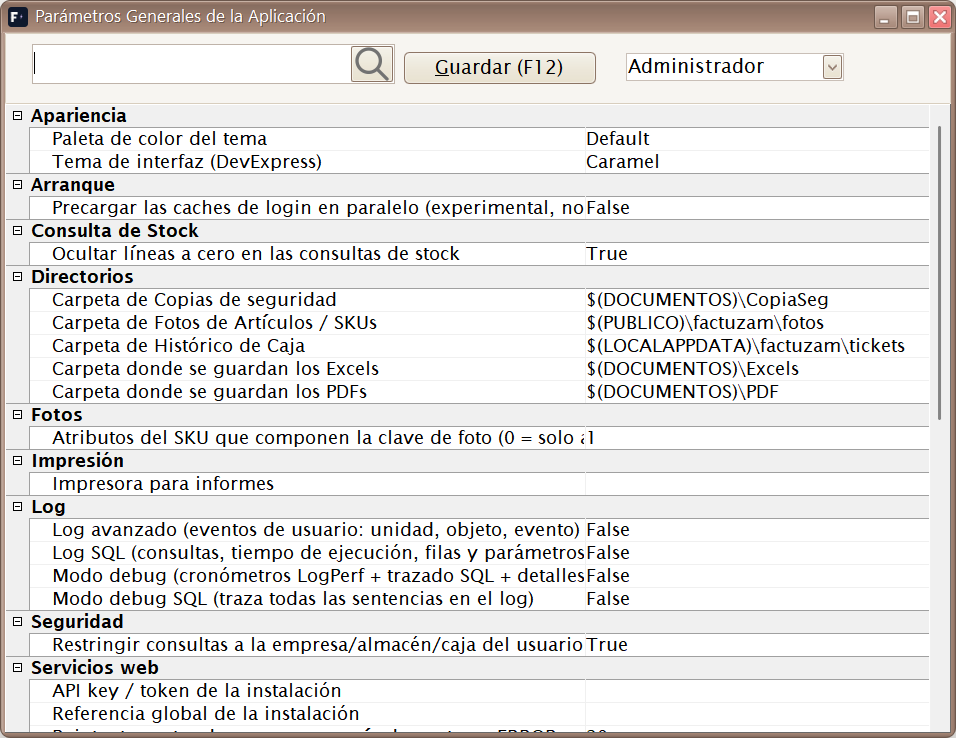
Menu shortcut: [Ctrl]+[F10]
The Parámetros Generales de la Aplicación screen centralises environment
configuration: default behaviour, paths, printing and document options,
default values for the working company, and so on. Each value can be assigned
to a user, a group or Todos.
Common categories:
| Category | Use |
|---|---|
| Directorios / Fotos | Local or shared folder for photographs (appDirFotos) and the number of attributes used in its key. |
| Servicios web | URL (appApiUrl), credential (appApiToken) and installation reference (appApiReferencia) shared by photographs, email, sales, SIF and stock counts; also the sales queue cycle and maximum number of attempts. |
| Verifactu | Tax mode, environment, SIF details, queue cycle, URLs and signature/clock parameters. |
| PrestaShop | API connection, shop, company, price list, queue, family levels and the Sincronizar stock y precios, Crear artículos en PrestaShop al darlos de alta, Activar artículos en PrestaShop al marcar En web and Hacer barrido periódicamente checkboxes. |
| Apariencia | Interface theme, colour palette and language. |
| Caja | Default POS values and cash-counting behaviour. |
The effective value is resolved through inheritance: first the user's own value, then that of their group, and finally that of Todos. A more specific value replaces the more general one. This makes it possible, for example, for two groups to work with different companies, warehouses and PrestaShop shops. Each session handles only the configuration effective for its user.
The API key is hidden from users who are not root administrators. The four
checkboxes are cleared initially and are independent. Sincronizar stock y
precios authorises updates to existing products found by an exact and unique
reference. Crear artículos en PrestaShop al darlos de alta requests the
complete creation process when no such match exists. Creation always starts by
creating the product with active=0. Activar artículos en PrestaShop al
marcar En web (appPrestaShopActivarArticulosAlMarcarWeb) authorises its
activation only at the end of a successful creation or synchronisation started
when En web changes from No to Sí; its initial value is False. Hacer
barrido periódicamente enables full reconciliation every few hours; even
when it is cleared, pending work continues to be recovered every 60–120
seconds.
Niveles de familia a crear (0 = todos)
(appPrestaShopNivelesFamiliaAlta) is an inheritable integer whose initial
value is 0. With 0, the entire local hierarchy is exported; with a positive
value, that number of levels is retained, counted from the leaf family, and
they are created in root → leaf order. The root category configured in
PrestaShop does not count as a local level. In DEMO-CAMISA, whose only
local family is ROPA, only that level is exported with any permitted
value.
Before enabling the integration, follow the integration checklist.
Language and translations
Language selection is not a separate menu option. Its exact path is
Otros ▸ Parámetros del entorno ▸ Apariencia ▸ Idioma de la interfaz.
The appIdioma parameter always offers Spanish (es-ES), British English
(en-GB), Catalan (ca-ES) and Simplified Chinese (zh-CN), as well as any
active languages held in the database. qps-ploc is reserved for layout
testing.
To change it:
- Select the user, group or scope to which the parameter will apply.
- Open Apariencia ▸ Idioma de la interfaz.
- Choose the language. For
en-GB,ca-ESorzh-CN, Factuzam opens the Descargar traducción dialogue. If the package is already installed, it is reused; otherwise, Factuzam retrieves it from the configured service by usingappApiUrlandappApiToken. - Wait for the check to finish and select Guardar (F12). Open windows are updated at that point; close and reopen Factuzam to apply the change fully to the entire session.
The download requires a connection to the Factuzam service and a token with
the descargar:traducciones scope. The authenticated ZIP is installed only
after its language, contract version, SQL order and sizes, and the declared
SHA-256 fingerprint of each file have been checked. Once the schema has been
prepared, the data SQL files are installed in a transaction. If the download,
validation or installation fails, the previous language and value are kept.
The language applies to forms, menus, messages, Developer Express controls, tickets and translated FastReport reports. If a key is missing, a language is inactive or the database cannot be queried, the compiled Spanish text is kept as a fallback; a missing translation never leaves the screen blank.
qps-ploclengthens and marks text so that developers can detect truncated labels. It is not a language for production use.
Translation catalogue administration
Translations are held in the central fza_traducciones catalogue. The
standalone Editor de traducciones (utlTraduc) utility allows the
administrator to:
- Connect using the Factuzam INI file.
- Synchronise the Spanish texts known to the executable.
- Choose a language and show either all keys or only pending ones.
- Edit and save translations while preserving placeholders such as
%sand%d.
The editor also accepts a new tag, such as fr-FR, without changing the
executable. Changes are saved transactionally and audited. Text entered
manually by the user in a custom report format is not translated
automatically.
Grupos de IVA
Menu shortcut: [Ctrl]+[O]
Defines groups of VAT rates (VAT areas/regimes). It is used to associate companies, customers and items with the set of tax rates that applies to them (for example, mainland Spanish VAT as opposed to other regimes).
Impuesto IVA
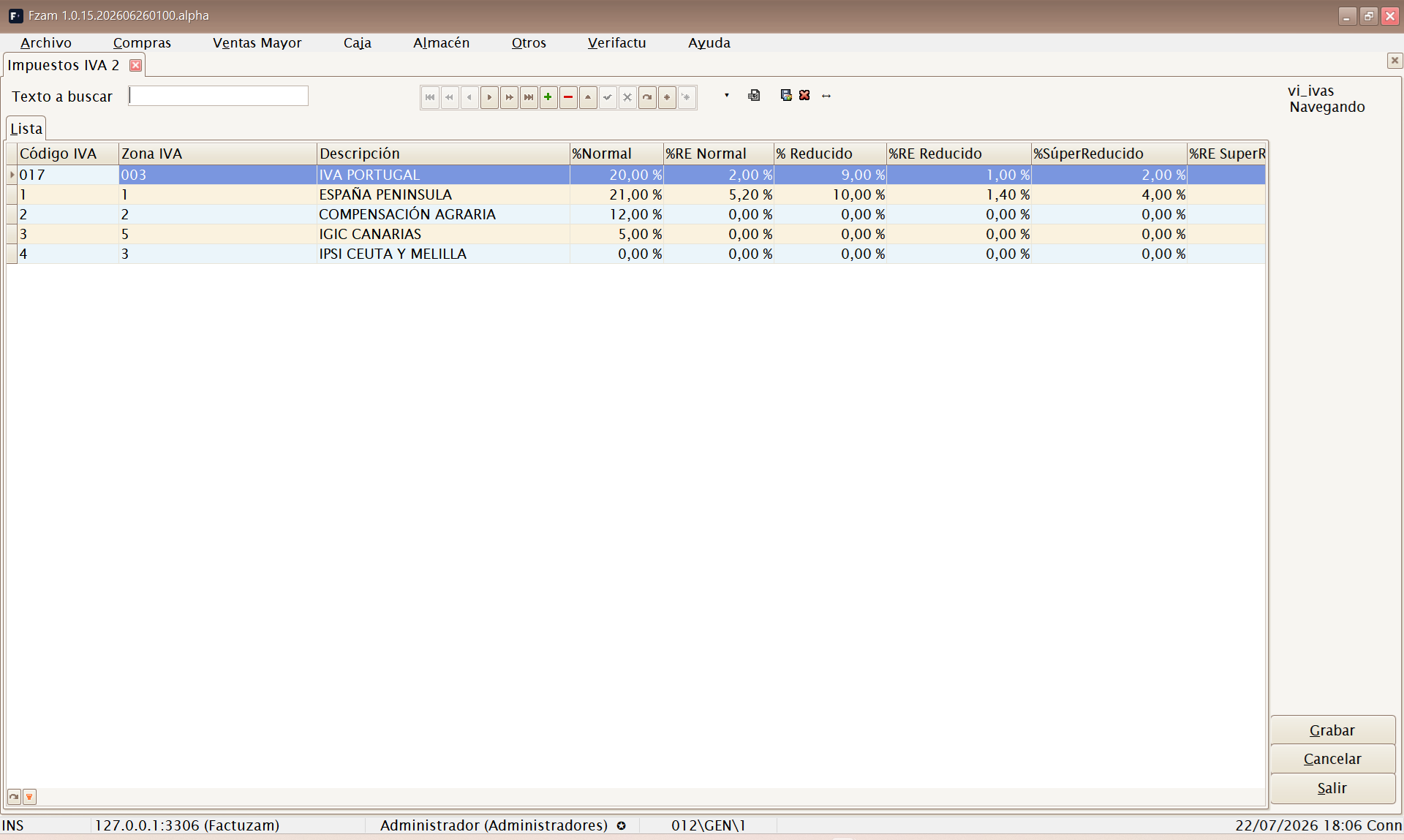
Menu shortcut: [Ctrl]+[I]
Maintains the specific VAT rates and their percentages (standard, reduced, super-reduced and so on), together with the equivalence surcharge associated with each one. This is the basis for tax calculations in purchases and sales.
VAT percentages are set by law. Do not change them unless the law changes; an incorrectly configured rate affects all invoicing.
Contadores
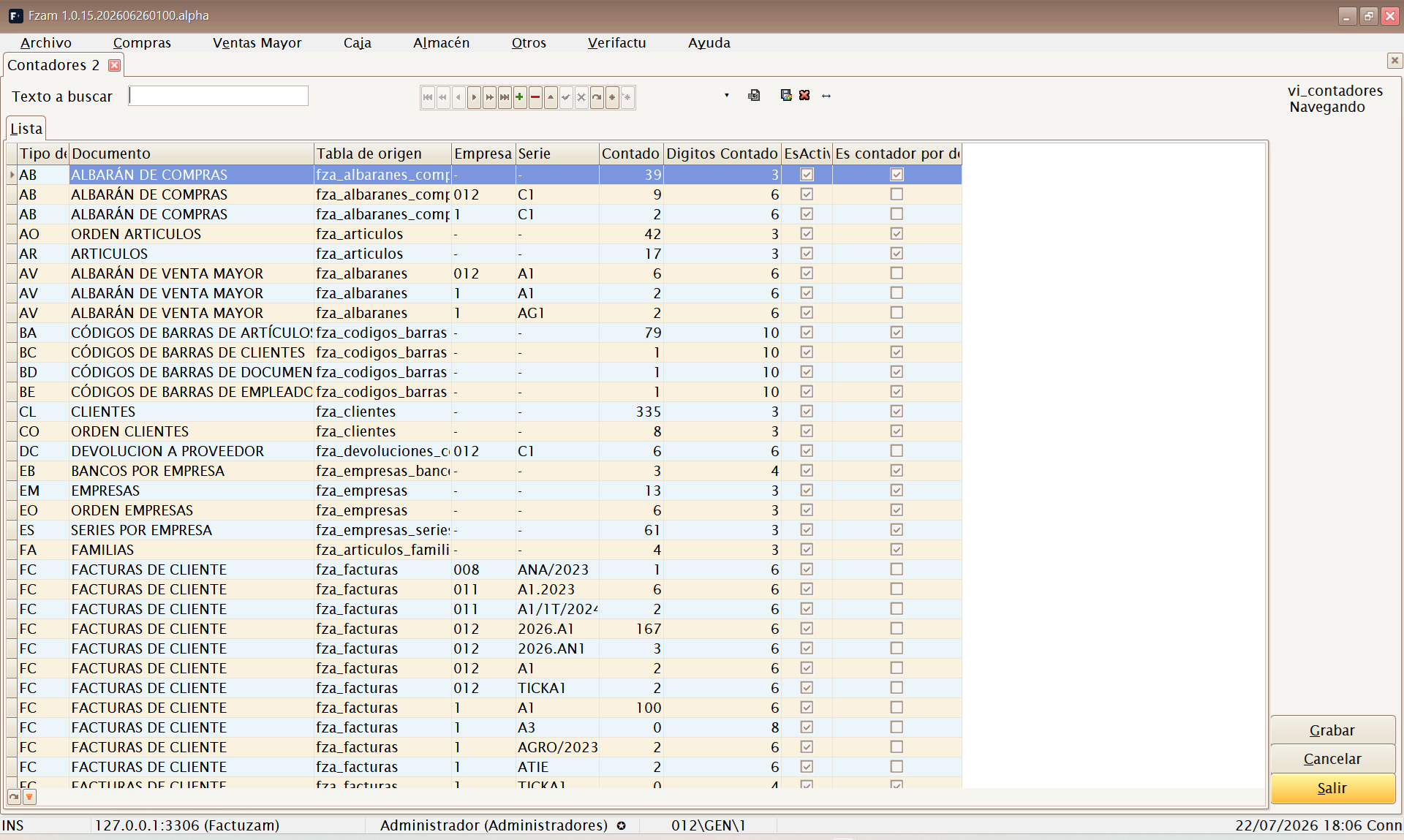
Menu shortcut: [Ctrl]+[R]
Manages document numbering counters (invoices, delivery notes, orders and so on) by series and company. Each document takes its sequential number from the corresponding counter.
Invoice numbers must be sequential and have no gaps to meet legal requirements. Do not move invoicing counters backwards or reuse them.
Formas de pago documentos
Catalogue of payment methods that apply to purchase and wholesale sales documents (cash, bank transfer, bills due after a specified number of days, and so on). It defines due dates and collection/payment behaviour for invoices, orders and delivery notes.
Main fields:
| Field | Purpose |
|---|---|
| Número de plazos | Number of due dates generated when effects or receipts are created. |
| Días entre plazos | Interval between due dates. |
| % Adelanto | Portion collected or paid in advance. |
| Ver Banco Empresa en Borrador | Shows the company bank selector when collections or payments are generated. |
| Código Facturae | Official PaymentMeans code (01 to 19) used when issuing an eDoc. |
Subtabs: Más Datos, Ventas (use in sales) and Otros.
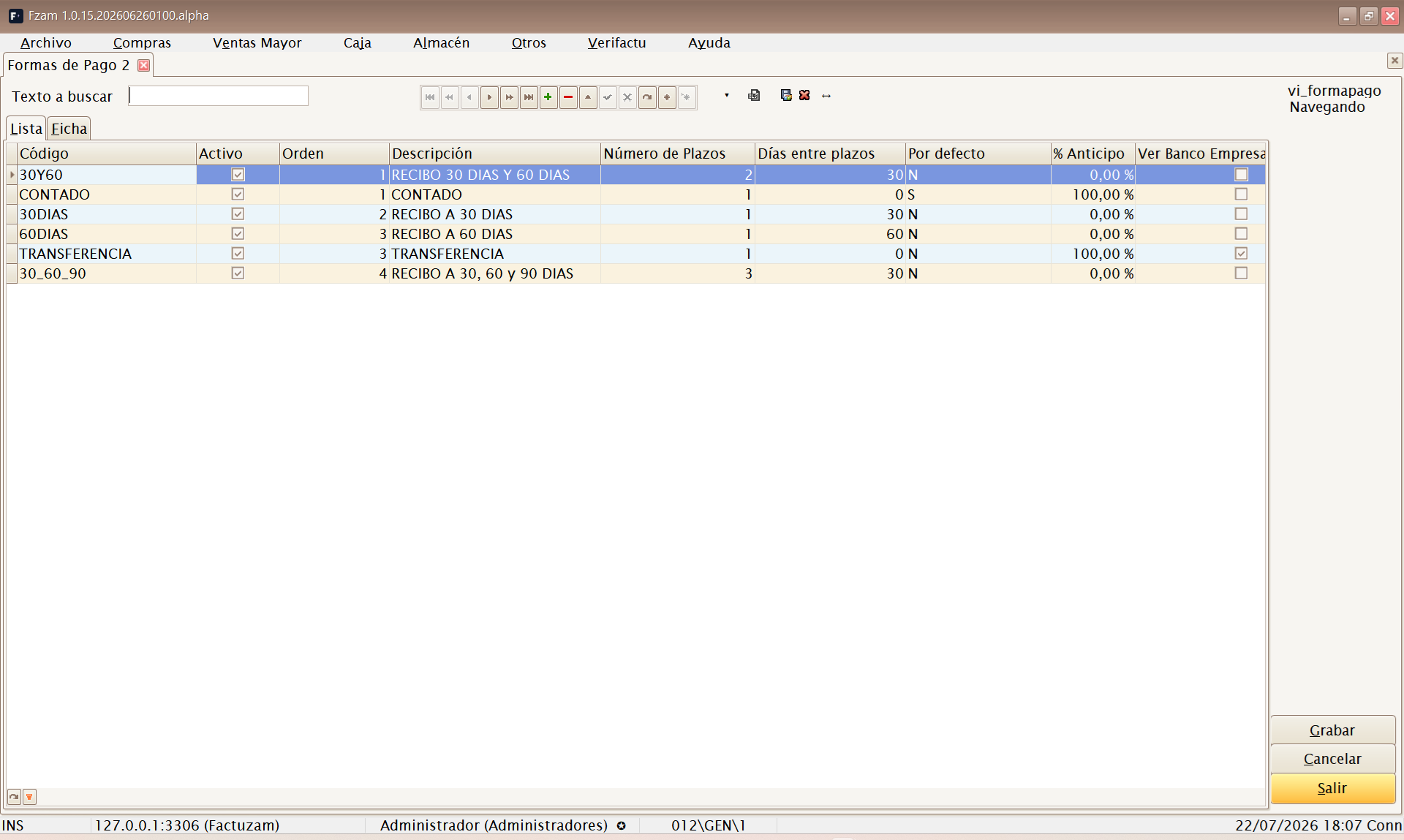
Menu shortcut: [Shift]+[Ctrl]+[G]
This is not the same maintenance screen as Formas de Pago Caja, which configures POS payment buttons and types.
Usuarios, Grupos y Perfiles
Security submenu. It defines who can enter the application and what they can do.
Usuarios
Menu shortcut: [Ctrl]+[H]
Creates and maintains the users who access Factuzam (those who enter credentials at login). This includes their password, status and the profile/group that determines their permissions.
Empleados
(No menu shortcut; open it from the menu.)
Records the business's employees (personnel details). An employee can be linked to users and till operations so that it is possible to identify who made each sale.
Grupos
Menu shortcut: [Ctrl]+[J]
User groups are used to assign permissions in bulk (for example, Cajeros, Administración and Encargados). A user inherits the permissions of their group.
Perfiles
Menu shortcut: [Ctrl]+[W]
Configuration profiles customise the appearance and behaviour of screens (visible columns, captions and options) for a user or group.
Permisos
Menu shortcut: [Ctrl]+[Q]
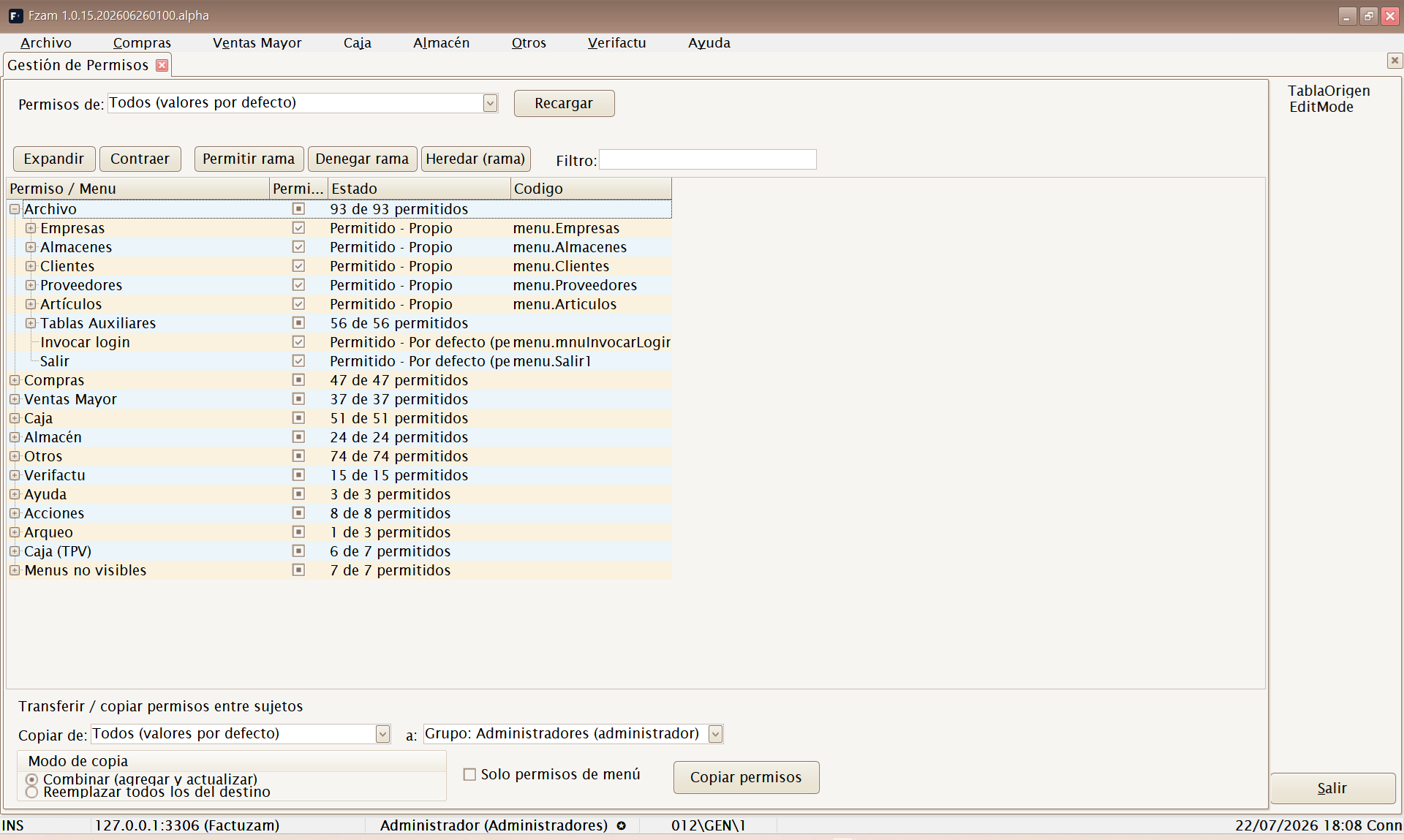
The Gestión de Permisos screen presents a tree that enables or disables, by group/user, access to every application menu and action. This is the recommended way to configure security visually.
The tree mirrors the application's actual menu and supports:
- Todos, group or user.
- Allowing, denying or inheriting an entire branch.
- Copying permissions from one subject to another, either merging or replacing them.
- Managing menu permissions and screen permissions: view, insert, edit, delete, export to Excel and print.
Under Artículos ▸ Activar/desactivar web, the specific permission controls who can change the En web checkbox on the item record. If the user has not been granted that permission, the checkbox is read-only and saving cannot alter that setting.
When an authorised user clears En web, Factuzam asks what to do: Sí deactivates the product in PrestaShop and stops synchronising it; No only stops synchronisation and keeps its remote status; Cancelar does not save the change. When En web is selected, remote activation depends on the inheritable Activar artículos en PrestaShop al marcar En web parameter and, when authorised, runs only at the end of a successful process.
Permission changes take effect the next time the affected user signs in.
Permisos (tabla)
(No menu shortcut; open it from the menu.)
The same permission information presented in table format (a grid), for bulk editing or a quick review of many permissions at once.
Colas de envíos
The Otros ▸ Colas de envíos path brings together monitoring of all three integrations in one place:
Verifactu
Path: Otros ▸ Colas de envíos ▸ Verifactu
Shows tax communications that are pending, being processed, sent or in error. Its use and authorised reprocessing are explained in the Verifactu chapter · Cola de envíos.
PrestaShop
Path: Otros ▸ Colas de envíos ▸ PrestaShop
Shows catalogue jobs that are pending, processed or in error, together with the HTTP history of each attempt. This is a read-only diagnostic screen: it does not modify or retry jobs. See the operational details under PrestaShop integration ▸ Monitoring window.
Web Service Fzam
Path: Otros ▸ Colas de envíos ▸ Web Service Fzam
This queue publishes a complete copy of sales changes in the background for services such as VentasFzam. It is not the Verifactu tax queue, and waiting for the service or a network outage does not stop collection at the POS.
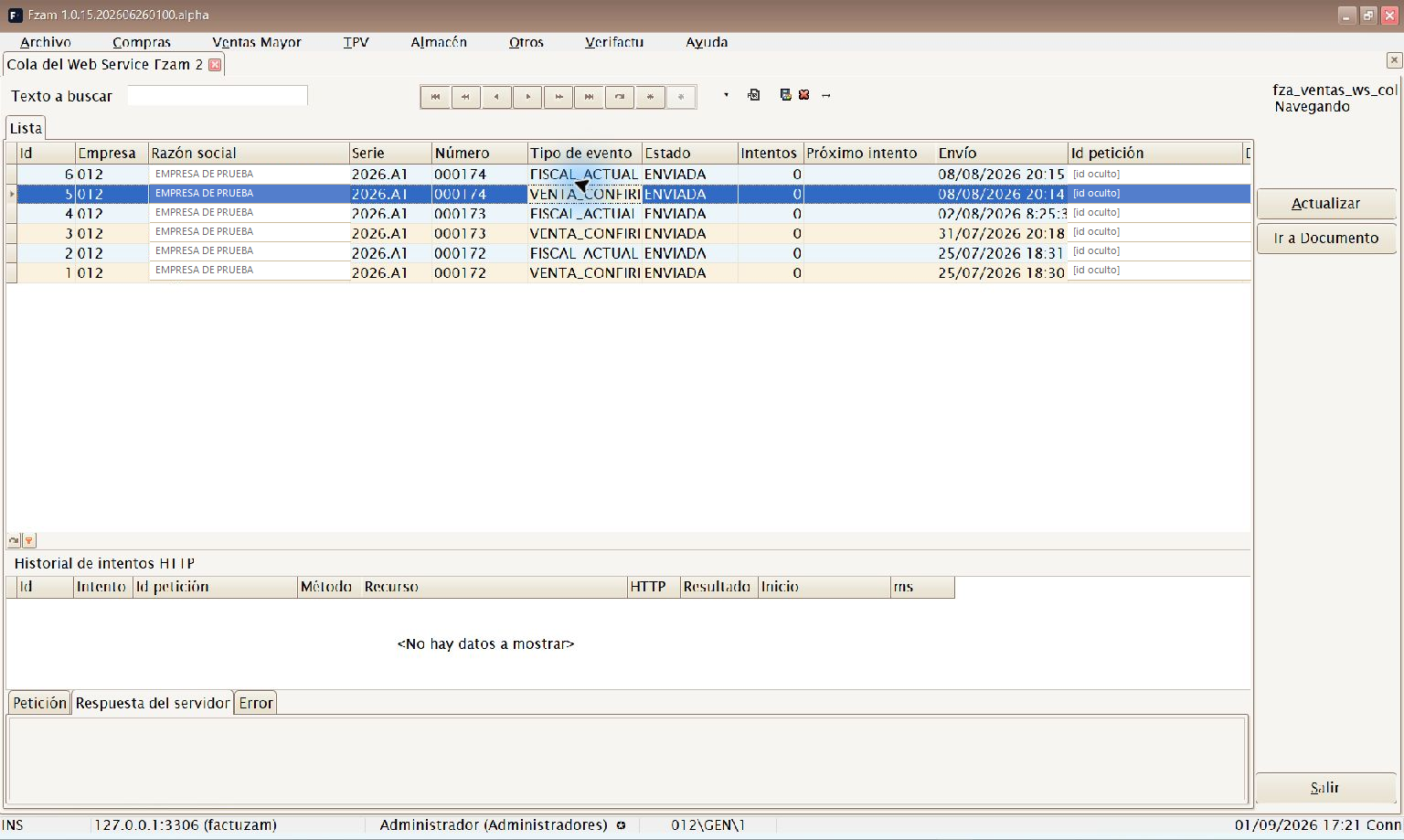
Sales events by document, status and attempt count, with access to their HTTP history.
The event types shown can include:
| Event | Meaning |
|---|---|
VENTA_CONFIRMADA | Creation or confirmation of a sale. |
VENTA_ANULADA | Cancellation of the sale. |
VENTA_SUSTITUIDA | Replacement by another document. |
VENTA_REABIERTA | Controlled reopening of a sale. |
FISCAL_ACTUALIZADO | Subsequent change to its tax information. |
TICKET_PDF_ACTUALIZADO | Addition or update of the ticket PDF. |
FACTURA_PDF_ACTUALIZADO | Addition or update of the invoice PDF. |
The list shows the event, company, series and number, type, status, attempts, next attempt, sending date, request identifier and latest error. The statuses are:
| Status | Meaning |
|---|---|
| PENDIENTE | Waiting for the next cycle or the next-attempt date. |
| PROCESANDO | An application process has reserved the event for sending. |
| ENVIADA | The service accepted the event and returned a successful result. |
| ERROR | The configured maximum number of attempts has been exhausted. |
When a row is selected, the lower panel shows all its HTTP attempts: method, resource, HTTP status, result, duration and request identifier. The Petición, Respuesta del servidor and Error tabs show the recorded content; credentials and sensitive binary content are omitted from the history.
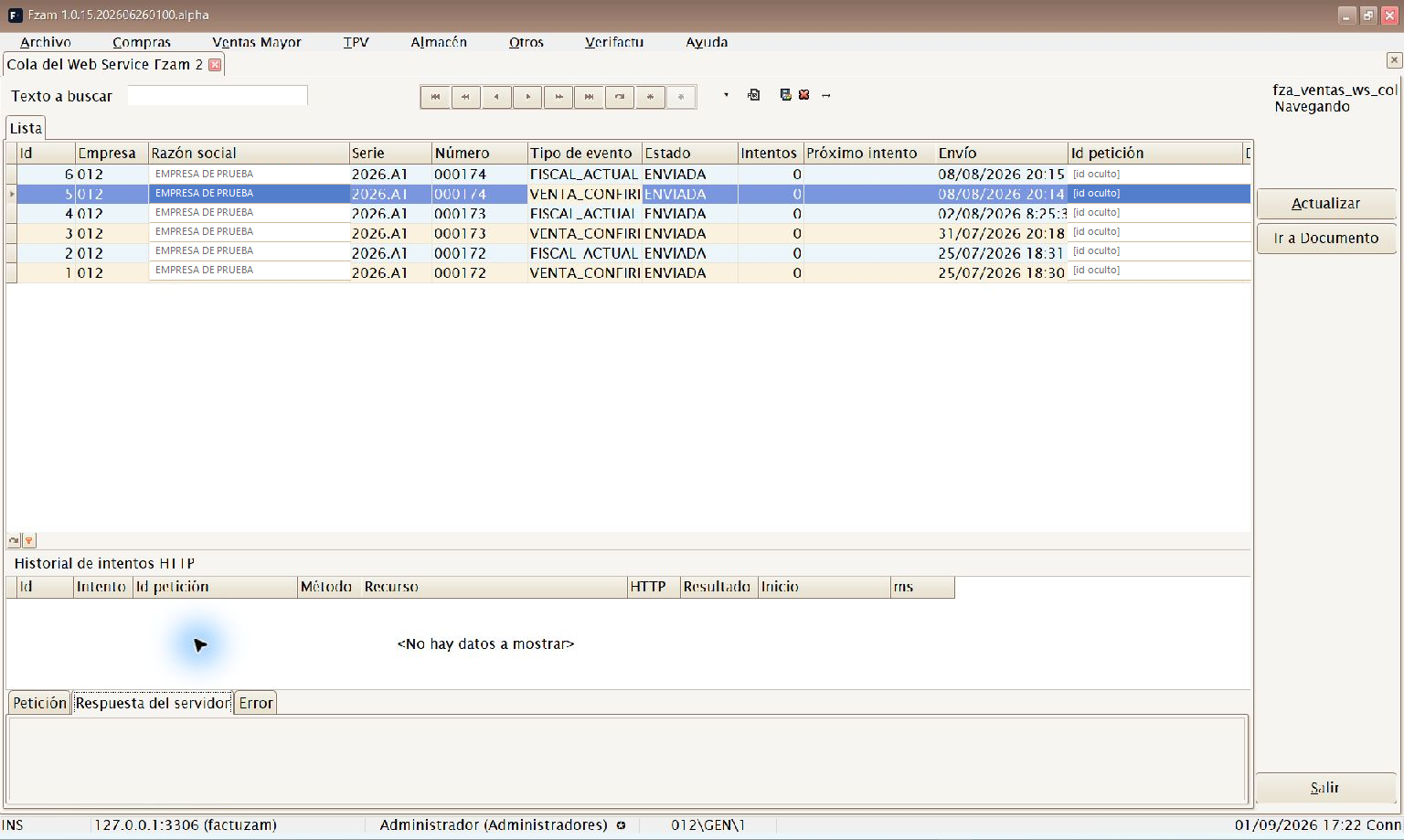
The HTTP detail tabs, including Respuesta del servidor, may show no data if the selected row has no recorded attempts.
- Actualizar reloads the queue and its history; it does not force a send.
- Ir a Documento opens the associated invoice or simplified draft.
The window is read-only: rows cannot be inserted, modified, deleted or
retried. The VentasWsCola.consultar, VentasWsCola.excel and
VentasWsCola.detalle permissions respectively control access, export and the
request/response view. An administrator sees all companies; other users see
only the company in their session. If there is no effective company, the query
returns no rows.
Cycle, retries and recovery
By default, the process checks the queue every 60 seconds
(appVentasWsSegundosCiclo; minimum 5 seconds) and tries up to 20 times
(appVentasWsMaxIntentos). After a failure, it leaves the row in PENDIENTE
and applies an exponential delay of 1, 2, 4, 8, 16, 32 and 64 minutes, with a
maximum of 64 minutes for subsequent attempts. Once the limit is exhausted,
the row changes to ERROR.
If the application is interrupted with a row in PROCESANDO, it recovers the
row as PENDIENTE after it has remained locked for more than ten minutes.
After a network or configuration issue has been corrected, rows that remain in
PENDIENTE continue automatically at their next attempt. A row already
exhausted in ERROR cannot be queued again from this window: it must be
reviewed by the administrator or support.
Required configuration
Under Otros ▸ Parámetros del entorno ▸ Servicios web, the following must have values:
appApiUrl: general web service URL.appApiToken: API key or installation token.appApiReferencia: global installation reference.
In addition, enable Enviar ventas completas al webservice de respaldo
(vgerEnviarVentasWS) under TPV ▸ Parámetros de Caja ▸ Servicios web.
Its initial value is False; no new events are created when it is disabled.
Events already in the queue continue through their cycle until they finish or
exhaust their attempts. See how to set up the mobile application under
VentasFzam.
Hacer Copia de Seguridad
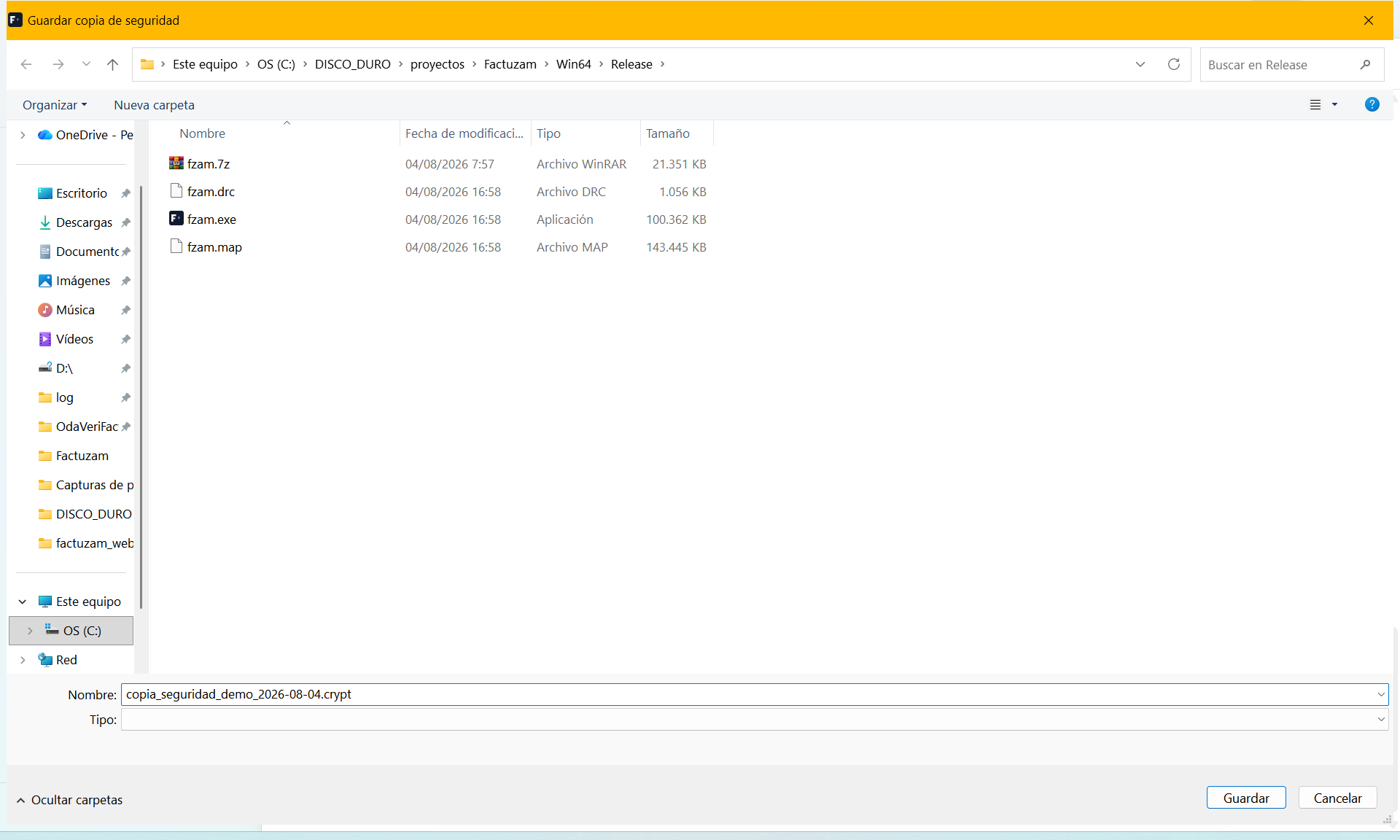
Menu shortcut: [Ctrl]+[Y]
Starts a database backup. It creates a backup file containing operational
data (customers, items, documents, stock and so on). In fza_traducciones, it
includes only the languages installed from a downloadable package. Compiled
Spanish and working catalogues are not duplicated; if you maintain your own
language with utlTraduc, also keep its SQL or a separate administrative
export.
Make backups regularly and store them in a secure place away from the computer. They are your only safety net in the event of a disk failure or accidental deletion.
Recuperar Copia de Seguridad
Menu shortcut: [Ctrl]+[Z]
Allows you to restore the database from a backup file or run a maintenance script against the database.
⚠️ Sensitive operation. Restoring a backup overwrites the current data. Make sure you select the correct file and that nobody is working. If in doubt, back up the current state first.
Generador de Procesos
Menu shortcut: [Ctrl]+[G]
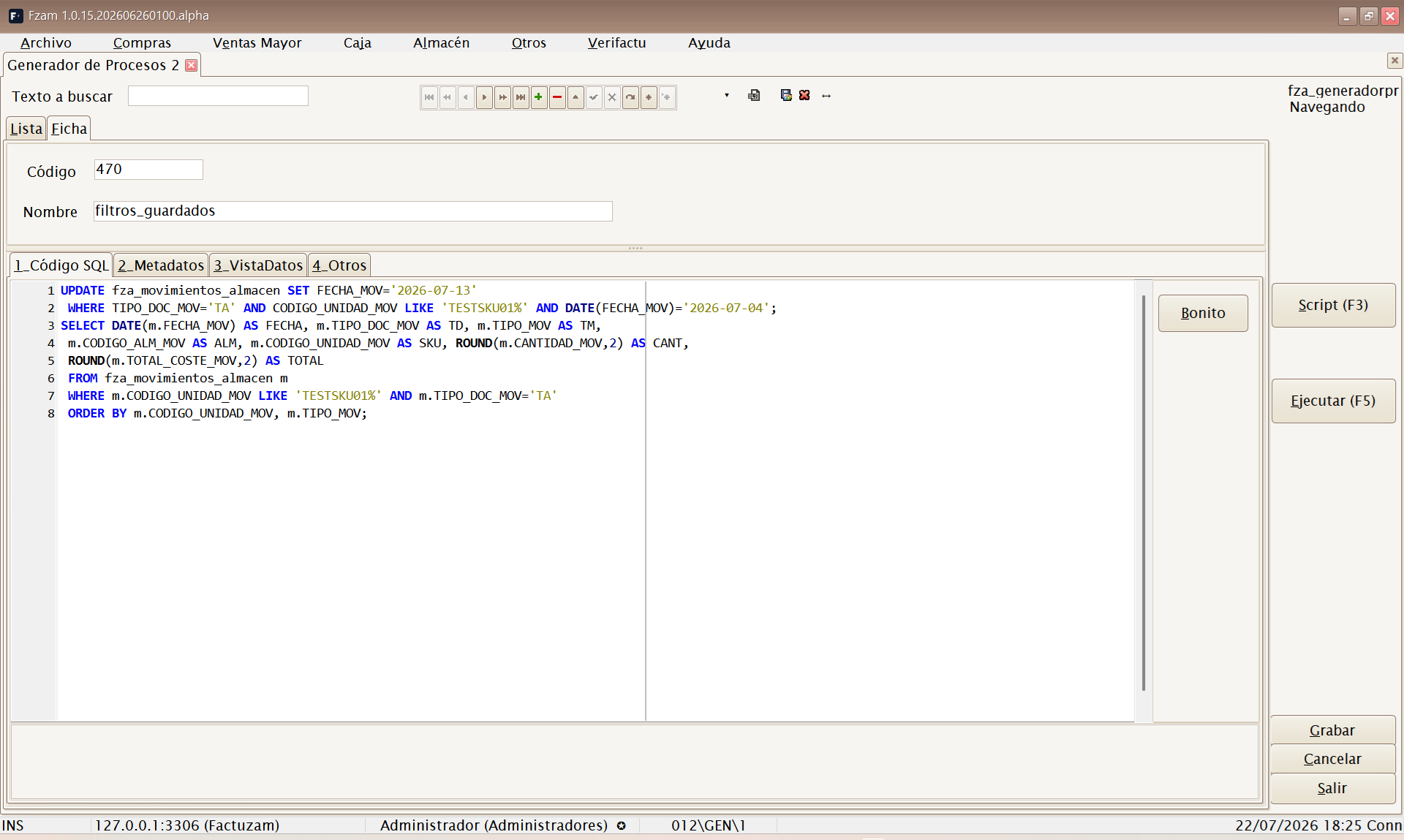
An advanced tool for administrators. It can be used to write, save and run SQL processes against the database—from a custom report that is not available in the menus to a bulk correction of data or a call to a stored procedure.
Each process is saved as another record (with Código and Nombre de proceso), so commonly used reports form a reusable library: find them in the Lista, open them and run them again.
Screen tabs
| Tab | Contents |
|---|---|
| 1_Código SQL | Syntax-highlighted SQL editor in which the process is written. The Bonito button reformats/indents the statement. |
| 2_Metadatos | Tree containing database objects (tables, views and procedures) to assist with writing. It contains the Estructura Metadato (object DDL) and Vista Contenido (object data) subtabs. |
| 3_VistaDatos | Grid containing the result of the last execution. |
| 4_Otros | Process audit information (who created/modified it and when). |
Main buttons: Ejecutar (F5) and Script (F3) (loads a .sql/.txt
file from disk as a new process, taking its name from the file). The editor's
context menu also provides Seleccionar Todo, Ejecutar, Comentar and
Abrir Script.
Producing a report
- Select Insertar registro and give the process a Código and Nombre (for example,
L001 — Ventas por familia). - Write the
SELECT …query in 1_Código SQL. Useful features:- The tree in 2_Metadatos shows all tables and views; double-click a table/view to show its contents in Vista Contenido, or focus the tree and press
[Ctrl]+[A]to send the object's structure to the editor. - Bonito reformats the SQL to make it readable.
- The tree in 2_Metadatos shows all tables and views; double-click a table/view to show its contents in Vista Contenido, or focus the tree and press
- Select Ejecutar (F5):
- If text is selected in the editor, only the selection is run; otherwise, the entire contents are run.
- The result opens in 3_VistaDatos, with the record count and execution time in the results panel.
- Work with the result in the grid (sort, group and filter it), then output it with Exp. Excel (exports to Excel) or Copiar Datos (copies it to the clipboard).
- Select Grabar to retain the process and repeat the report whenever required.
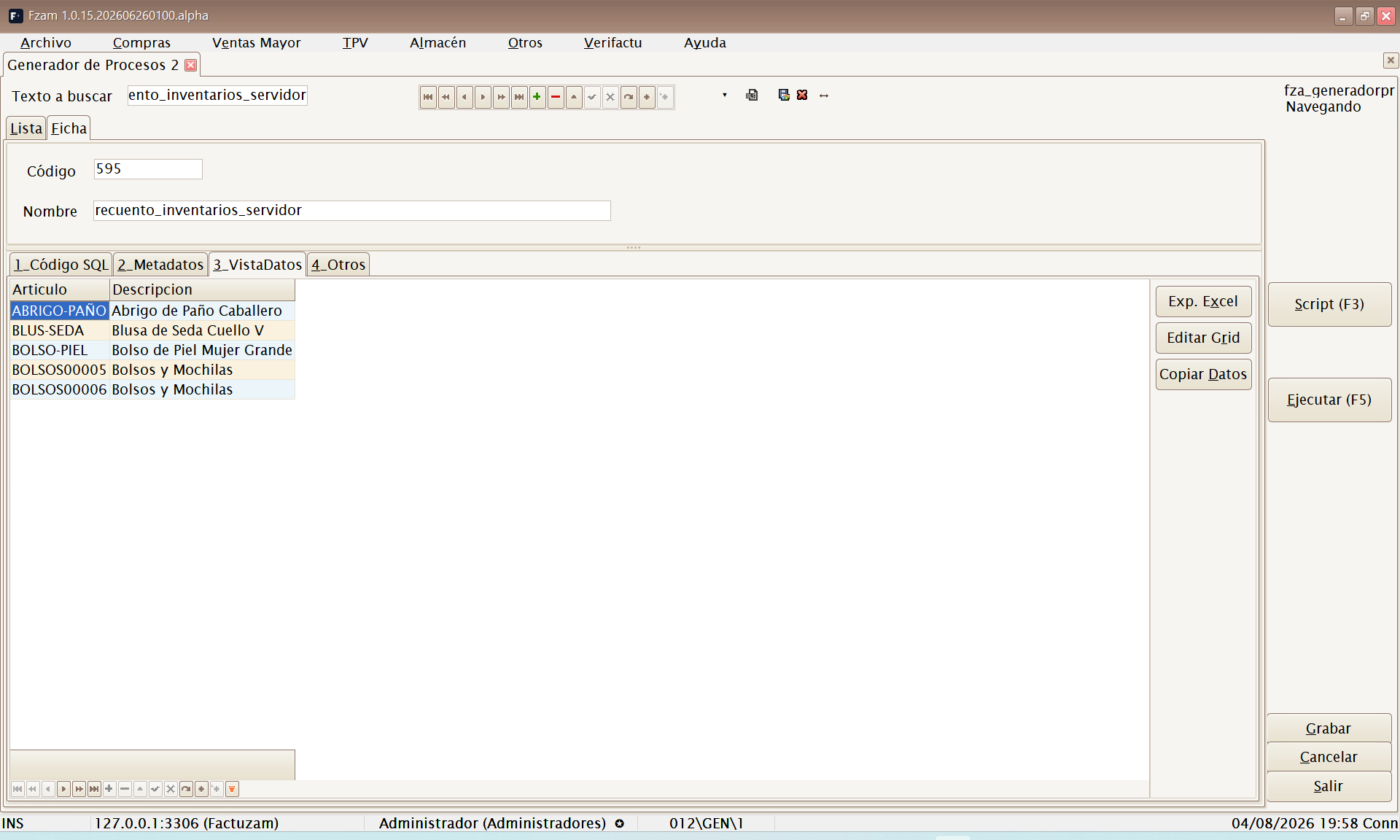
The Editar Grid button enables direct editing of the result in the database. This is useful for one-off corrections, but it modifies real data: use it with the same caution as an UPDATE.
Running a process (commands and procedures)
- Commands (
UPDATE,INSERT,DELETEand so on) are written in the same way and run with Ejecutar (F5). Instead of a grid, the results panel shows the affected rows and elapsed time. - Stored procedures: in the 2_Metadatos tree, double-click the procedure. The application generates a
CALL procedimiento(…)template in the editor with its parameters commented out (the name and type of each one). Replace the comments with values and select Ejecutar (F5). If the procedure returns rows, they are shown in VistaDatos; otherwise, it is reported as a command. - Several statements at once: if the editor contains several statements separated by
;, each is run in its own result tab (one grid per query and one affected-row record per command). - Run in sections: select a particular statement and press F5 to run only that section—the safest way to test a long process step by step.
Intended for technical users. An incorrectly written statement can modify or delete data: make a backup before running a bulk process, first test with a
SELECTthat shows the rows you are about to affect, and run a selection before running the entire script.
Procesos auxiliares BBDD
Path: Otros ▸ Procesos auxiliares BBDD
A technical tool for inspecting database metadata. The current list shows the catalogue tables and allows their Estructura SQL and contents to be viewed; double-clicking opens the records in the active table.
| Action | Result |
|---|---|
| Refrescar metadatos | Reads the current database catalogue again. |
| Ver contenido | Opens the records in the selected table in a grid. |
| Copiar SQL | Copies the displayed SQL structure to the clipboard. |
| Exportar a Excel | Exports the open contents. |
| Editar datos / Bloquear edición | Enables or locks direct grid editing again. |
This option is for authorised technical users. Editar datos acts directly on the real database and also allows records to be created and deleted: make a backup and avoid using it for day-to-day work.