05 · TPV menu
The TPV menu is the point of sale for in-store retail: collecting payment from counter customers, issuing receipts/simplified invoices, managing till cash and reconciling it (cash count).
Menu structure:
TPV
├── Menú de Caja
├── Listados
│   └── Listado de operaciones de venta
├── Parámetros de Caja
├── Formas de Pago Caja
├── Depósitos de Clientes
├── Histórico de Pagos de Caja
├── Histórico de Vales
├── Histórico de Operaciones
├── Histórico de Arqueos
├── Histórico de Solicitudes de Traspaso
├── Borradores Simplificados
└── Facturas proforma
Working through a till day
A normal shop day follows this sequence:
- Open TPV ▸ Menú de Caja and select the company, warehouse and physical till for the workstation.
- Check the Fecha de Caja. If recording an earlier day, change it before making sales.
- Record Entrada de Cambio (F6) when adding opening cash or extra notes and coins.
- Sell under Ventas (F5), collect with F12, and issue the appropriate receipt or draft.
- Record expenses, withdrawals, transfers and returns during the day.
- At closing, open Arqueo (F11), count cash and other payment methods, save the cash count and print its evidence.
The till separates three concepts that should not be confused:
| Concept | Meaning | Where to review it |
|---|---|---|
| Operación de caja | Record of what occurred at the POS: sale, return, expense, receipt, transfer or cash count. | Buscar / Modificar and Histórico de Operaciones. |
| Pago de caja | Financial movement associated with an operation: cash, card, voucher, currency, crypto or credit. | Collection phase and Histórico de Pagos. |
| Documento fiscal | Receipt/simplified draft or standard draft supporting the sale. | Borradores Simplificados and sales Facturas/Borradores. |
To prevent discrepancies, a sales operation is not complete until the collection phase is validated. Returning with Esc from collection leaves the receipt open and saves nothing.
Listados
Listado de operaciones de venta
Path: TPV ▸ Listados ▸ Listado de operaciones de venta
Generates a landscape A4 report detailing POS sales. The form proposes a period from 1 January of the current year to today and displays the active company, warehouse and till for the session.
When the user is not restricted by appRestringirEmpAlmCaja, the Empresas
/ almacenes / cajas tab appears. The active POS is selected initially, and
other locations can be selected to accumulate them in the same report.
Restricted users do not see this tab and can view only their location.
The report includes item, colour (with a swatch of the basic colour defined in Etiquetas), size, supplier, model, description, quantity, gross amount, discount, item net, receipts, salesperson, payment methods and document. Results are ordered by date and operation, with totals by till and date.
Access depends on the profile's menu permission. If TPV ▸ Listados does not appear, the administrator must enable it in the profile. The Histórico de Operaciones can be used as an on-screen enquiry, but does not replace the A4 report.
Menú de Caja
Menu shortcut: [F5]
This is the main POS screen, designed for fast keyboard operation at the counter. It displays the Empresa, active till (company/warehouse/till), the day's Fecha de Caja, and the clock.
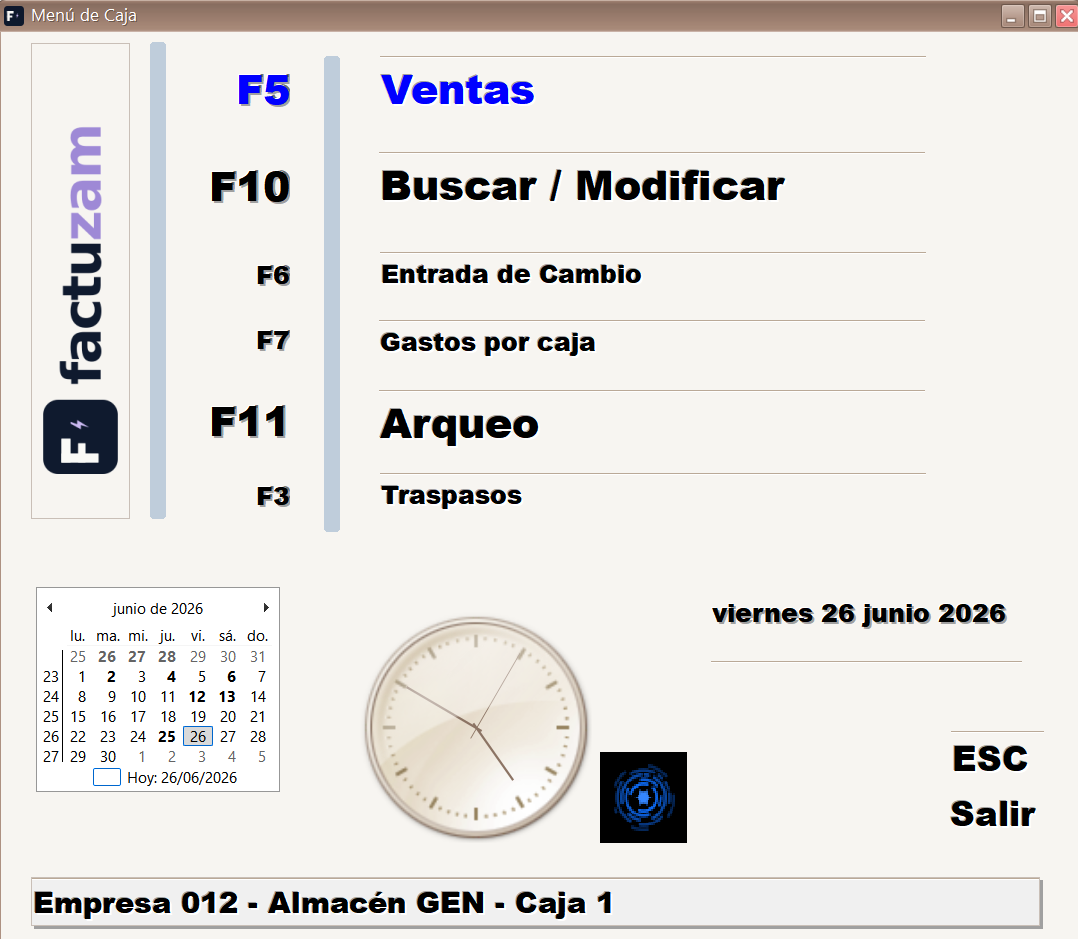
Functions and shortcut keys:
| Key | Function | Description |
|---|---|---|
| F3 | Traspasos | Transfer of goods between warehouses/shops (see below). |
| F5 | Ventas | Sales/collection screen (see below). |
| F6 | Entrada de Cambio | Records opening cash or extra change entering the drawer. |
| F7 | Gastos por caja | Records payments, expenses and cash withdrawals from the till. |
| F10 | Buscar / Modificar | Finds till operations for viewing or correction (see below). |
| F11 | Arqueo | Till closure and reconciliation (see below). |
| — | Fecha de Caja | Sets/changes the working date. |
| Esc | Salir | Closes the POS and returns to the main window. |
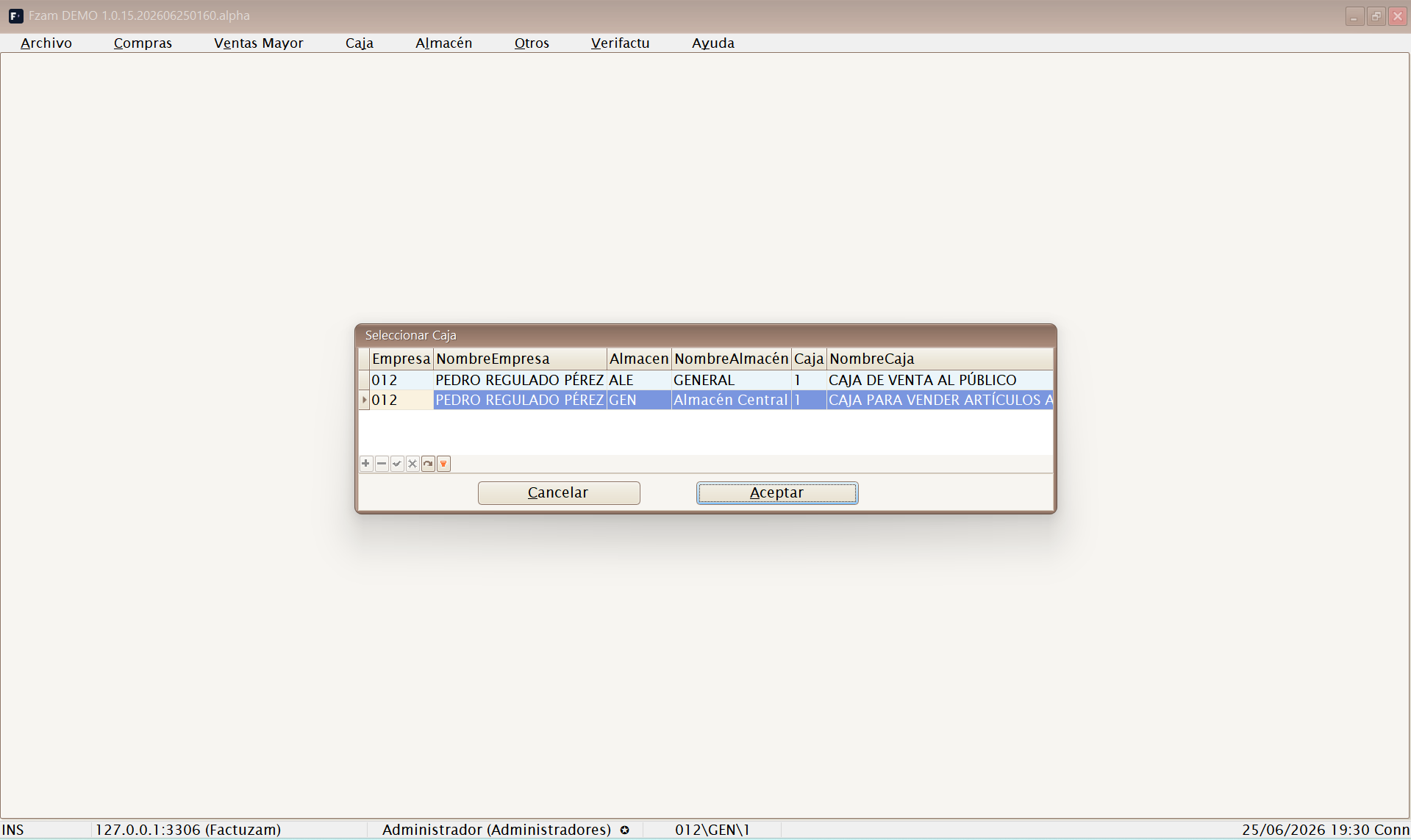
The POS is designed so that a shop assistant can sell, collect and close the till without using other menus. A till must be selected (company + warehouse + till) before operating.
The menu calendar marks days with sales and lets you change the working date. The selected date is carried into sales, transfers, receipts, expenses and cash counts.
Ventas (F5) — the sales screen
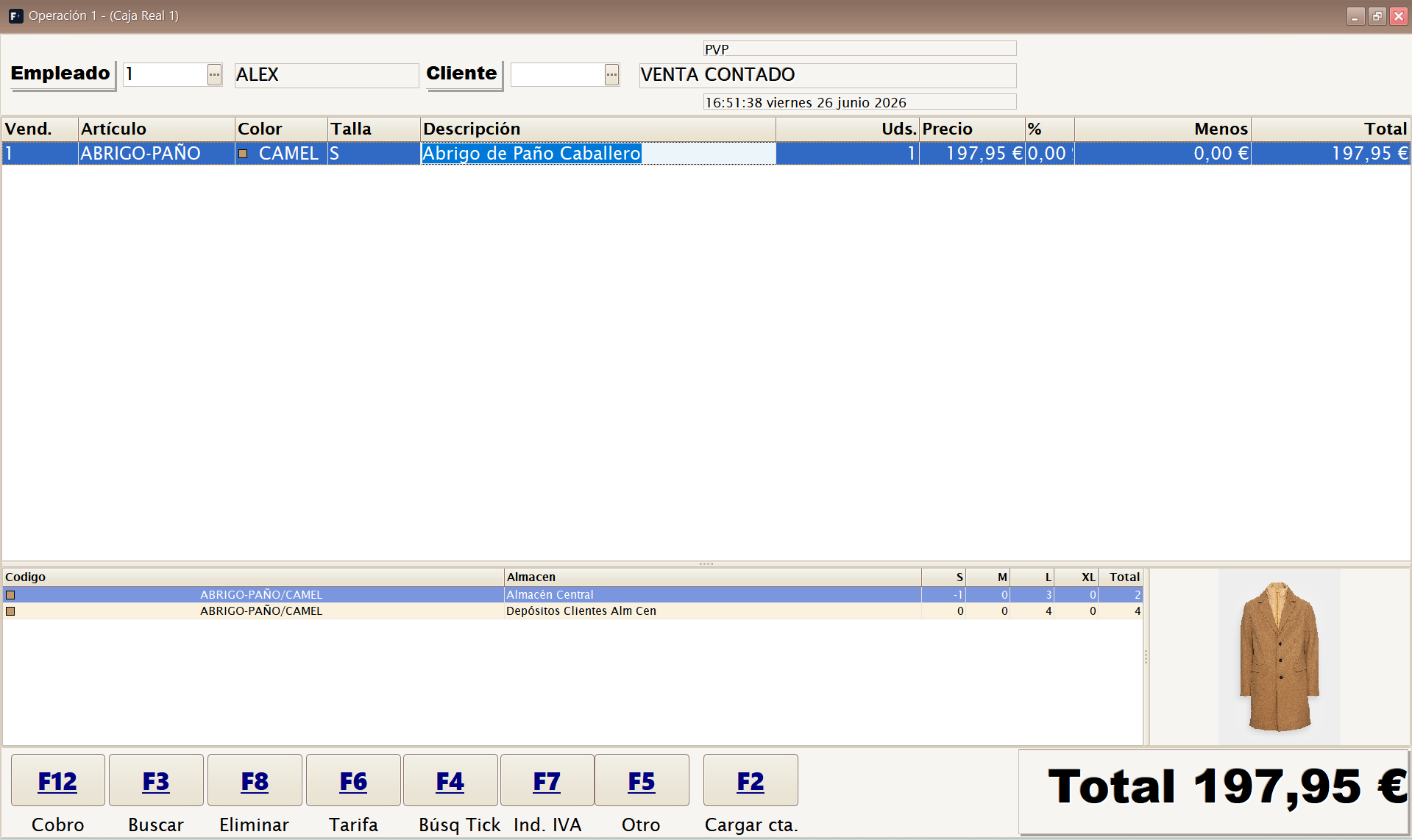
This is where the receipt is created. The Empleado (salesperson) and optional Cliente appear at the top; below them are the sales-line grid and a large Total.
Adding lines:
- Scan the item with the barcode scanner (the screen is optimised for bursts of scanner input).
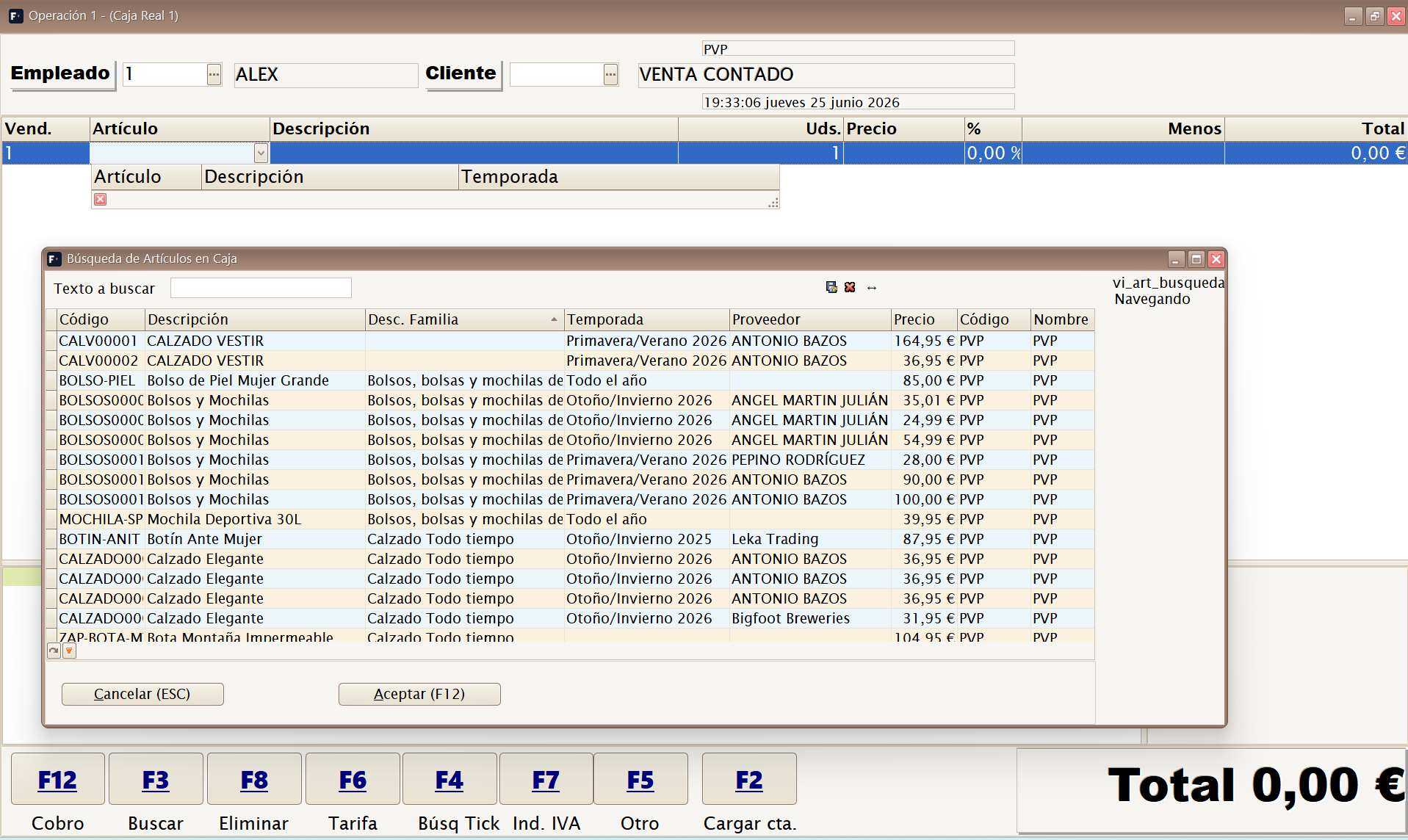
- Find the item manually with Buscar (F3).
Each line shows Vend. (line salesperson), Artículo, Descripción, Color/Talla where applicable, Uds., Precio, % (discount), Menos (discount amount) and Total. If the item has a photograph, it appears in the side stock/photo panel.
Normal sales flow:
- Enter the Empleado. If a default employee is configured, the screen proposes them automatically.
- Enter the Cliente unless this is a cash sale. Counter receipts can keep VENTA CONTADO.
- Scan items or find them with F3. For size/colour items, the POS completes or requests the appropriate SKU.
- Review quantities, discounts and line price if the user has permission to change them.
- Press F12 Cobro when the total is correct.
Customer, account and deposits:
When a customer is assigned, the sales header takes their tax details, price list and terms. When the customer has deposits or reserved garments, F2 Cargar cta. brings their customer account into the sale. It loads:
- One line for every pending reserved garment (with its pending quantity and reservation price), marked for Cobrar.
- One negative «Abono a cuenta» line for every advance payment already made, deducting what the customer has already paid from the total.
The view switches to customer-account mode: the Fecha column (when each garment was reserved) appears and the % and Menos columns are hidden. New garments can still be scanned normally.
Lines originating from deposits have their own rules:
- They cannot be deleted (F8) or replaced by another search (F3).
- Only the quantity sign can change: a negative value marks the garment to cancel the deposit (the garment is not charged and the advance is recovered as a credit during collection); returning it to positive marks it for collection again.
- A receipt containing deposit lines does not allow an overall discount in the collection phase.
With Cargar depósitos automáticamente (
vgerAutoLoadDepositos), the account loads automatically when the customer is selected, without pressing F2 (see Parámetros de Caja).
Several sales at once:
F5 Otro parks the current receipt and opens another operation. This is useful while one customer is still browsing or a garment is being checked and another customer needs attention. Up to 5 simultaneous operations can be kept. Before closing the till menu, the application warns if an operation remains open.
Sales-screen shortcuts:
| Key | Function | Description |
|---|---|---|
| F12 | Cobro | Moves to the receipt collection phase (see below). |
| F3 | Buscar | Finds items to add without a scanner. |
| F4 | Búsq Tick | Finds an earlier receipt (for example, for a return). |
| F5 | Otro | Switches to another parallel operation; up to 5 receipts can remain open at once. |
| F6 | Tarifa | Changes the applied price list. |
| F7 | Ind. IVA | Changes the operation's VAT indicator. |
| F8 | Eliminar | Deletes the selected line. |
| F2 | Cargar cta. | Loads the customer's deposits/account for application. |
| Ctrl+U | Consulta stock | Opens the stock enquiry for the focused line item. |
| Ctrl+E | Búsqueda de datos | Opens the advanced item and SKU search. |
| Ctrl+A | Artículos | Opens the item enquiry. |
| Esc | Salir | Abandons the operation. |
Búsq Tick (F4) locates earlier receipts, for example when preparing a return or reviewing a completed sale.
Collection phase (F12 from Ventas)
After pressing Cobro (F12), the Fase de cobro opens to settle the receipt:
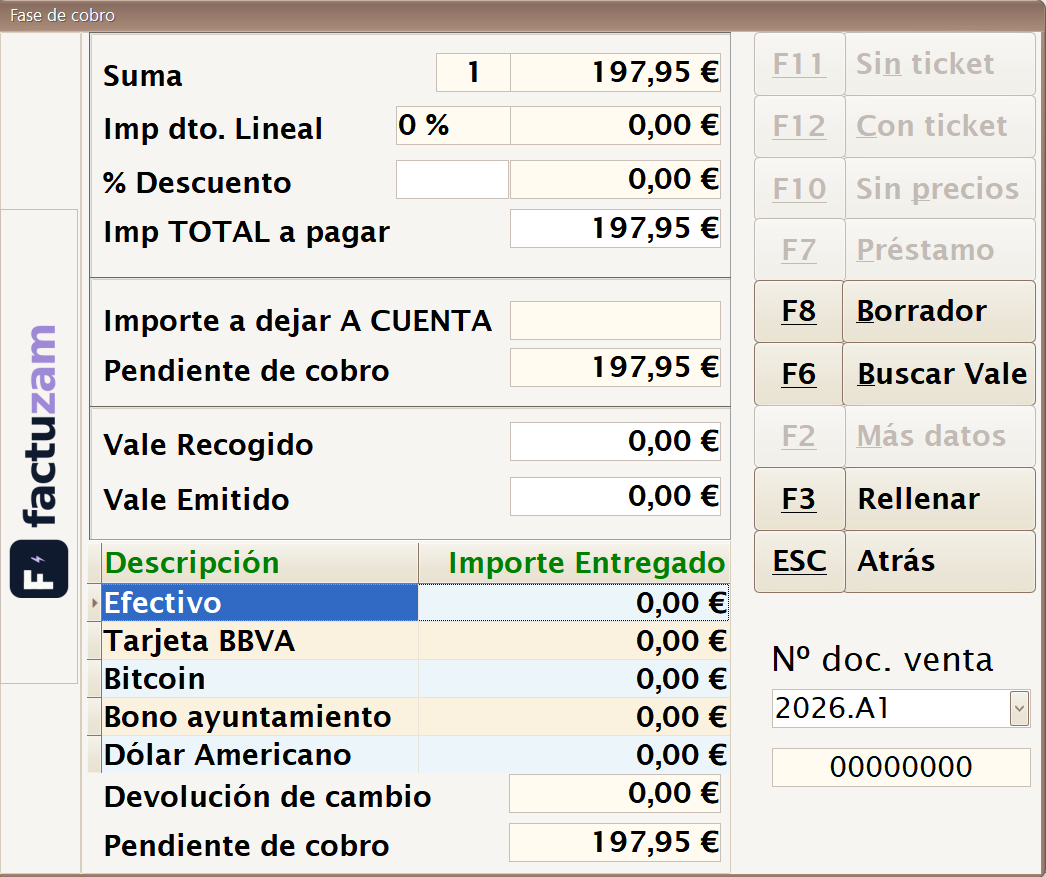
Amounts area:
- Imp. TOTAL a pagar, with an optional % Descuento or linear discount on the total.
- Pendiente de cobro — the amount still to cover with payment methods.
- Importe a dejar A CUENTA — the part left as a customer deposit.
- Vale Emitido / Vale Recogido — vouchers generated (returns) or redeemed in this operation.
- Devolución de cambio — change to return to the customer.
Partial payment and deposits (on account): if the customer provides less than the total, the difference remains on account, and the application distributes the amount received in this order:
- First to existing deposit garments loaded with F2: a garment that is not fully paid increases its advance payment by the amount allocated.
- Then to new garments on the receipt: one that cannot be fully covered becomes a new deposit, with the allocated amount as its advance (or an advance of 0 when no money remains: the garment is simply reserved).
Credits from returns on the same receipt and advances from cancelled deposits count as available money in this allocation. Everything is recorded under Depósitos de Clientes.
Payment grid: distribute the total across one or more payment methods (cash, card, voucher and so on), entering the Importe Entregado for each. The application calculates the change.
Collection-phase buttons/keys:
| Key | Function | Description |
|---|---|---|
| F12 | Con ticket | Closes the sale and prints the receipt. |
| F11 | Sin ticket | Closes the sale without printing a thermal receipt. |
| F10 | Sin precios | Prints a gift receipt without prices and retains the tax document. |
| F8 | Borrador | Issues a standard draft/A4 invoice in the customer's name. |
| F7 | Préstamo | Leaves the amount pending on the customer's account if credit is permitted. |
| F6 | Buscar Vale | Finds an issued voucher to redeem as payment. |
| F3 | Rellenar | Automatically fills the pending amount into the selected payment method. |
| F2 | Más datos | Additional operation data. |
| Esc | Atrás | Returns to the sales screen without closing collection. |
The generated Nº de documento de venta is displayed on closing. Till sales generate simplified drafts, consolidated according to the configured tax mode and available under Borradores Simplificados.
Payment methods, change and references
The payment grid displays the active methods configured under Formas de Pago Caja. The total can be covered with one method or split between several, for example cash + card or voucher + cash.
Rellenar (F3) writes the pending amount to the selected method. For cash, if the amount received exceeds the pending amount, the screen calculates the Devolución de cambio. For methods that do not return change, the amount must match the pending amount or the portion to be collected.
When a payment method requests a reference, uses currency or crypto, an auxiliary screen opens:
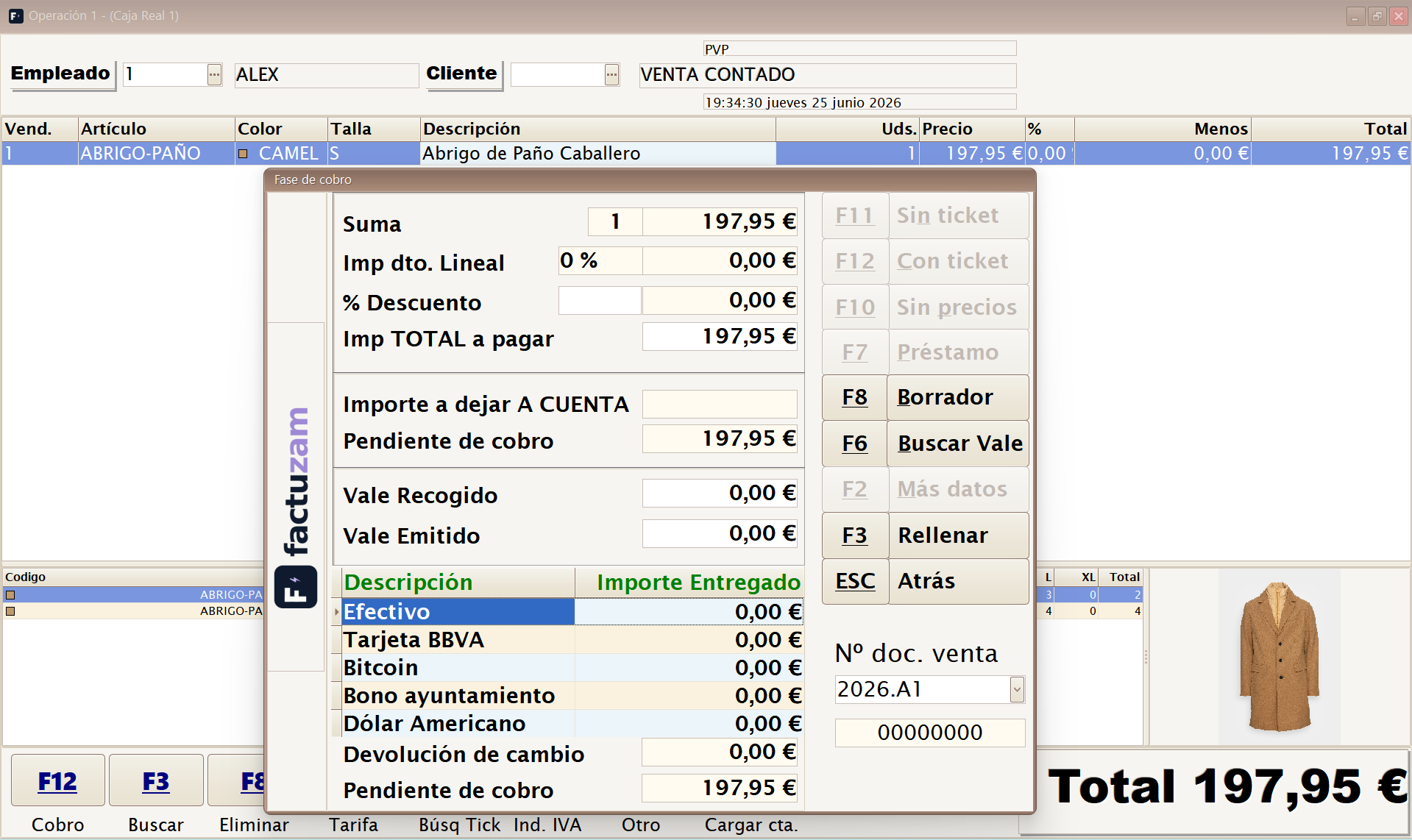
| Case | Information requested |
|---|---|
| Referencia | Authorisation number, voucher, locator or other data identifying the payment. |
| Divisa | Currency code, exchange rate and equivalent amount. |
| Cripto | Blockchain network and transaction hash. |
Vouchers at the till
An issued voucher is credit given to the customer, normally for a return or the balance of another voucher. A redeemed voucher is one the customer uses as a payment method.
Buscar Vale (F6) opens the pending-voucher selector:
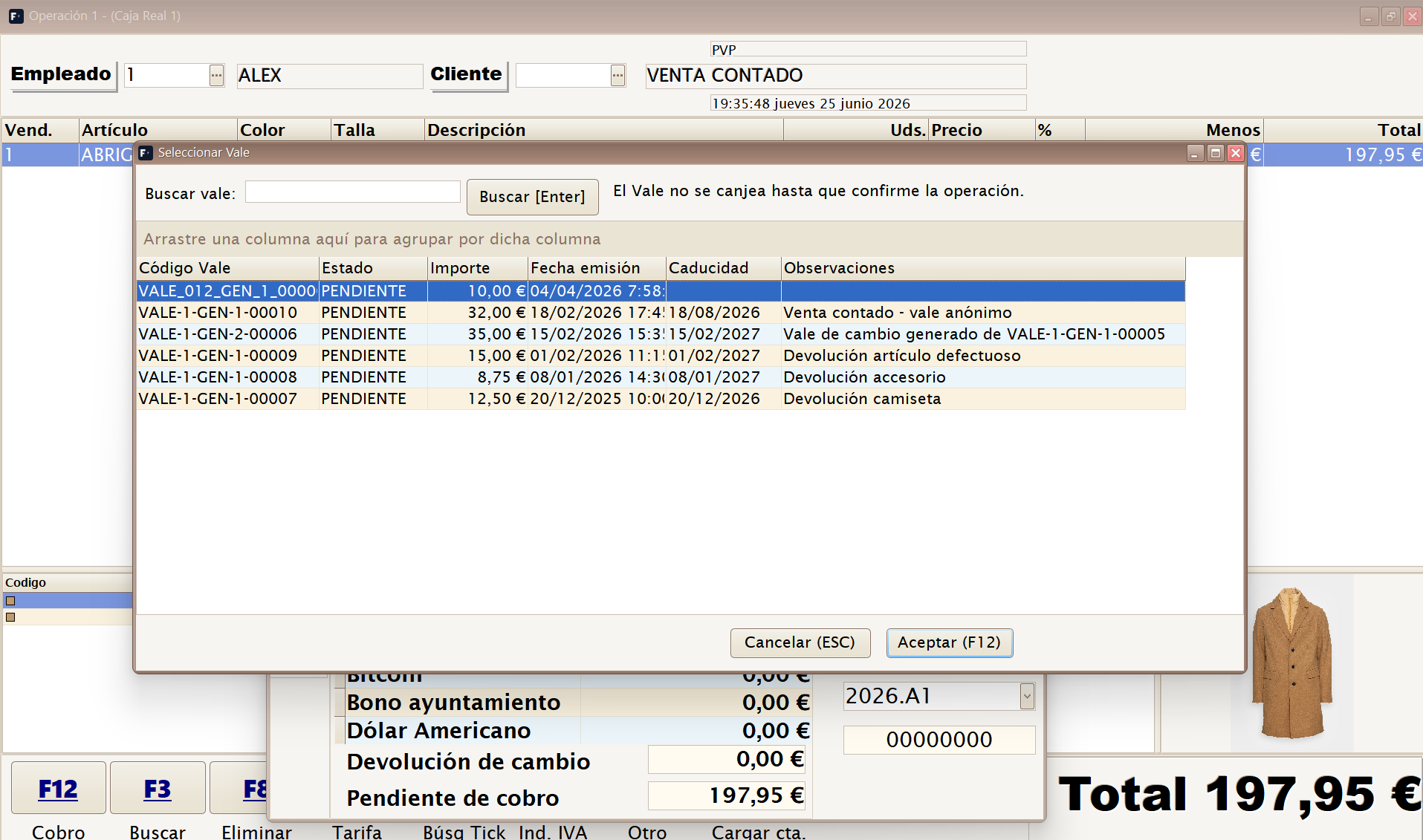
The screen displays Código Vale, Estado, Importe, Fecha de emisión, Caducidad and Observaciones. If configuration requires a PIN, it is also requested before acceptance. The voucher is not definitively redeemed until collection is confirmed.
If the redeemed voucher exceeds the pending sale amount, the difference is recorded as a Vale Emitido, so the customer does not lose the balance.
Préstamo (F7) or credit sale
The Préstamo (F7) button is not a payment method. It closes a sale while leaving the amount pending on the customer's account. The goods leave the shop and the customer retains an outstanding debt or credit balance.
These conditions must be met:
| Condition | Reason |
|---|---|
| Cliente asignado | Debt cannot be left against a cash sale. |
| Cliente con crédito permitido | The customer record must allow an account or debt. |
| Límite suficiente | If there is a credit limit, the pending amount cannot exceed it. |
| Importe pendiente | It is useful only when an amount remains uncovered by payments. |
In the cash count, these operations appear separately as Ventas Préstamos and also affect Pendiente cobro. When the customer pays later, the movement is recorded as a customer collection.
Receipt or document generated
| Button | Result |
|---|---|
| Con ticket (F12) | Saves the operation, generates the simplified draft and sends the receipt to the till printer. |
| Sin ticket (F11) | Saves it in the same way, but does not print a thermal receipt. It may open the drawer if the payment method allows it. |
| Sin precios (F10) | Prints a gift receipt without prices; the complete tax document remains recorded. |
| Borrador (F8) | Generates a standard/A4 draft with series and date; requires a customer with a valid NIF. |
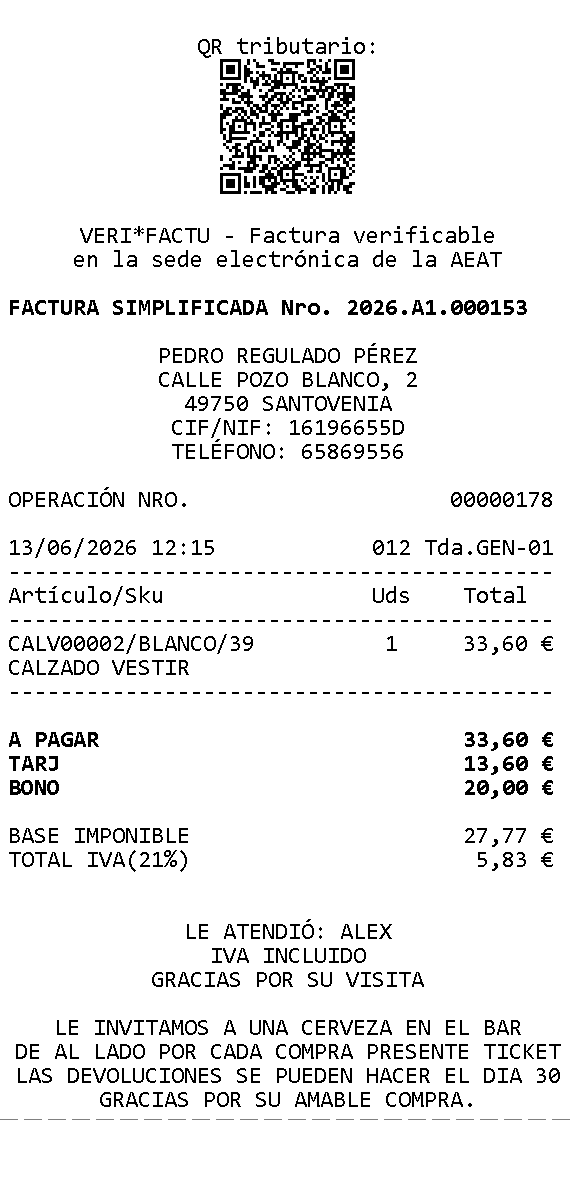
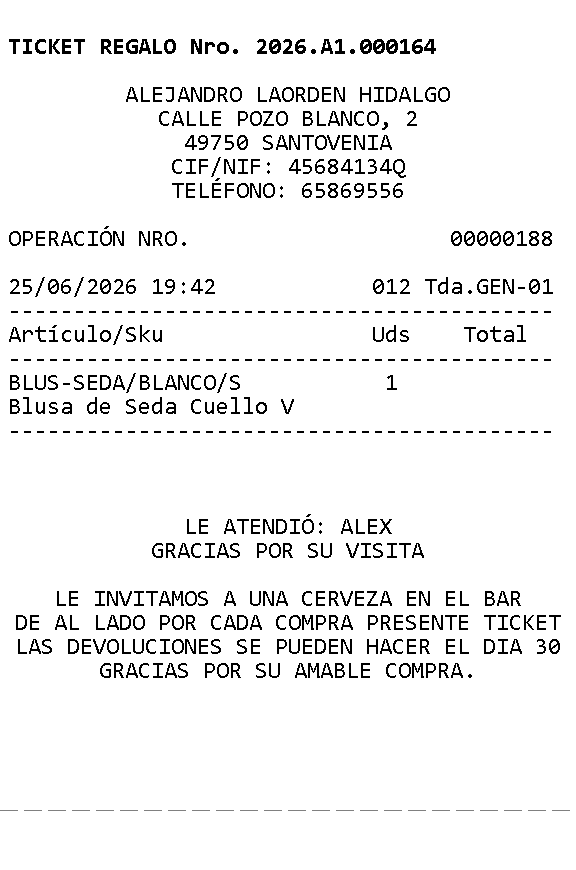
If Borrador (F8) is blocked or displays a warning, check that the sale has a customer, valid NIF/CIF/NIE and sufficient tax information.
Traspasos (F3)
Manages goods transfers between warehouses (between shops, or shop ↔ central warehouse). Stock leaves the source warehouse and enters the destination.
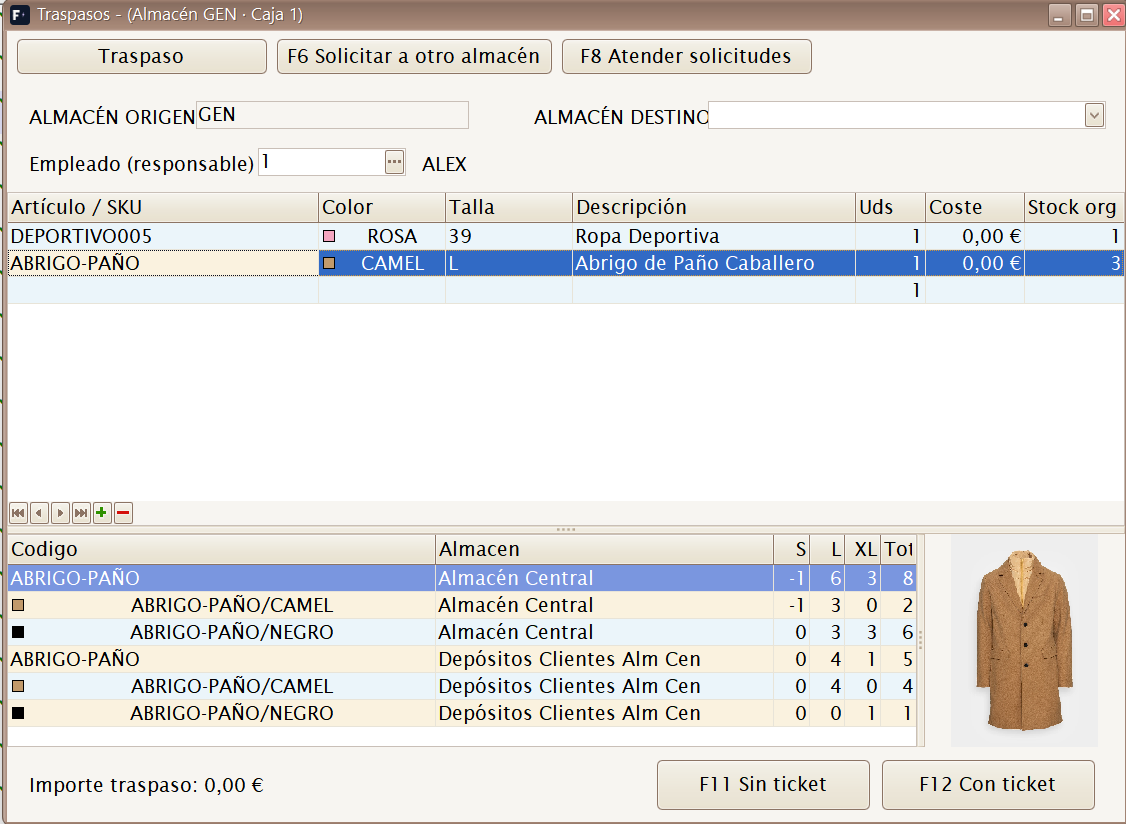
| Element | Description |
|---|---|
| Almacén origen / Almacén destino | Where the goods leave and where they go. |
| Empleado (responsable) | Person responsible for the transfer. |
| Líneas de artículos | Added with the scanner or search, as in Ventas. |
| Importe traspaso | Valuation of the transferred goods. |
Working modes:
- F6 — Solicitar a otro almacén: creates a request for goods from another shop/warehouse, pending fulfilment.
- F7 — Atender solicitudes: displays received requests so they can be prepared and sent.
- F8 — Borrar línea: deletes the selected line in Traspaso and Solicitar modes. Requested lines cannot be deleted while fulfilling a request.
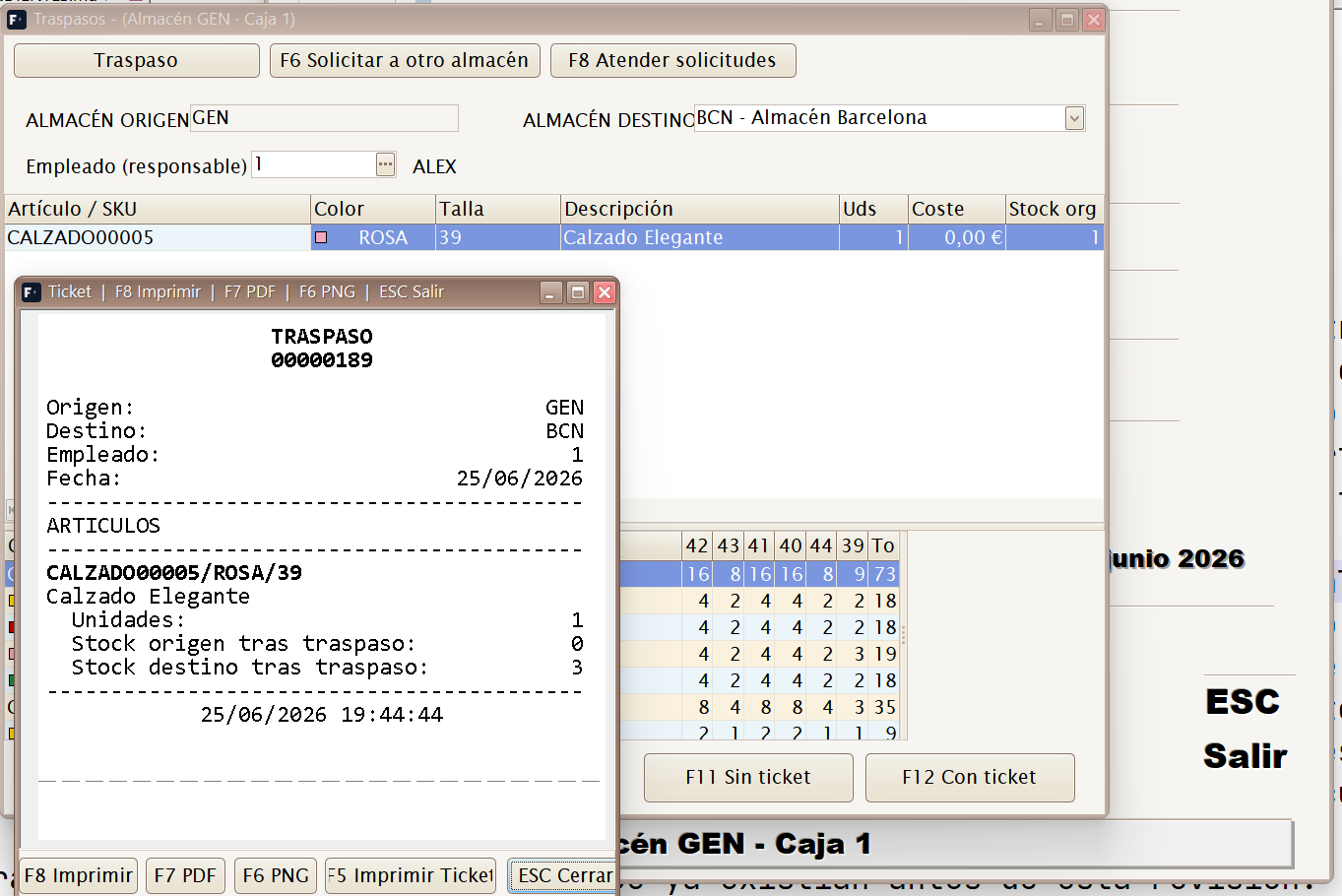
Close: F12 Con ticket (prints transfer evidence) or F11 Sin ticket.
Direct transfer
Use this mode when goods physically leave the current warehouse and are sent to another warehouse immediately.
- Check Almacén origen, normally the active till warehouse.
- Select Almacén destino.
- Enter the responsible Empleado.
- Scan or find the garments leaving.
- Close with F12 Con ticket for evidence to accompany the package, or F11 Sin ticket when printing is unnecessary.
A transfer is not a sale and generates no collection. It does provide stock traceability: goods cease to be available at the source and move to the destination.
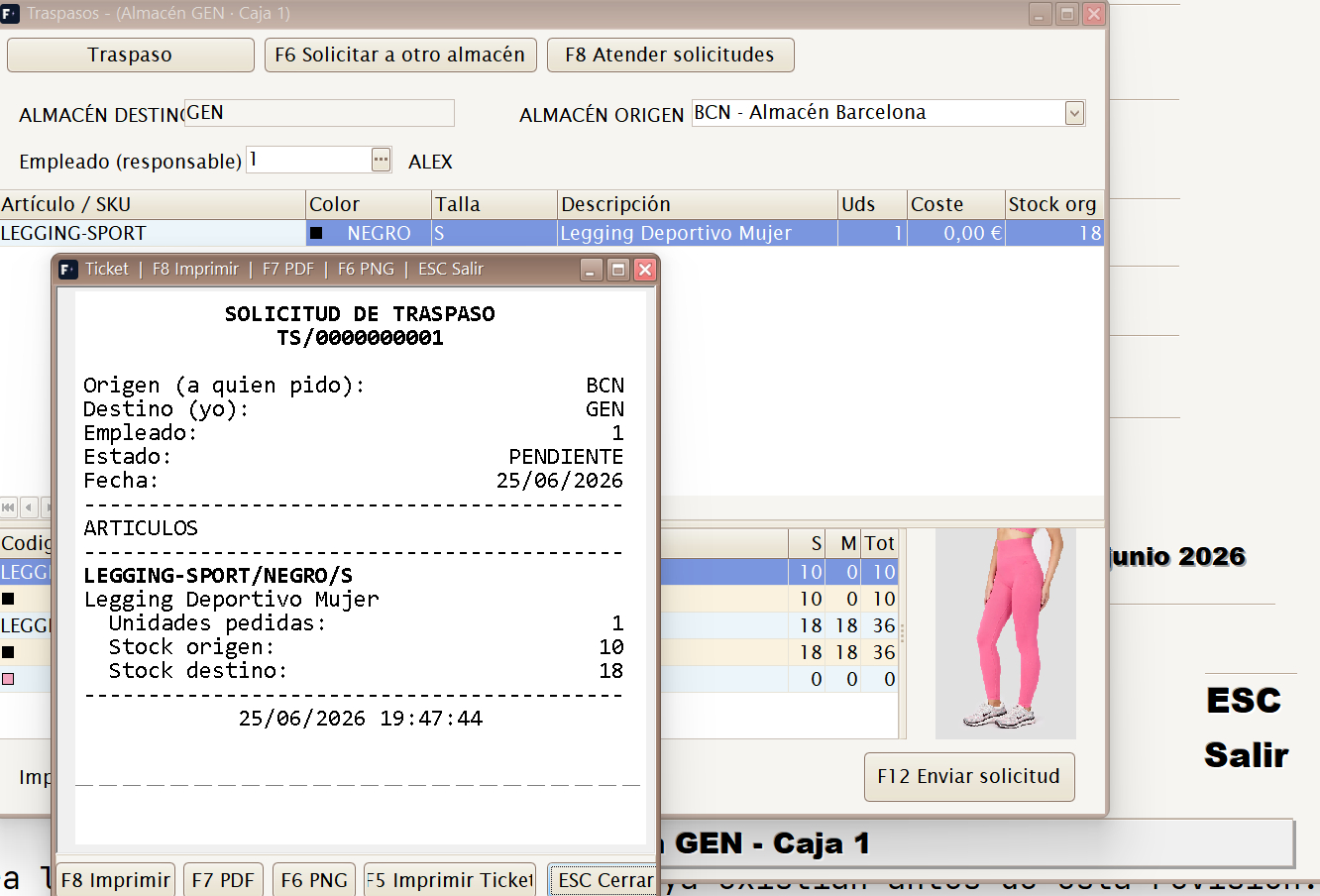
Requesting from another warehouse (F6)
Use this when a shop needs goods held at another shop or the central warehouse, but they are not yet physically being sent.
Recommended flow:
- Switch to F6 Solicitar a otro almacén mode.
- Select the warehouse from which the goods are requested.
- Add items and sizes as for a sale.
- Save the request so the source warehouse can prepare it.
Until fulfilled, the request must not be treated as goods already received. It organises work between shops without phone calls or handwritten notes.
Fulfilling requests (F7)
Use this in the warehouse receiving requests from other shops. It lets you review what was requested, prepare the lines and close the shipment.
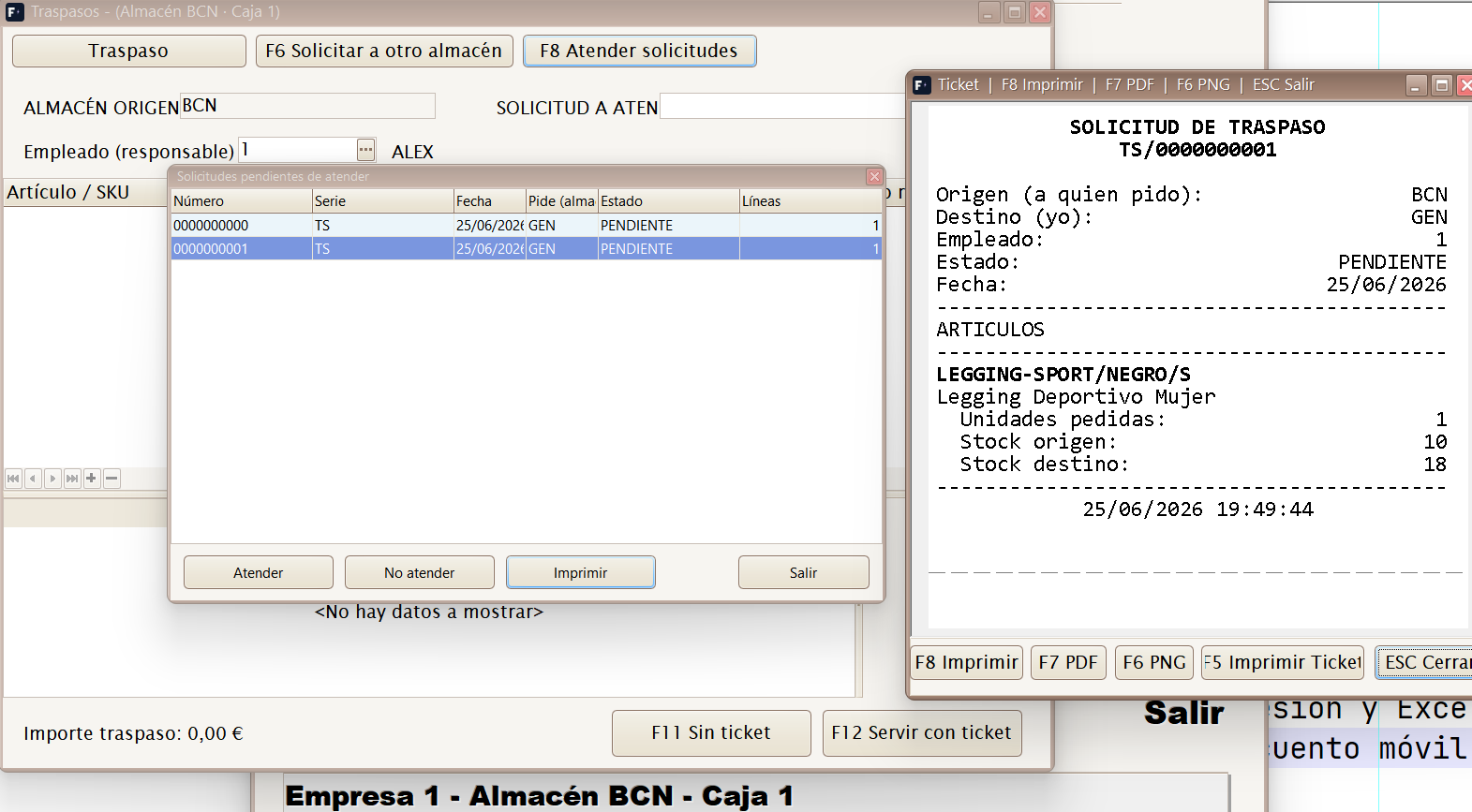
When fulfilling a request, print the transfer receipt and include it with the goods so the destination shop can reconcile what arrives against the evidence.
An incorrectly closed transfer directly affects stock. If you are unsure between a direct transfer and a request, use a request until the goods actually leave the source warehouse.
Entrada de Cambio (F6)
Records change cash put into the drawer at the start of the day, or an extra float during the day. It is included in the cash count as a cash receipt.
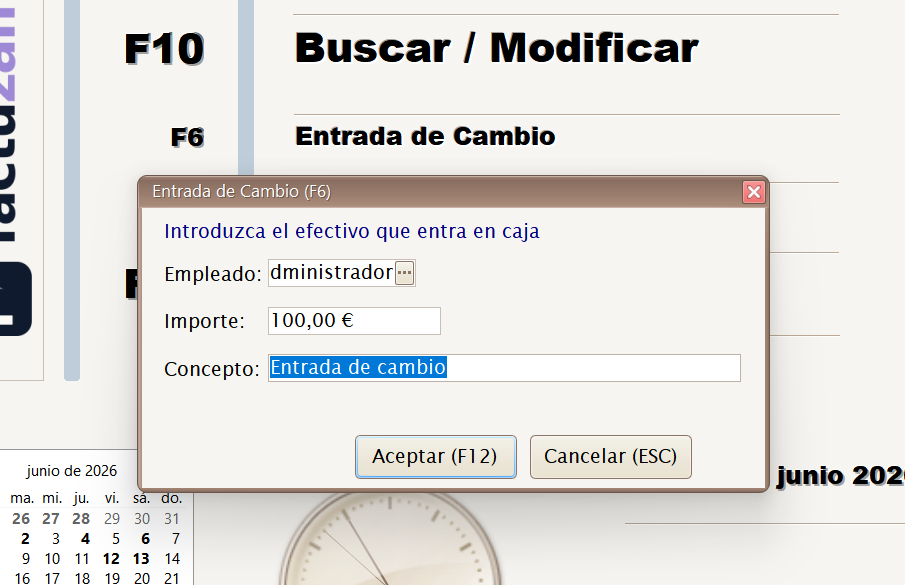
Main fields:
| Field | Use |
|---|---|
| Empleado | Person recording or providing the change. |
| Importe | Cash amount entering the till. |
| Concepto | Brief explanation: opening float, extra change, coins and so on. |
Accept with F12 or cancel with Esc. It appears in the cash count as Efectivo entradas, increasing the expected cash in the till.
Gastos por caja (F7)
Records cash payments made from the drawer (courier, minor purchases and so on). They reduce cash in the count and remain in the payment history.
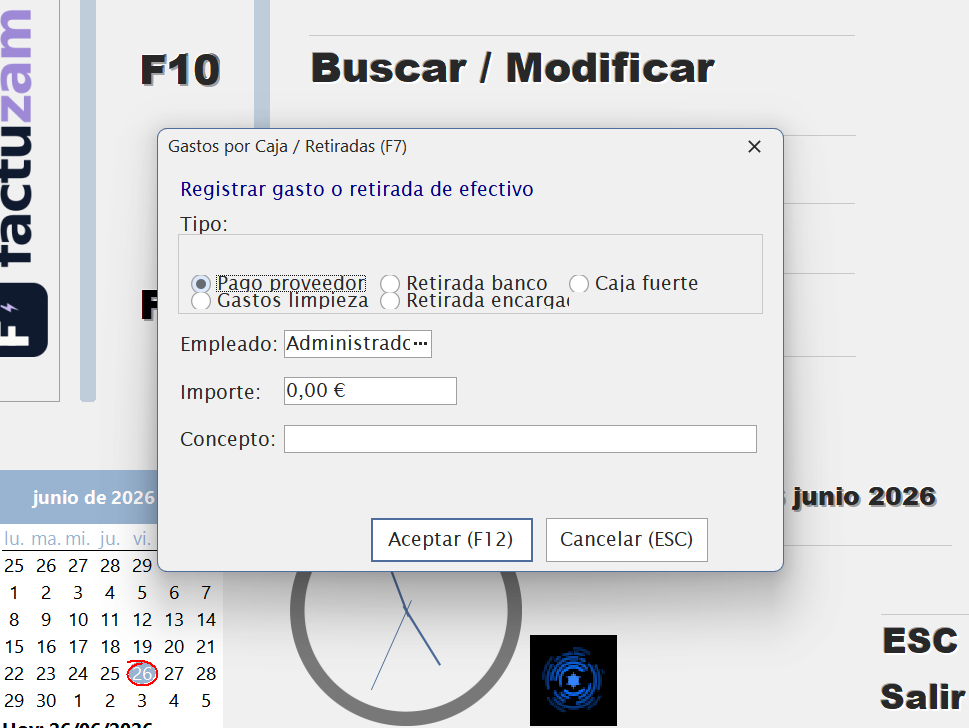
The screen classifies the outbound payment:
| Type | When to use it |
|---|---|
| Pago proveedor | One-off supplier payment from the drawer. |
| Gastos limpieza | Minor expenses paid in cash. |
| Retirada banco | Money withdrawn for paying into the bank. |
| Retirada encargado | Cash handed to the person in charge. |
| Caja fuerte | Withdrawal to store cash outside the drawer. |
It also requests Empleado, Importe and Concepto. Accept with F12. These payments subtract from Efectivo salidas and remain audited in the histories.
Buscar / Modificar (F10)
Opens «Buscar operaciones» to find any till operation for review or correction.
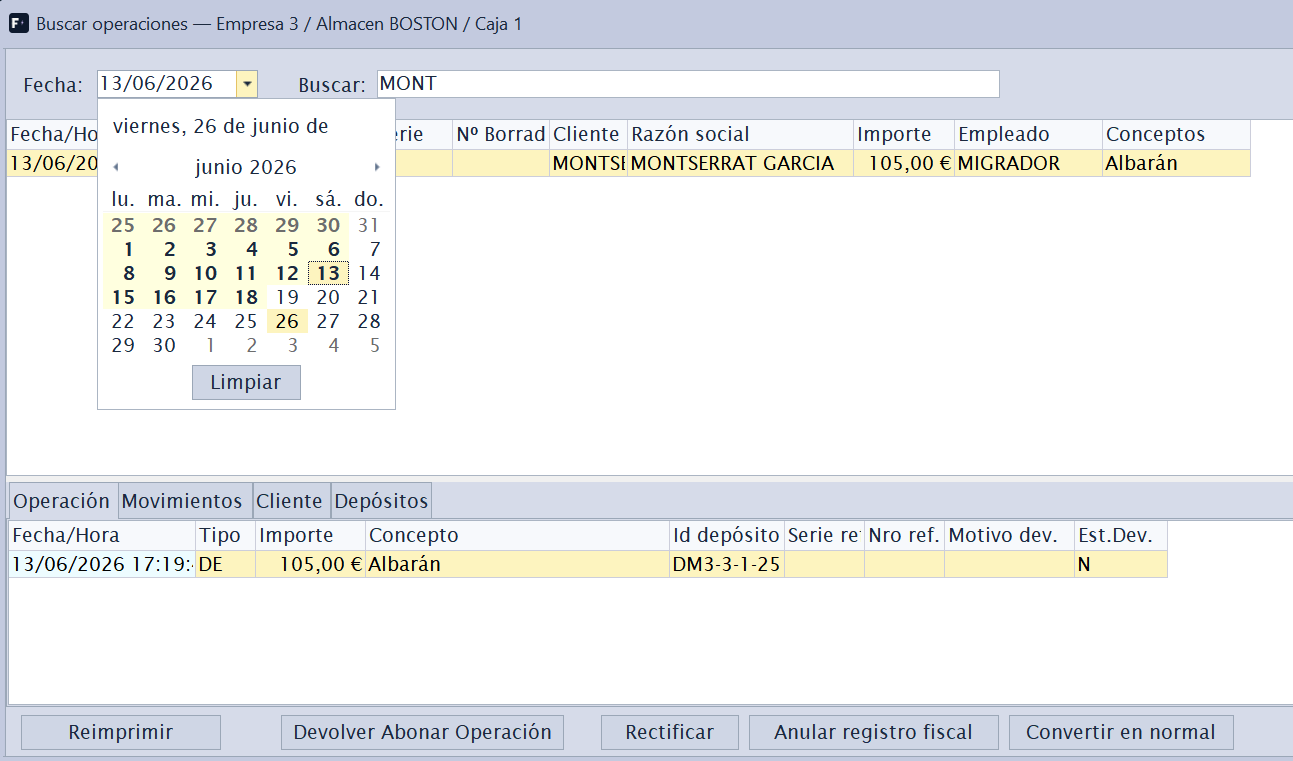
Filters: till Fecha and free-text Buscar (customer, amount, document number and so on).
Results grid: date/time, Nº Operación, Tipos (sale, return, expense, transfer and so on), Serie, Nº Factura, Cliente, company name, Importe, Empleado and Conceptos.
Selected-operation detail, on two tabs:
- Operación — type, amount, concept, deposit id, reference document (series/number), and, for returns, the reason and its status.
- Pagos — breakdown by payment method: line, code, payment method, Entregado, Cambio and Neto.
Depending on the operation, Vales, Movimientos, Cliente, Depósitos and Factura tabs may also appear. This is the quickest way to reconstruct a receipt: what was sold, how it was paid, whether a voucher was used, whether stock moved and which tax document was associated.
Common actions:
| Action | Use |
|---|---|
| Reimprimir | Prints a duplicate on the receipt printer configured in parameters. |
| Previsualizar | Opens the receipt preview, where another printer can be selected. |
| Emails documentation for the selected operation. | |
| Rectificar | Opens a new operation to correct the receipt by differences or as a replacement corrective invoice. |
| Anular registro fiscal | Requests tax cancellation of a consolidated document. |
| Convertir en normal | Converts a simplified invoice into a named standard invoice. |
| F5 | Reloads the day's enquiry. |
| Esc | Closes the search and returns to the till menu. |
A till must be selected (company/warehouse/till); otherwise the application asks you to select one before searching.
Correcting a receipt: by differences or replacement
A consolidated sale is not modified directly. To correct it:
- Open TPV ▸ Buscar / Modificar (F10).
- Find the operation and check the receipt on the detail tabs.
- Press Rectificar.
- Choose Por diferencias or Sustitutiva.
- Review the new operation opened by Factuzam, correct its lines and finish collection with
[F12].
| Mode | Presentation | When to use it | Effect on sales and stock |
|---|---|---|---|
| Por diferencias | Loads original lines as negative values. Retain only quantities or concepts that need correction. | Full/partial return, omitted discount or a specific difference. | Retains the original sale and adds the correction. Negative quantities offset amounts and stock movements. |
| Sustitutiva | Loads the content as positive values to create the complete correct version. | When the complete receipt should be replaced with a corrected one. | The original is replaced and no longer counts as an active sale; the new document provides corrected amounts and movements. |
On closing, Factuzam uses a corrective series, links the new document to the original and records or queues it according to the tax mode. A document that is already corrective cannot be corrected again.
Convertir en normal is a different workflow: it is used when the customer requests a named invoice for their receipt, not to correct amounts. For the tax differences, see Tax actions on an issued invoice.
Arqueo (F11)
The arqueo closes and reconciles the till: it calculates what should be in the drawer and compares it with the physical count.
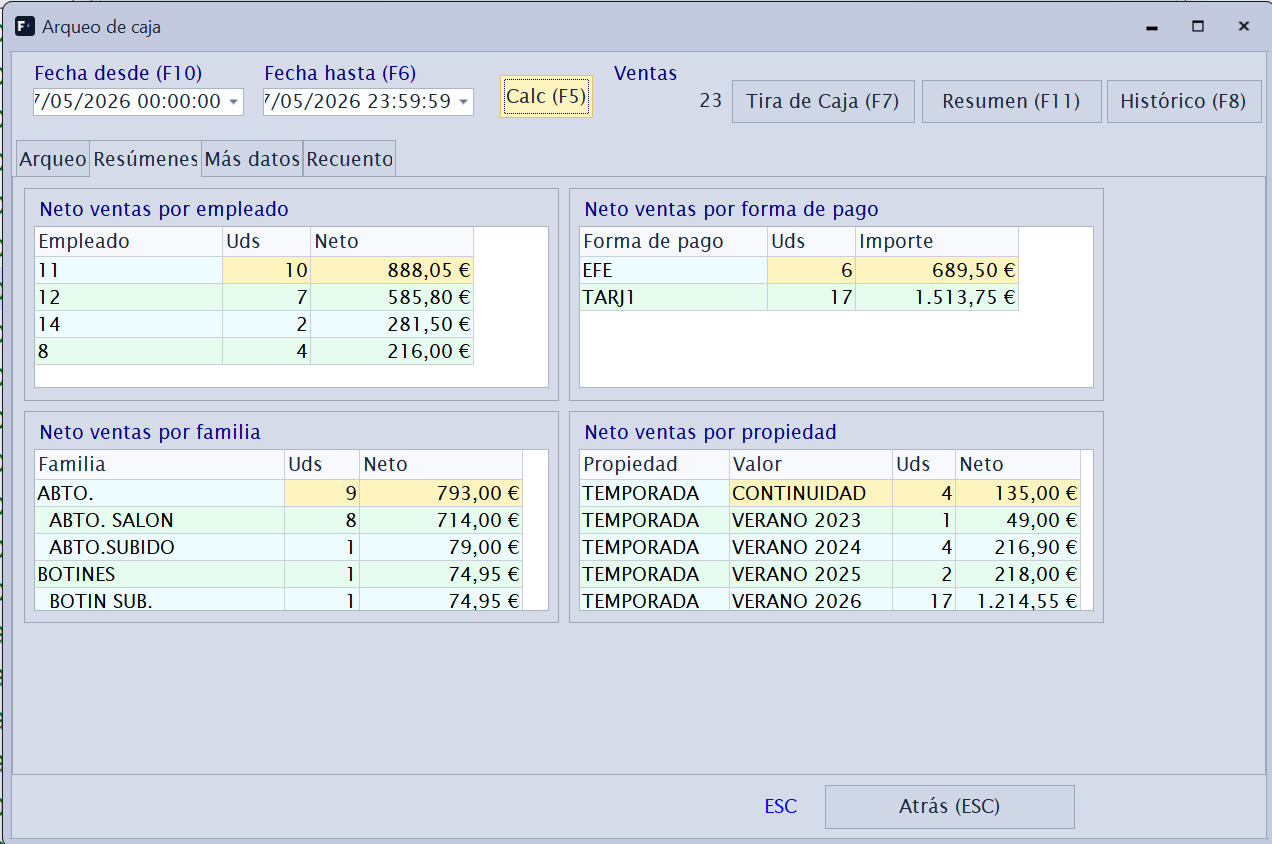
Period: counted between Fecha desde (F10) and Fecha hasta (F6), normally the current day.
The cascading breakdown shows how the balance is calculated:
Líneas artículos      + Bruto − Descuento                = Bruto
Operaciones           Ventas Normales + Ventas Préstamos
                      − Devoluciones                     = Total Ventas
Cobros                − Vales recogidos + Vales emitidos
                      + Cobros clientes − Pendiente cobro = Ingresos caja
Efectivo              + Efectivo entradas − Efectivo salidas
                      + Efectivo anterior                = Efectivo en caja
                      + Otros (tarjetas, bonos, divisa, cripto)
                                                         = Saldo a recontar
«Resúmenes» tab: net sales by employee (units and net) and by payment method (units and amount), useful for commissions and reconciling the card terminal.
Buttons:
| Key | Function |
|---|---|
| F5 | Recalcular the cash count after changing dates. |
| F11 | Resumen / print the calculated cash count. |
| F7 | Tira de Caja, detailing receipts and movements. |
| F8 | Histórico of earlier cash counts. |
| F2 | Grabar Arqueo from the Recuento tab and, when configured, issue the evidence. |
Resumen (F11) issues a cash-count receipt with the period, operations, sales and collection totals, and summaries by section, season, employee, payment method and series.
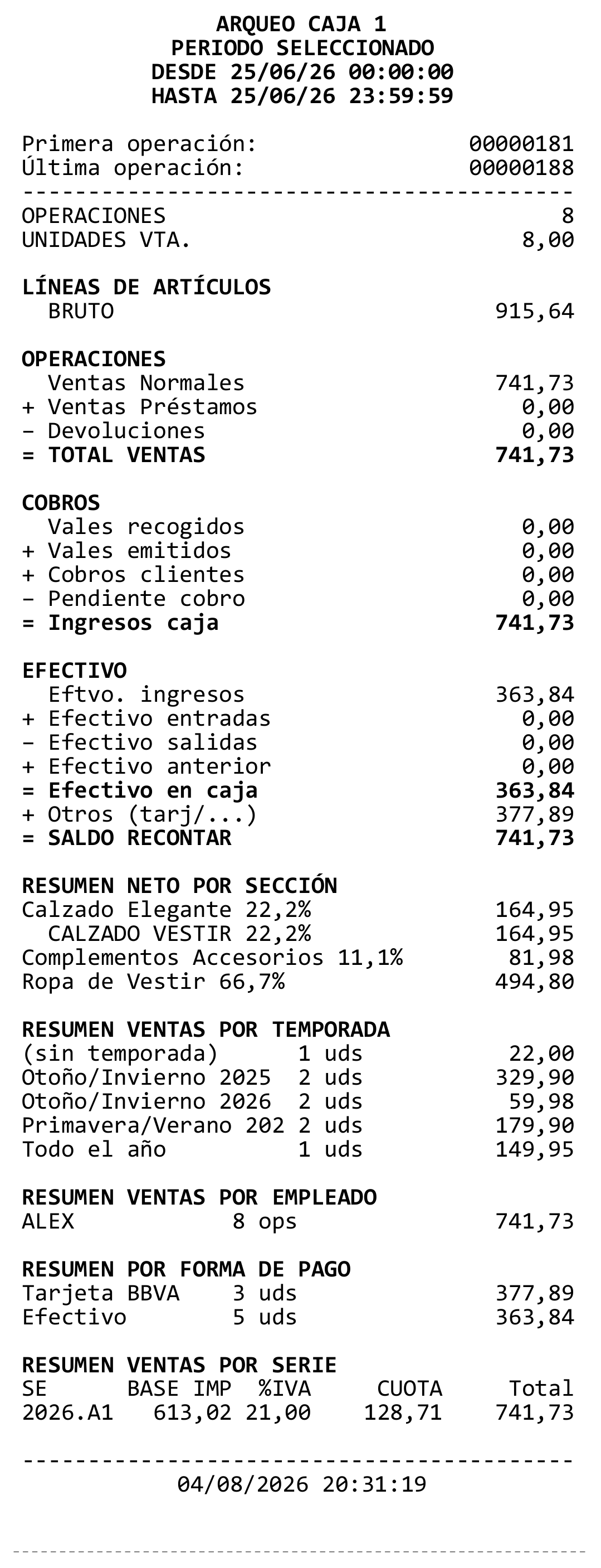
Perform a cash count at the end of every day. «Efectivo anterior» links to the previous count, so discrepancies are not carried forward unnoticed.
Cash-count entry
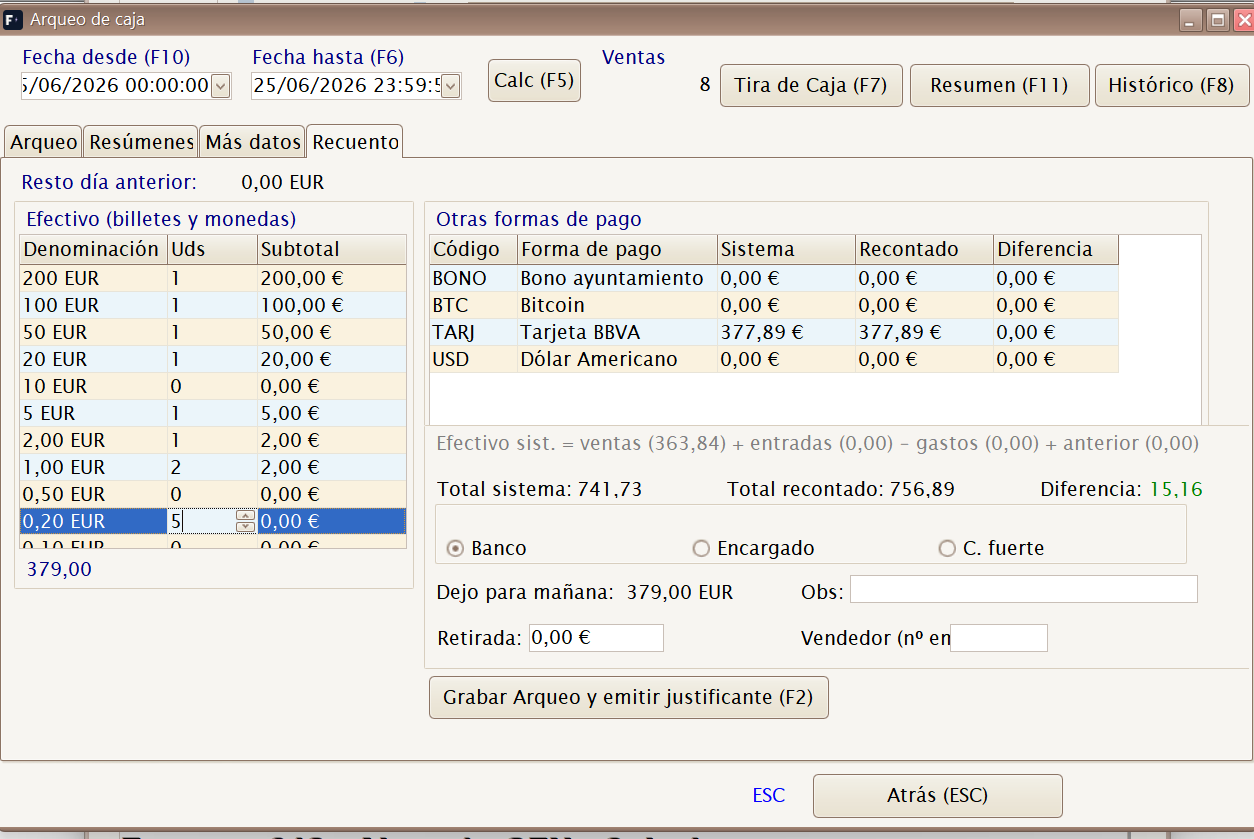
The Recuento tab displays one line per payment method. Cash is entered as one total amount, without counting notes and coins by denomination.
| Area | Value entered |
|---|---|
| Efectivo | Total amount counted in the drawer. |
| Otras formas de pago | Counted amount for card, voucher, currency, crypto or other non-cash methods. |
| Retirada | Amount withdrawn to the bank, person in charge or safe. |
| Dejo para mañana | Cash left as change for the next day. Editable when the corresponding parameter is enabled; changing it recalculates the withdrawal. |
| Observaciones | Explanation of discrepancies or incidents. |
| Vendedor | Employee responsible for closure. |
The screen calculates Total sistema, Total recontado and Diferencia. When the difference is not zero, explain it in Observaciones before saving.
With Permitir Arqueo de Tarjetas disabled, the cash line displays the system proposal and the user confirms the total under Recontado. With the parameter enabled, proposals and cash/card differences are hidden, and the count is entered without those totalisers.
Tira de Caja (F7)
Tira de Caja prints or exports details of events within the cash-count range. Select simplified-invoice series and whether to include outbound transfers, till receipts, till expenses and credit sales.
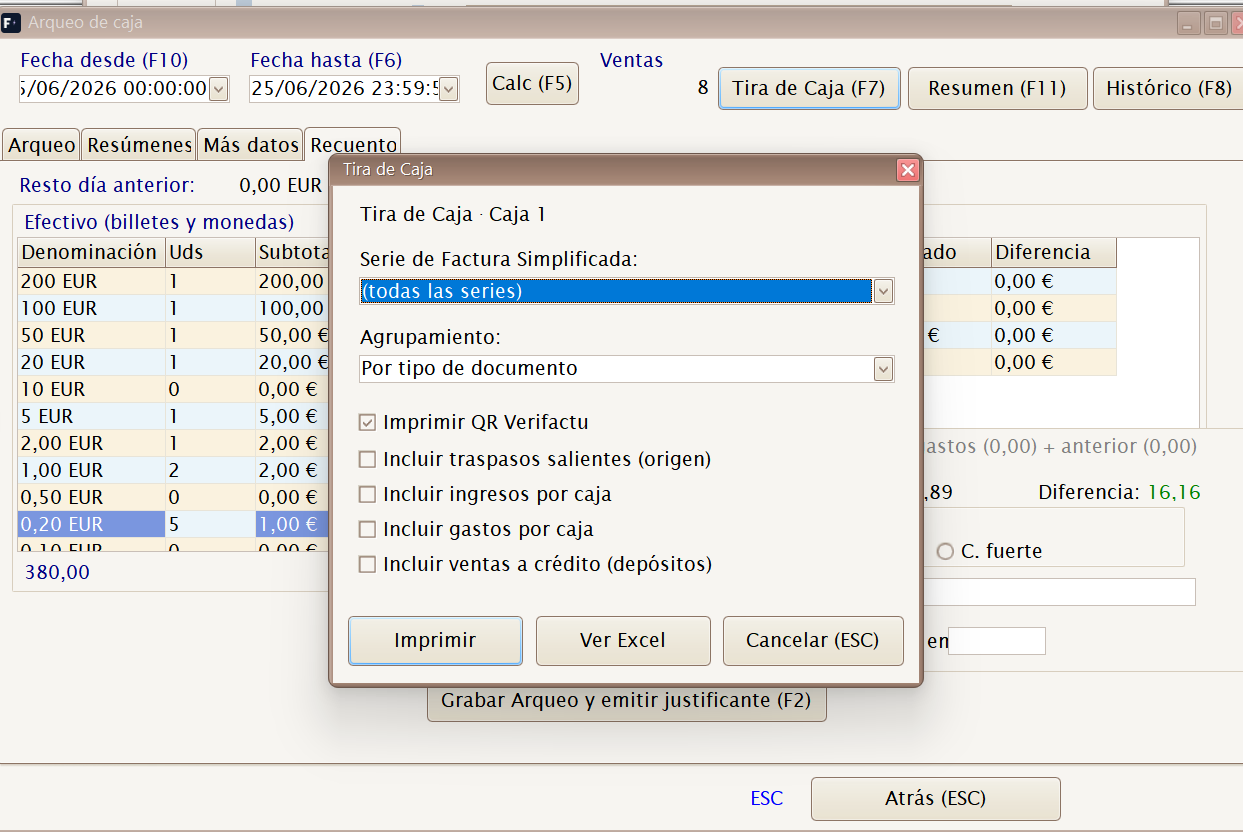
Imprimir generates a receipt-format strip with every document, its payment method and period totals.

Ver Excel opens a tabular preview with each document and line, SKU, description, quantity, amount and subtotals. From there the workbook can be saved for attachment or work outside Factuzam.

Use it when the manager wants to review details before closing or attach a movement list to the cash count.
From Histórico (F8) you can reprint duplicate cash-count or saved-closure evidence.
Parámetros de Caja
Menu shortcut: [Ctrl]+[F5]
Configures POS behaviour: till selector, default price list, employee, item validation, vouchers, barcode scanner, printer, operational permissions and cash-count summary. The manager normally configures this when installing the shop.
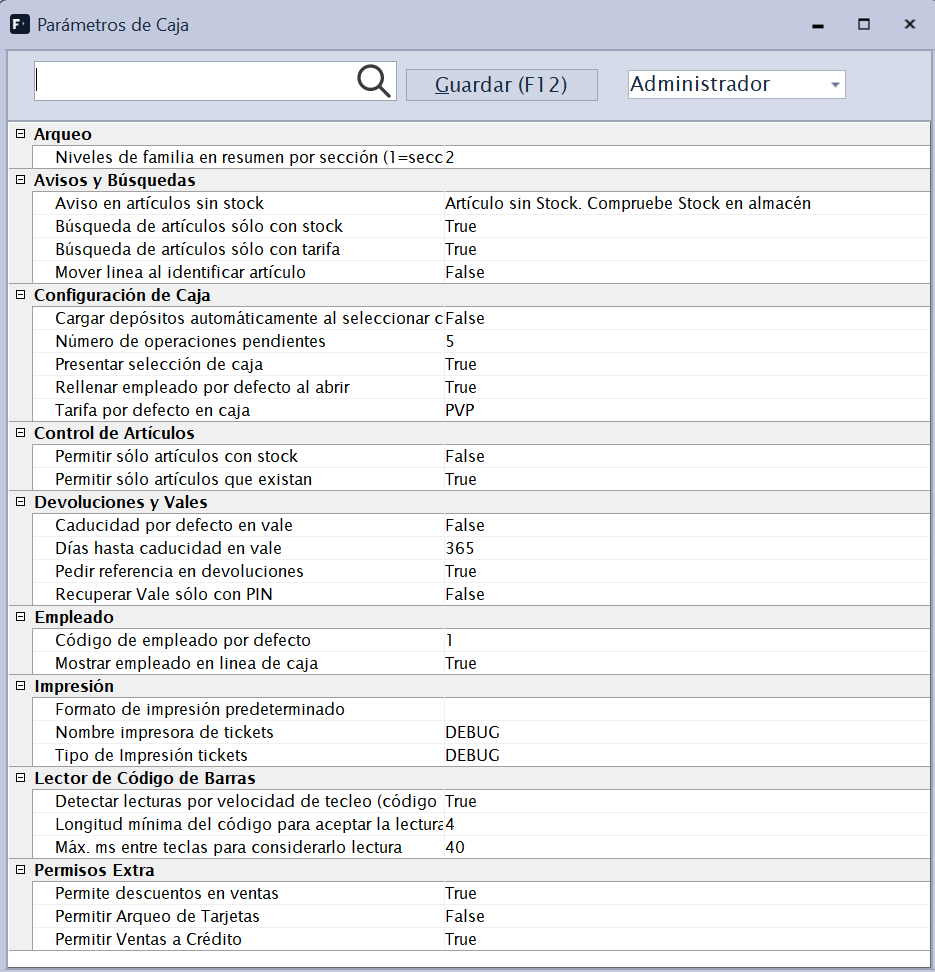
The upper area has three important controls:
| Control | Use |
|---|---|
| Buscar | Filters the parameter list by text, quickly locating printer, stock, voucher, discount and so on. |
| Guardar (F12) | Saves only modified values for the selected profile. |
| Usuario / Grupo / Todos | Loads values for the user, group or everyone. A regular user edits their own and their group's; Todos is read-only without administrator permission. |
Parameters are read in user, group and default-value priority. Saving a change for the current user or group reloads the till configuration in memory.
Control de Artículos
| Parameter | Default | Control |
|---|---|---|
Permitir sólo artículos que existan (vgerChkExistOnly) | True | Before selling an SKU, checks that it exists in fza_articulos_skus and is active. Otherwise the till blocks the line and warns the user. |
Permitir sólo artículos con stock (vgerChkStockOnly) | False | When enabled, an SKU without available stock cannot be sold. When disabled, it can be sold, but the Aviso en artículos sin stock message may appear. |
Recommended use:
| Situation | Recommended configuration |
|---|---|
| Shop with stock controlled by SKU | Existence True, stock True. |
| New shop or services without stock | Existence True, stock False. |
| Initial loading with incomplete items | Review before disabling existence, as this permits code errors. |
Configuración de Caja
| Parameter | Default | Control |
|---|---|---|
Presentar selección de caja (vgerShowCajaSelection) | False | On entering Caja, displays the company, warehouse and till selector. Otherwise it uses active environment values (oEmpresa, oAlmacen, oCaja). Double-clicking the company header reopens the selector when permitted. |
Rellenar empleado por defecto al abrir (vgerFillEmpleadoDefecto) | False | Fills the employee when creating a sale or transfer if no earlier employee exists. Uses Código de empleado por defecto. |
Tarifa por defecto en caja (vgerDefTarifa) | PVP | Initial price list for a cash sale. Selecting a customer may replace it with that customer's price list. |
Número de operaciones pendientes (vgerMaxOpPending) | 5 | Prepared to limit or size pending operations. It is registered on the current screen, but no direct operational use has been located. |
Cargar depósitos automáticamente al seleccionar cliente (vgerAutoLoadDepositos) | False | If the customer allows debt and has deposits, loads them on selection. Otherwise use Cargar cta. (F2) from Ventas. |
In a shop with several physical tills, enable Presentar selección de caja to avoid invoicing from the wrong till. It can remain disabled for a single POS.
Devoluciones y Vales
| Parameter | Default | Control |
|---|---|---|
Pedir referencia en devoluciones (vgerReqRefDevolucion) | False | Prepared to require a reference on returns. It is defined in the current version, but no direct operational use has been located in collection. |
Recuperar Vale sólo con PIN (vgerRecuperaValePIN) | False | Displays the PIN field when finding a voucher. A voucher with a security PIN requires it for redemption, and a completed PIN also filters the search. |
Caducidad por defecto en vale (vgerCaducidadDefVale) | False | Hides expired vouchers from redemption selection when enabled. A voucher without an expiry date remains valid. |
Días hasta caducidad en vale (vgerDiasCaducidadVale) | 365 | Prepared to calculate expiry when issuing vouchers. It is registered, but voucher issue does not currently use it directly. |
Voucher behaviour during collection:
| Case | Behaviour |
|---|---|
| The voucher covers part of the sale | Recorded as payment method VALE, referencing the voucher code. |
| The voucher exceeds the pending amount | The whole voucher is redeemed and a new voucher is issued automatically for the excess. |
| The voucher does not exist, has been redeemed or cancelled | Collection validation blocks closure. |
| Expiry enabled | Search displays only pending, unexpired vouchers. |
Avisos y Búsquedas
| Parameter | Default | Control |
|---|---|---|
Aviso en artículos sin stock (vgerAvisoStockWarning) | Artículo sin stock. Compruebe stock en almacén. | Message displayed when stock is missing but Permitir sólo artículos con stock does not block the sale. An empty value suppresses the informational warning. |
Búsqueda de artículos sólo con stock (vgerBusqArtStockOnly) | False | Prepared to filter searches by stock. The current till search filters by price list and validity, but does not directly apply this key. |
Búsqueda de artículos sólo con tarifa (vgerBusqArtTarifaOnly) | False | Prepared to filter searches to items with a price list. The current search permits items on the active price list or without an associated list. |
Mover línea al identificar artículo (vgerMoverLineaIdentif) | False | Controls focus after identifying an item. When enabled, saves the line and opens a new Artículo line; otherwise focus remains on description or attributes to complete it. |
This block mainly affects sales speed:
| Working method | Useful setting |
|---|---|
| Fast scanner sales with complete SKUs | Enable Mover línea al identificar artículo. |
| Sales with items requiring manual attributes | Disable Mover línea al identificar artículo. |
| Selling without stock is allowed but should warn | Stock False and a non-empty warning. |
Lector de Código de Barras
| Parameter | Default | Control |
|---|---|---|
Detectar lecturas por velocidad de tecleo (código + CR) (vgerScanVelActivo) | True | Enables the detector that distinguishes scanner input from manual typing. |
Máx. ms entre teclas para considerarlo lectura (vgerScanVelMs) | 40 | Speed threshold between characters. A slower scanner may be interpreted as normal typing. |
Longitud mínima del código para aceptar la lectura (vgerScanMinLong) | 4 | Prevents very short text from being treated as a scanned code. |
If the scanner does not trigger automatic search, first check Detectar lecturas por velocidad de tecleo and slightly increase the millisecond threshold. If typing produces false scans, lower the threshold or increase the minimum length.
Impresión
| Parameter | Default | Control |
|---|---|---|
Nombre impresora de tickets (vgerDefPrinter) | empty | Thermal printer used for receipts and drawer opening. Select from installed printers. Without a valid printer, or with DEBUG, the drawer does not open and the user is warned. |
Tipo de Impresión tickets (vgerTipoImpresion) | ESC POS | Selector modes: ESC POS, ESC POS NOQR, EDITOR or DEBUG. The value is stored, although primary receipt generation uses the assigned printer. |
Formato de impresión predeterminado (vgerFormatoImpPredet) | empty | Reserved for a default format. It is registered, but no direct operational use has been located in the till. |
Support notes:
| Value | When to use it |
|---|---|
ESC POS | Standard thermal receipt with printer commands. |
ESC POS NOQR | Intended for receipts without QR where the format supports it. |
EDITOR | Format-editing or test mode. |
DEBUG | Testing without a real printer. Cannot open the drawer. |
Empleado
| Parameter | Default | Control |
|---|---|---|
Código de empleado por defecto (vgerCodEmpleadoDefecto) | empty | Code filled when opening a sale or transfer if Rellenar empleado por defecto al abrir is enabled. |
Mostrar empleado en linea de caja (vgerShowEmpleadoLinea) | True | Shows or hides the employee column on a sales line. A hidden line can still carry the salesperson assigned by header or default. |
Keep the employee column visible in shops paying salesperson commission. It can be hidden to gain grid space in self-service shops with one cashier.
Permisos Extra
| Parameter | Default | Control |
|---|---|---|
Permitir Arqueo de Tarjetas (vgerArqueoTarjetas) | False | With False, displays system proposals, including total cash on one line. With True, hides cash/card proposals and differences so the count is entered without totalisers. |
Permitir Ventas a Crédito (vgerVentasCredito) | True | Enables Préstamo (F7) during collection when a customer exists, permits debt and has an amount pending. |
Permite descuentos en ventas (vgerDescuentos) | True | Allows editing line discount, overall discount, total and unit price. When disabled, these routes are blocked to prevent indirect discounts. |
Credit sales also require an identified customer, debt permission on the customer record and credit-limit validation.
Arqueo
| Parameter | Default | Control |
|---|---|---|
Niveles de familia en resumen por sección (vgerArqueoNivelesFamilia) | 2 | Number of family-path levels shown in the section summary and cash-count receipt. 1 shows the root section; 2 section and family; 3 adds subfamily. The value is restricted to 1..9. |
Permitir editar el cambio dejado para la siguiente jornada (vgerArqueoEditarCambio) | False | Allows direct entry of Dejo para mañana. Withdrawal is recalculated so it and the retained change match counted cash. |
Emitir justificante al grabar el cierre (vgerArqueoEmitirJustificante) | True | With False, asks after saving whether to print closure evidence. Duplicates remain available from history. |
Use few levels for a quick, legible cash count; increase them when sales need analysis by more specific families.
Changing parameters during the day can alter new operations and receipts, but does not modify saved operations. To avoid confusion, change printer, till, stock or discounts before opening the day or after closing the count.
Formas de Pago Caja
Menu shortcut: [Shift]+[Ctrl]+[Q]
Defines the payment methods accepted by the POS and how each behaves during collection and cash counting.
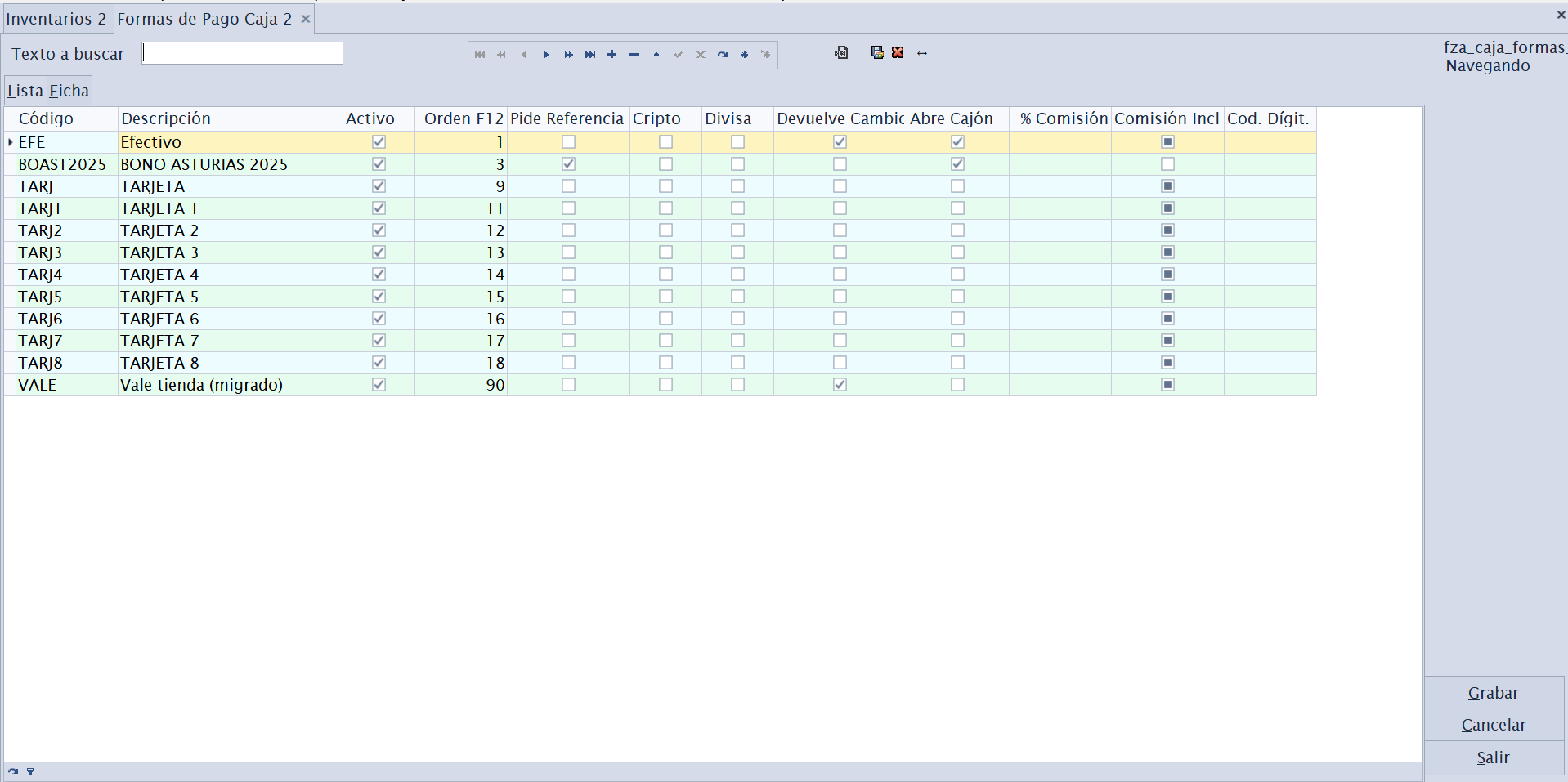
Fields for each method:
| Field | Description |
|---|---|
| Código / Descripción / Activo | Payment-method identification. |
| Orden F12 | Position on the collection screen (the first is proposed when F12 is pressed). |
| Pide Referencia | Requires a reference during collection (voucher number, card authorisation and so on). |
| Devuelve Cambio | Allows change to be given (typical for cash; not for cards). |
| Abre Cajón | Opens the cash drawer on collection. |
| % Comisión / Comisión Incl. | Payment-method commission and whether it is included. |
| Divisa | A foreign currency (USD, GBP and so on). |
| Cripto / Red y Hash Blockchain | A cryptocurrency; records the network and transaction hash. |
In the cash count, non-cash methods are grouped under «Otros (tarjetas, bonos, divisa, cripto)».
Recommended configuration:
| Method | Recommendation |
|---|---|
| Efectivo | Enable Devuelve Cambio and Abre Cajón. |
| Tarjeta | Enable Pide Referencia to retain authorisation if required; must not return change. |
| Vale | Use voucher management through Buscar Vale (F6). |
| Divisa | Select Divisa to request exchange rate and equivalent amount. |
| Cripto | Select Cripto and define network/hash for traceability. |
Depósitos de Clientes
Menu shortcut: [Ctrl]+[D]
Manages customer deposits/advances: reserved garments and money paid on account that is later applied to a sale (F2 Cargar cta. in the POS). It maintains the available balance by customer.
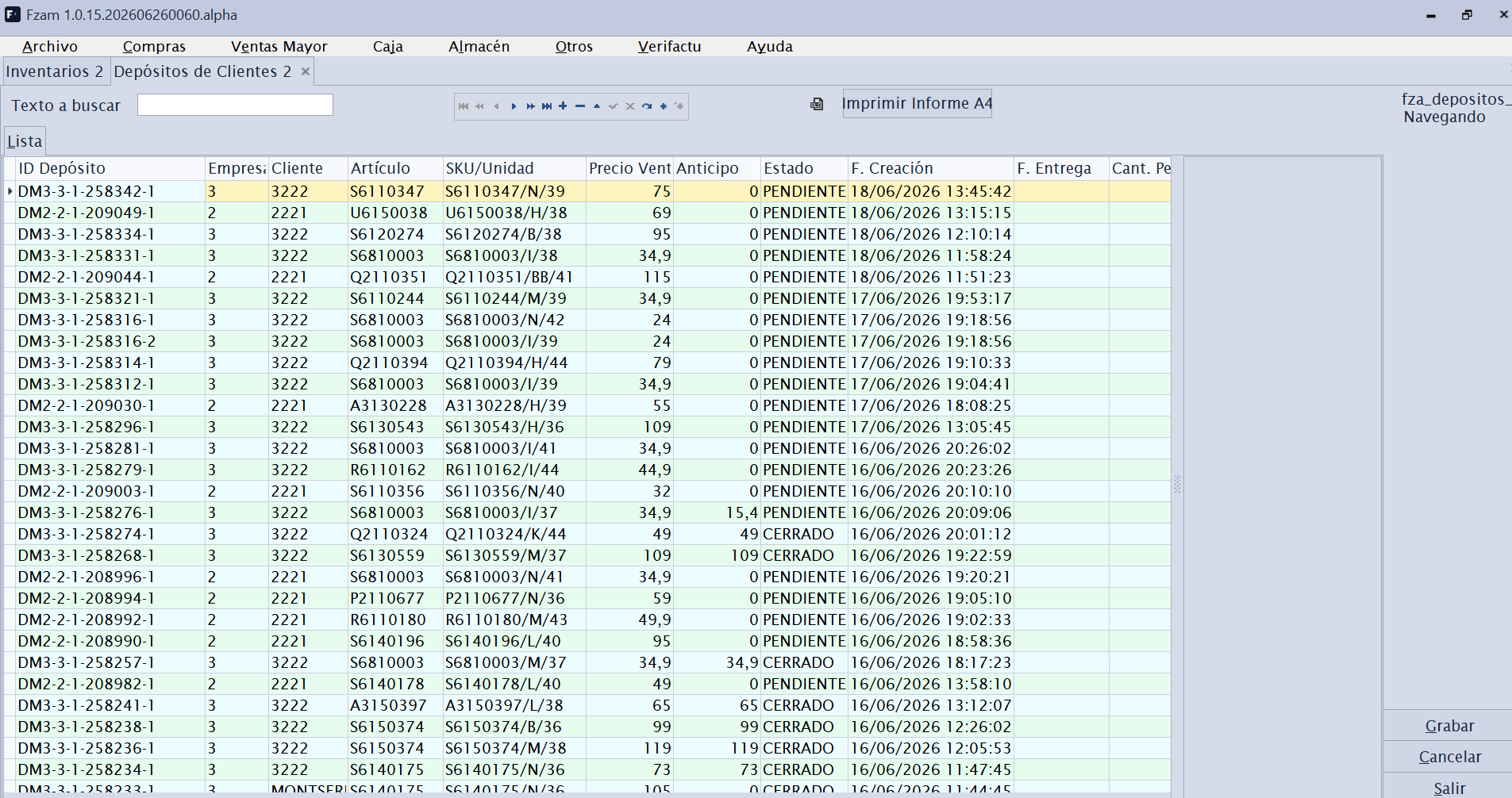
Main columns:
| Field | Meaning |
|---|---|
| ID Depósito | Internal deposit identifier. |
| Cliente | Customer who owns the advance or reserved garment. |
| Artículo / SKU | Reserved garment, including size/colour where applicable. |
| Precio Venta | Expected full selling price. |
| Anticipo | Amount already paid by the customer. |
| Estado | PENDIENTE while reserved; on delivery or cancellation it becomes CERRADO. |
| Cant. Pendiente | Units still pending delivery or reconciliation. |
Deposits are not entered here: they are created and closed automatically from the POS; this screen is for enquiry and audit:
| Moment | Effect on the deposit |
|---|---|
| Cobro parcial en caja | A garment not fully covered becomes a PENDIENTE deposit, with the allocated amount as its advance (or 0 when merely reserved). |
| F2 Cargar cta. + cobro | The reserved garment is collected, deducting its advance, and becomes CERRADO. If less is paid, the advance increases and it remains PENDIENTE. |
| F2 + cantidad en negativo | The deposit is cancelled: the garment is not charged and the advance becomes credit in that collection. |
The customer account is used from the till in two ways:
| Action | Effect |
|---|---|
| Cargar cta. (F2) | Adds customer deposits to the receipt for collection, increased advance or cancellation. |
| Préstamo (F7) | Leaves an amount pending on account when the customer is permitted credit. |
A deposit and a loan are different. A deposit is money/a garment already recorded on account. A loan closes a sale while leaving debt.
Histórico de Pagos de Caja
Menu shortcut: [Shift]+[Ctrl]+[J]
Enquiry of all till collections and payments, with methods and amounts. Filter by date and review the cash moved.
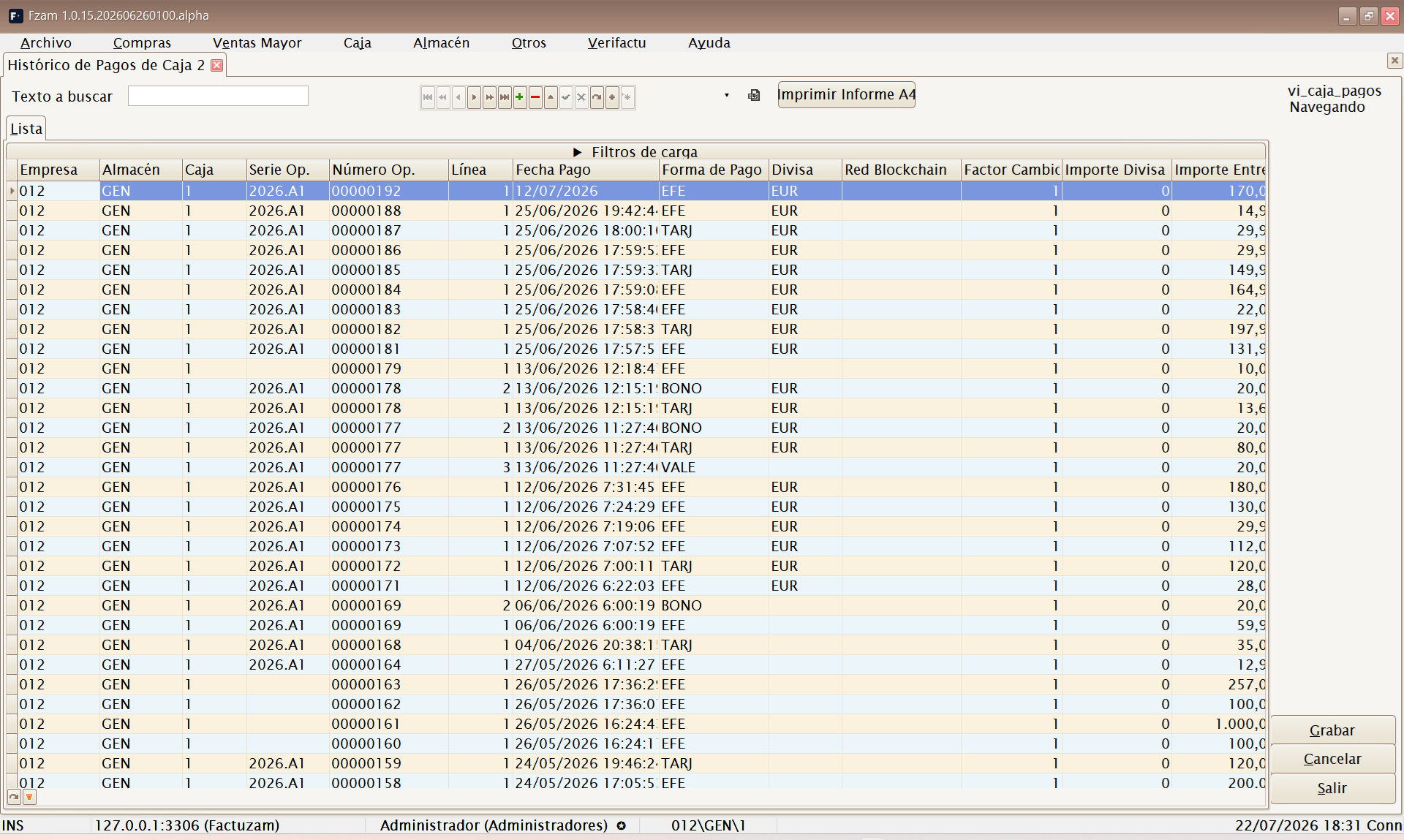
Includes company, warehouse, till, operation series and number, line, date, payment method, currency, reference, amount received, change and observations. Use it to explain why card-terminal or cash totals do not match the cash count.
Histórico de Vales
Menu shortcut: [Shift]+[Ctrl]+[V]
Enquiry for vouchers issued (for customer returns without cash refund) and their status (pending, redeemed, expired).
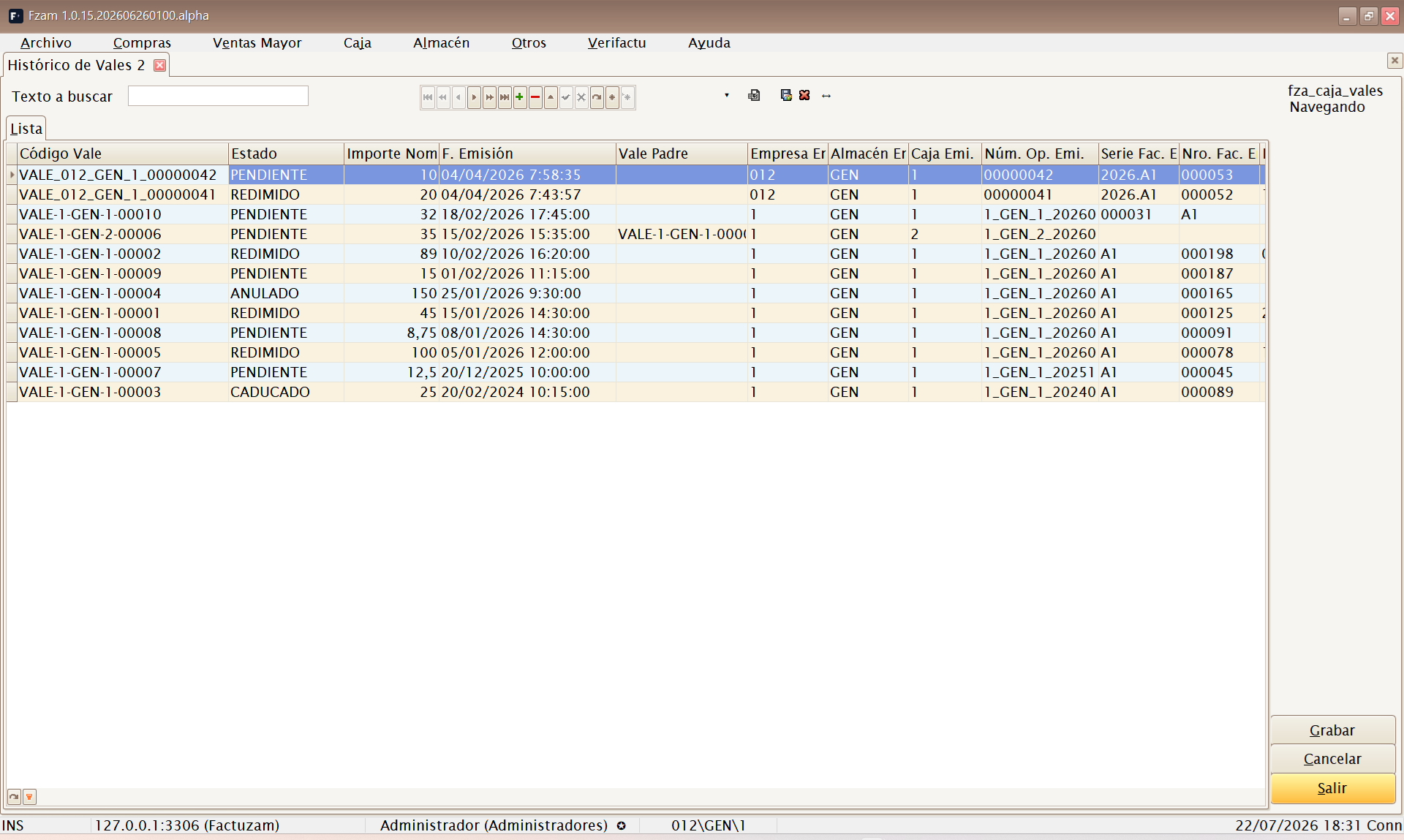
Displays voucher code, status, nominal amount, issue date, expiry, PIN where present, issuing operation and redemption operation. It shows whether a voucher is pending, already used, and at which till it was redeemed.
Histórico de Operaciones
Menu shortcut: [Shift]+[Ctrl]+[O]
Enquiry for the POS complete operation log: sales, returns, change receipts, expenses, transfers and so on, with traceability. This is the audit view of till activity.
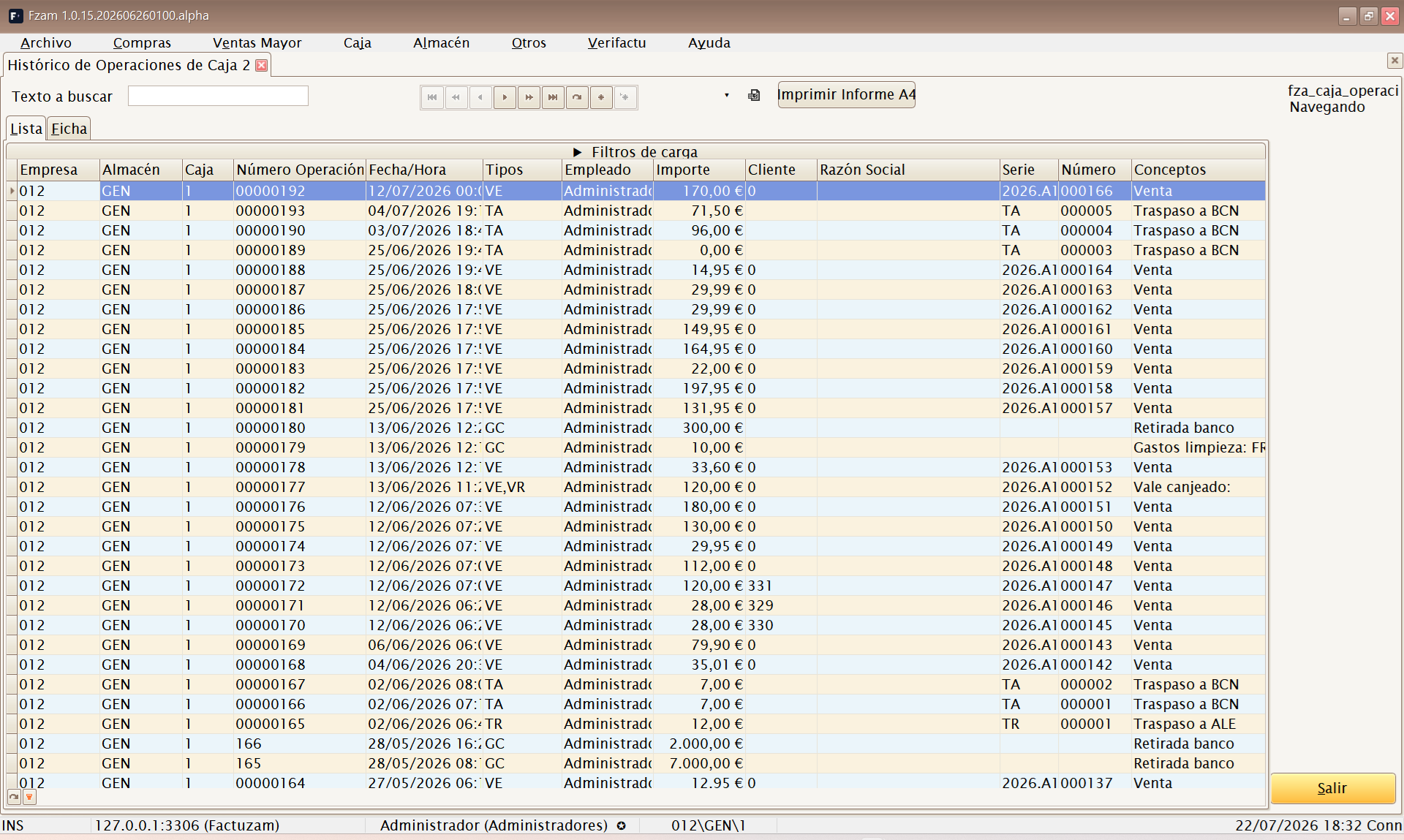
It is an administrative enquiry, not the daily sales screen. Review by year and warehouse, find operations by customer, number, amount or concept, and open the associated simplified draft where one exists.
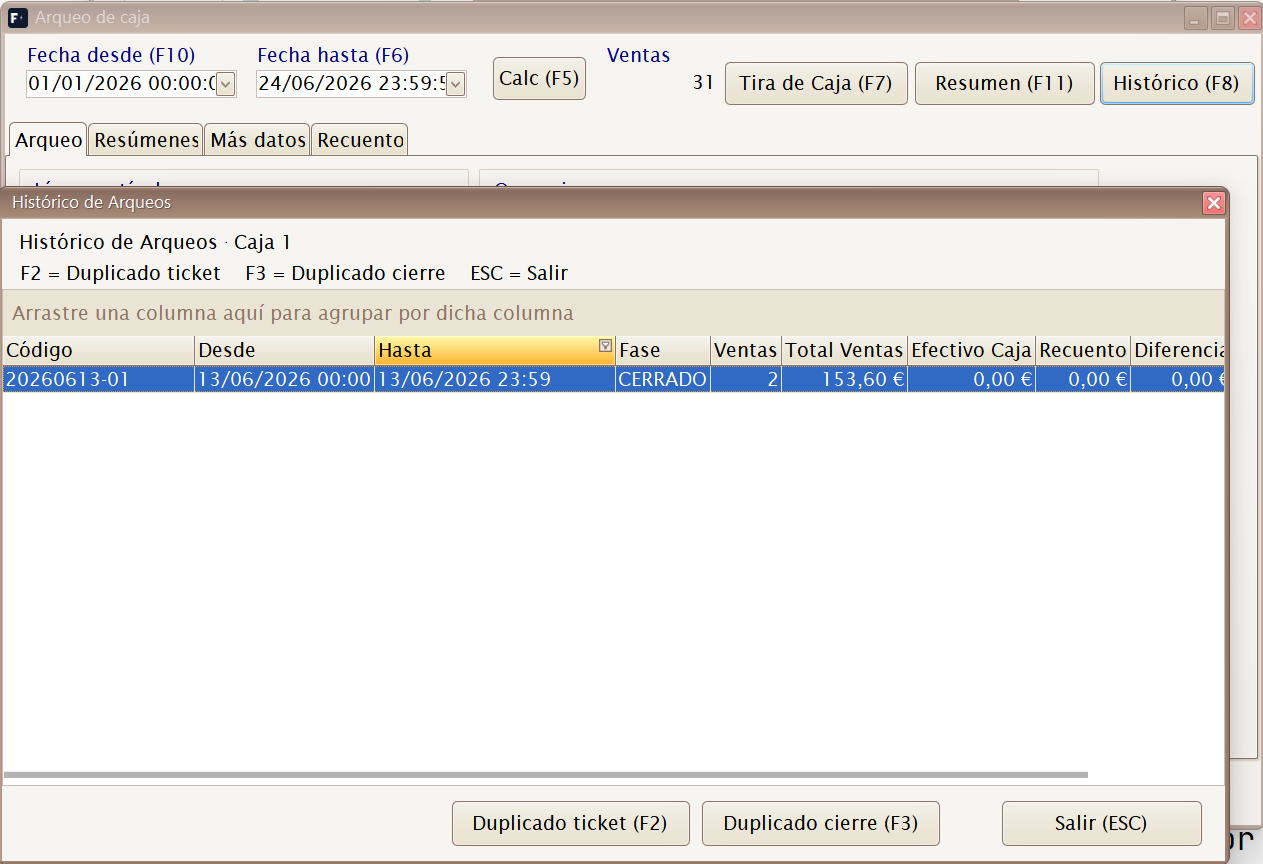
Histórico de Arqueos
Menu shortcut: [Shift]+[Ctrl]+[A]
Enquiry for completed cash counts: cash counted, discrepancies, date and user. It reviews each day's reconciliation and is also available from Arqueo with F8.
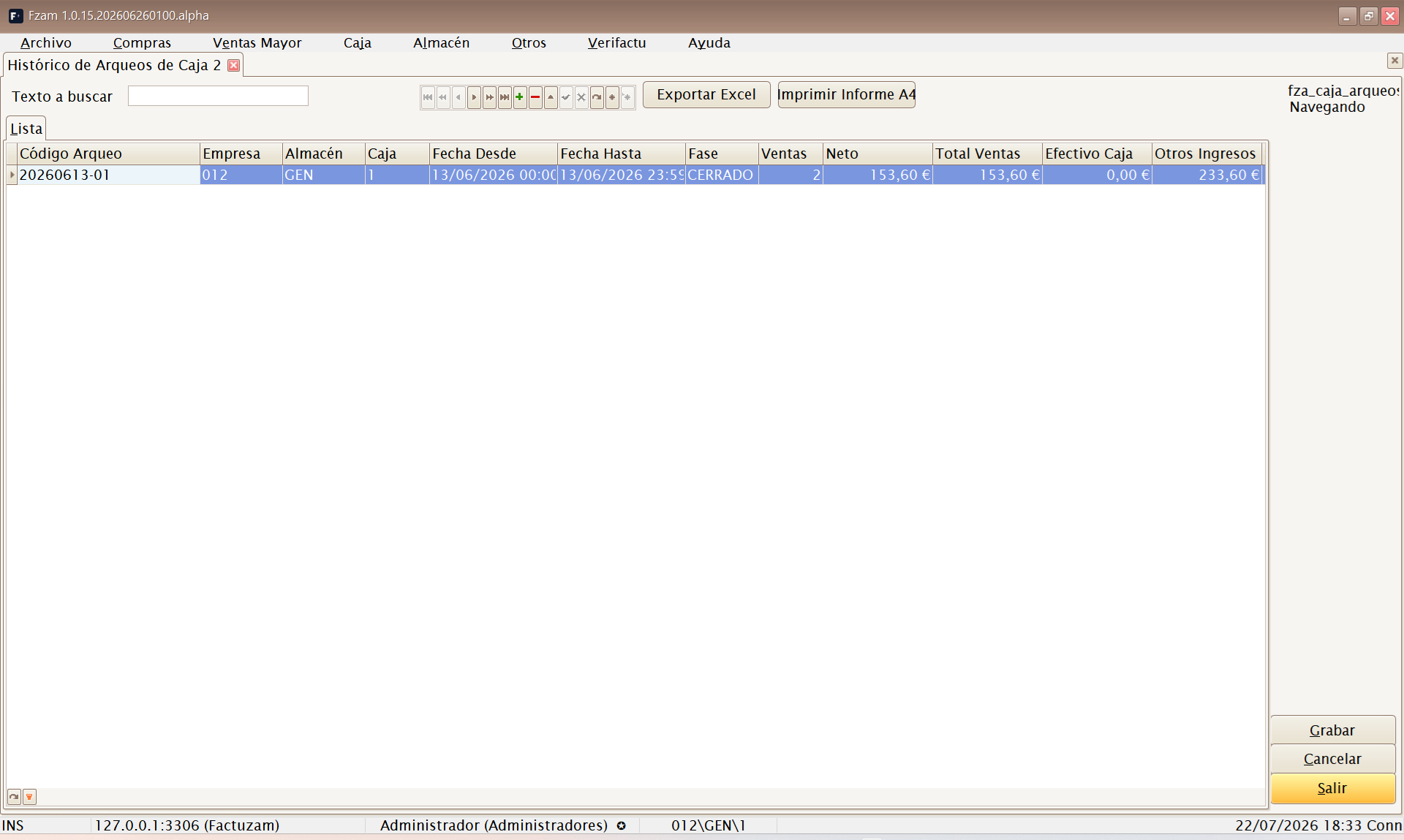
Imprimir Informe A4 generates a landscape report by company, warehouse, till and date range. Its format can be edited and saved from the report designer.
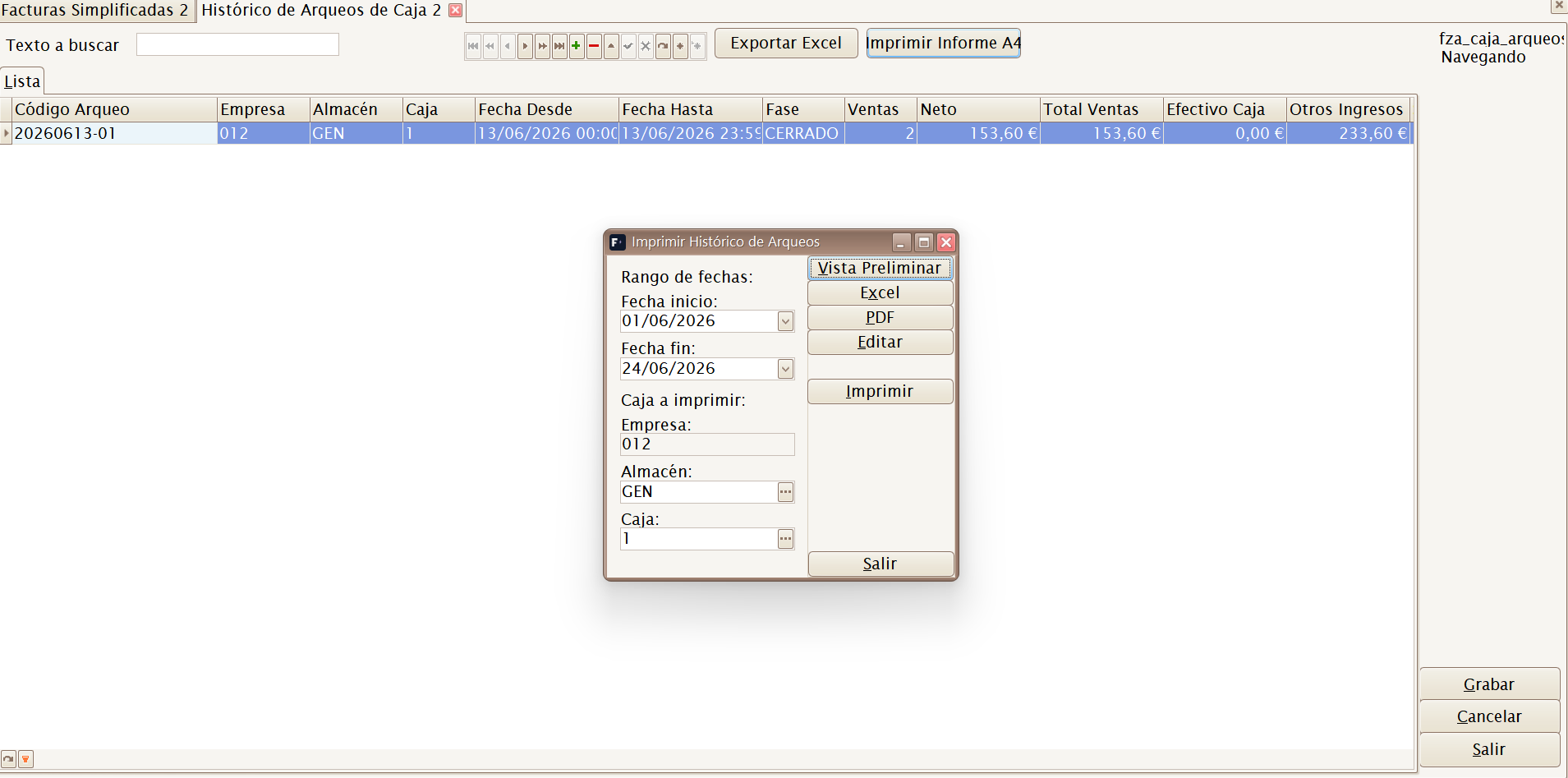
The POS history provides two duplicates:
| Button | Document |
|---|---|
| Duplicado ticket (F2) | Reprints the cash-count summary. |
| Duplicado cierre (F3) | Reprints the saved closure evidence. |
Histórico de Solicitudes de Traspaso
Path: TPV ▸ Histórico de Solicitudes de Traspaso
Collects requests created with Solicitar a otro almacén (F6) and tracks them through fulfilment. The list displays source and destination, employee, status, requested, fulfilled and unfulfilled quantities, pending lines and rejection reasons.

History list: requests between warehouses and access to their record.
The record separates Artículos solicitados from Traspaso realizado. If the request generated transfers, their details and associated stock movements can be reviewed. Listado solicitudes prepares an enquiry by dates, locations and statuses and can export it to Excel.

Request record: general details and the Artículos solicitados and Traspaso realizado tabs.
History cannot create or delete requests. Only an administrator who also has modify permission can correct the employee or observations; status, quantities and transfer traceability are not edited manually.
Borradores Simplificados
Menu shortcut: [Shift]+[Ctrl]+[F]
Maintenance screen for Borradores Simplificados (tickets) generated at the till. View and reprint them and, where appropriate, convert a receipt into a standard draft in the customer's name. Like other sales documents, they are consolidated according to the configured tax mode.

Common uses:
| Action | When to use it |
|---|---|
| Consultar ticket | Review lines, VAT, amounts and customer for a till sale. |
| Reimprimir | Produce a duplicate when requested by the customer. |
| Convertir a borrador normal | When the customer needs a named document after the sale. |
| Revisar estado fiscal | Check whether the receipt is pending, consolidated or related to Verifactu. |
If the customer requests a named invoice during collection, use Borrador (F8) in the collection phase. Later conversion is for receipts that have already been closed.
Facturas proforma
Path: TPV ▸ Facturas proforma
Generates documents by period from closed POS operations and retains a history of processed operations. Enter Desde, Hasta and the issuing company; for transfers, also select the destination company.
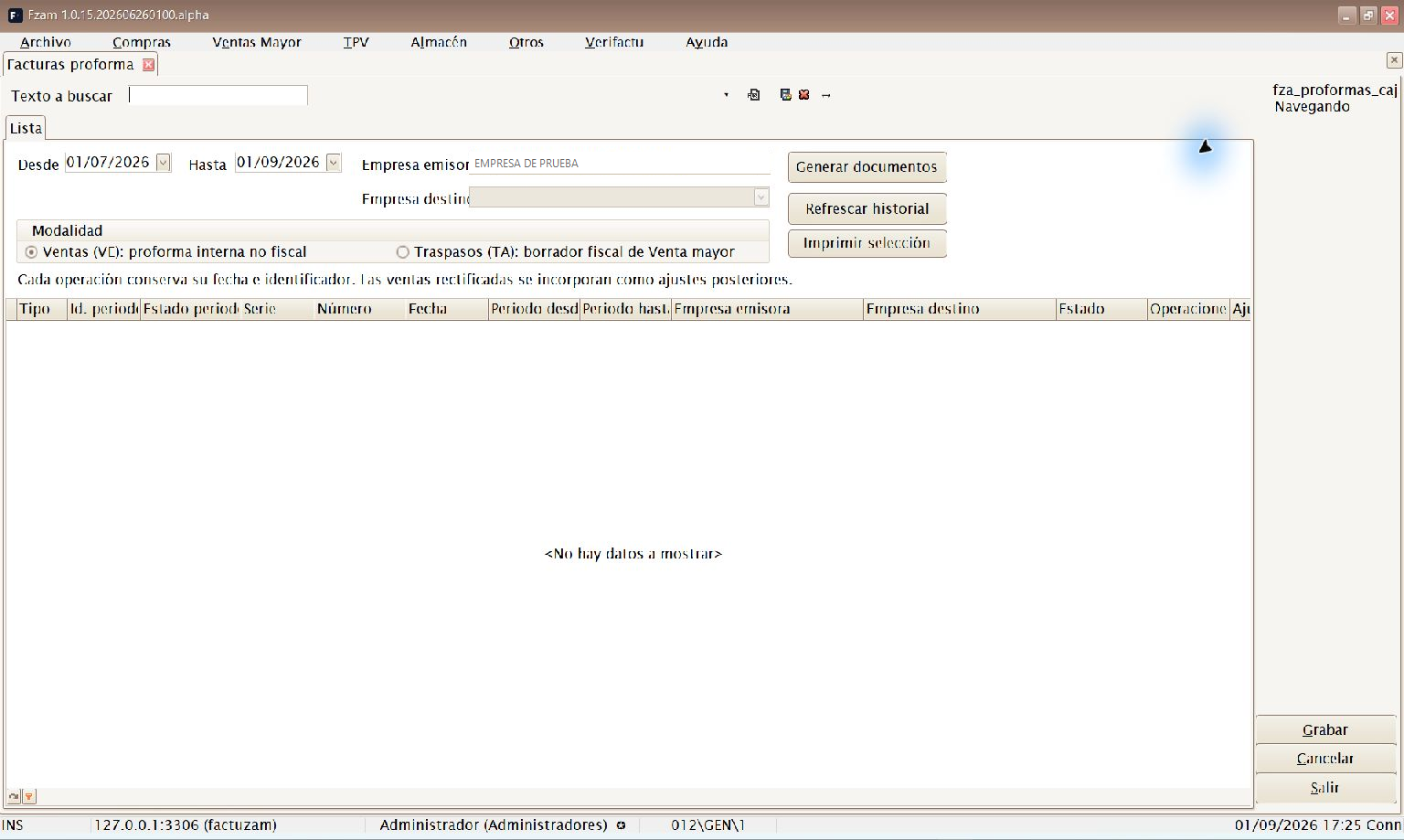
Pro forma invoices: period, companies, mode and document history.
Note: In the demonstration environment, this enquiry may open with no rows when there is no connection or no history is yet available.
| Mode | Result |
|---|---|
| Ventas (VE): proforma interna no fiscal | Groups VENTA CONTADO operations into an internal pro forma. It does not declare VAT or report to Verifactu. |
| Traspasos (TA): borrador fiscal de Venta mayor | Generates standard drafts for inter-company transfers. VAT and Verifactu are declared when consolidated from Venta Mayor. |
Generar documentos first checks the period and warns if it duplicates or overlaps another. Linked operations are not included again; later corrections are added as adjustments. Refrescar historial refreshes the list. Imprimir selección prints VE pro formas; TA drafts are viewed and printed from Venta Mayor.