02 · Archivo menu
The Archivo menu contains the business's master data: the stable information on which all documents depend (companies, warehouses, customers, suppliers and items), together with the supporting tables used to classify them. This is the first menu to configure when setting up the application.
Remember: all these screens share the operation described in 01 · Common concepts (list, record, navigator, search, save/cancel). Only the features specific to each screen are described here.
Menu structure:
Archivo
├── Empresas
├── Almacenes
├── Clientes
├── Proveedores
├── Artículos
├── Tablas Auxiliares
│   ├── Tarifas
│   ├── Familias
│   ├── Paises
│   ├── Unidades de Medida
│   ├── Propiedades
│   ├── Tipos de Variaciones
│   ├── Colecciones de Atributos
│   └── Atributos básicos
├── Invocar login
└── Salir
Empresas
Menu shortcut: [Ctrl]+[E]
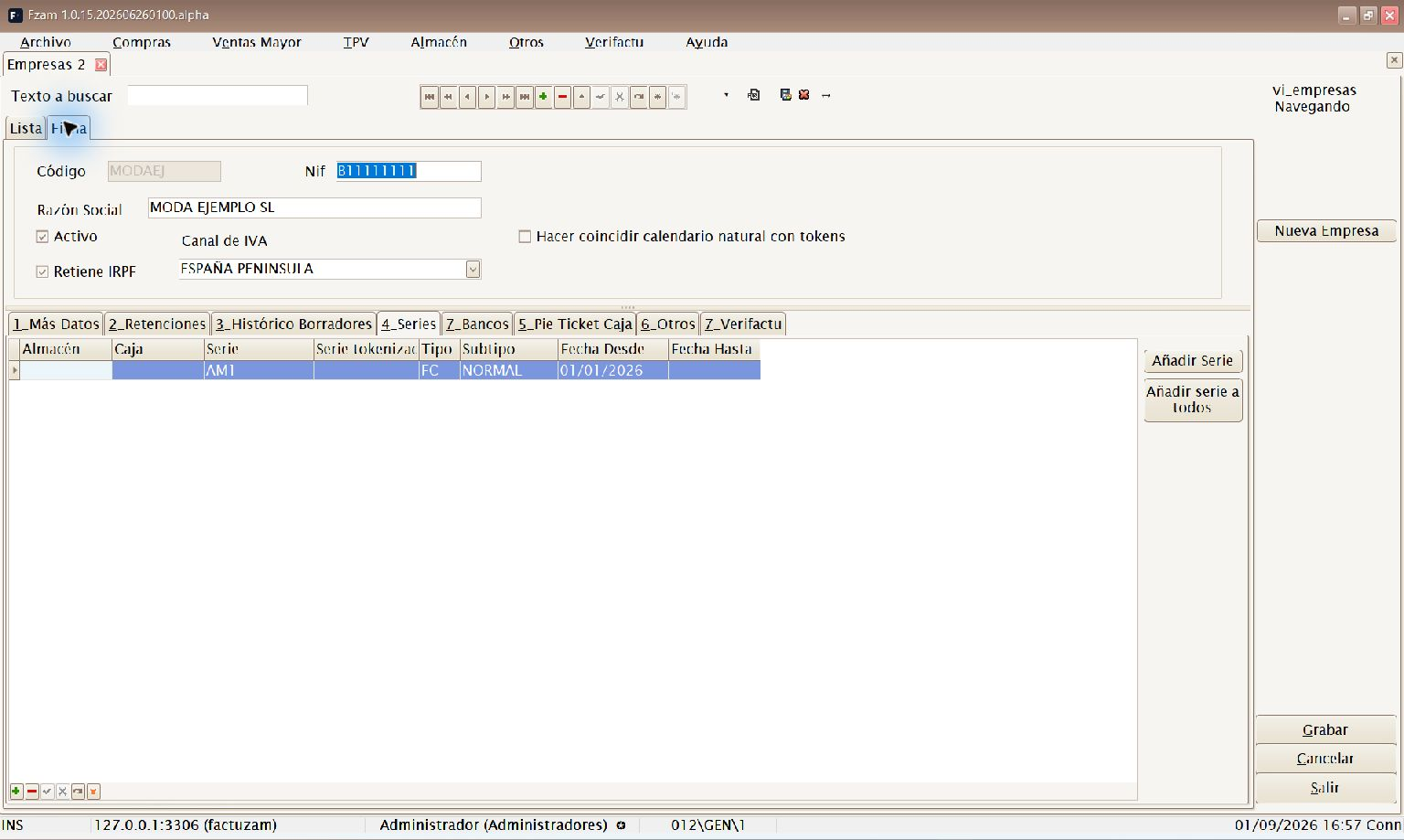
Maintains the issuing companies that invoice through Factuzam (there may be more than one). Each company holds its tax details and invoicing configuration. They all share items, families, customers and so on.
Main data: Código, Orden, Activo, Razón Social, NIF, full address (address, town/city, province, postcode), Móvil and Email.
Tax and invoicing data (in sub-tabs):
- Más datos — contact and supplementary information.
- Retenciones — applicable code and withholding percentage; includes Aplica Retenciones and Es REAGP (special agricultural, livestock and fisheries scheme).
- Series — numbering series for the company's documents. They can be fixed or change automatically by year, quarter, month or day; see Numbering series with tokens.
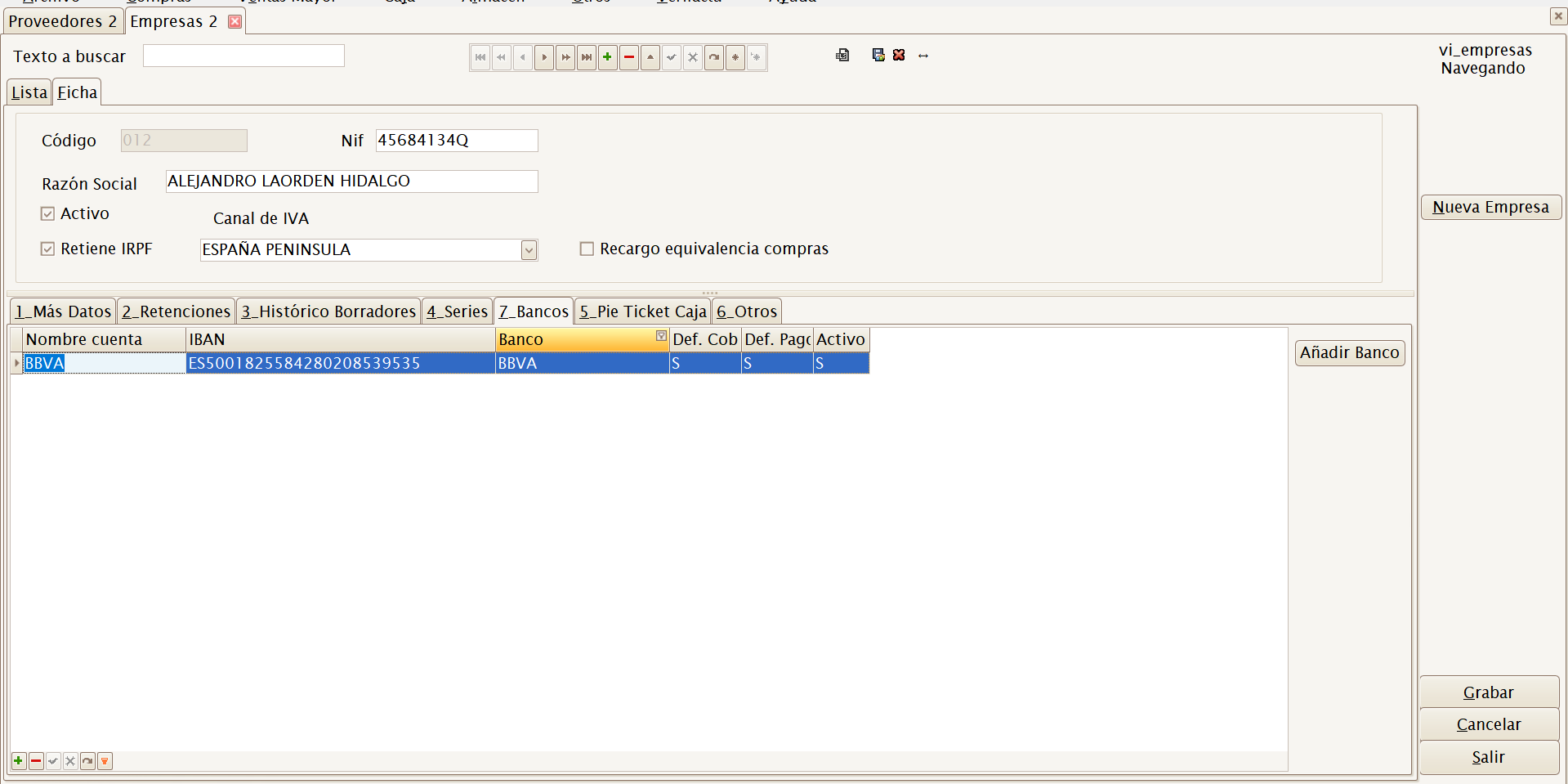
- Bancos — the company's own bank accounts. These preselect the collection account on customer receipts and the payment account on supplier receivables/remittances.
- Certificado / Verifactu — Número de Serie and Tipo de Certificado for signing and sending invoices to Verifactu (AEAT), and for issuing a signed eDoc where applicable.
- Texto en Factura — legal text printed on documents.
- Zona de IVA principal — the company's default VAT scheme.
Correct NIF, series and certificate configuration is essential for issuing valid invoices and integrating with Verifactu. If you have tax questions, consult your adviser before invoicing.
Numbering series with tokens
A tokenised series is a series template containing a variable calendar
element. When a document is created, Factuzam replaces the tokens with the
applicable date and stores the result as text. For example, the A1.yyyy
template generates the A1.2026 series during 2026.
Each resulting series has its own counter. A monthly template therefore generates independent numbering each month, while an annual template generates independent numbering each year. Existing documents retain the series they were given: a change of period does not rename them.
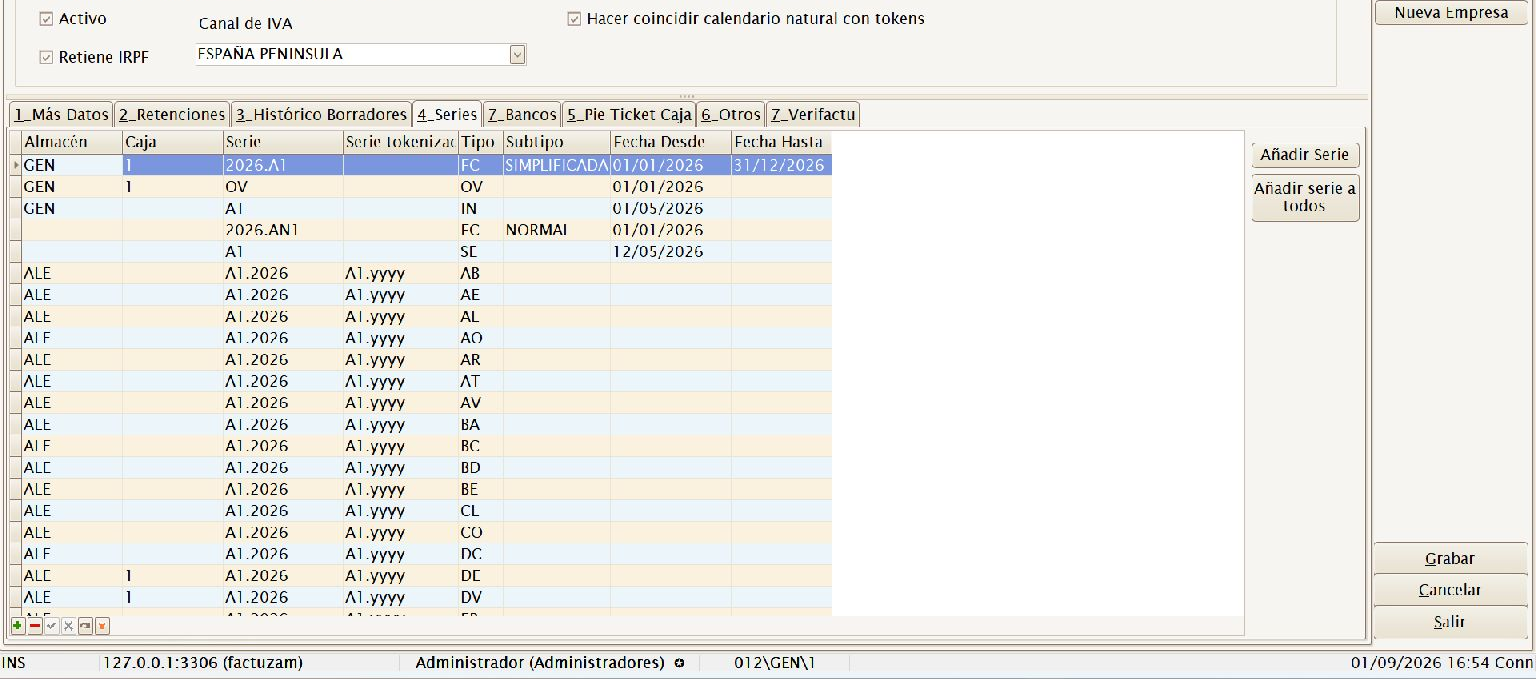
Calendar matching enabled, with tokenised templates and their resolved series.
Available calendar tokens
| Token | Replacement | Example for 04/08/2026 |
|---|---|---|
yyyy | Four-digit calendar year. | A1.yyyy → A1.2026 |
q | Calendar quarter, from 1 to 4. | Tq.A1.yyyy → T3.A1.2026 |
mm | Two-digit month, from 01 to 12. | A1.yyyy.mm → A1.2026.08 |
dd | Two-digit day of the month. | yyyy.mm.dd → 2026.08.04 |
Tokens are case-sensitive and must be entered exactly as lower-case text. The template must contain at least one token, and each token may appear only once. You can combine several tokens with fixed letters, numbers, full stops or hyphens.
Choose the period deliberately:
yyyychanges the series once a year;q, every quarter;mm, every month; anddd, every day. Each change starts the numbering for a different series.
Configuring a series for all documents
This is the quickest way to prepare a complete location:
- Open Archivo ▸ Empresas, select the company and open its record.
- Select Hacer coincidir calendario natural con tokens and save the company. This option is cleared by default for new companies.
- Open the Series tab and press Añadir serie a todos.
- Select Almacén and Caja. Caja is only applied to document types that operate by till; the others retain the warehouse.
- Enter the Serie tokenizada base —up to 11 characters— and press Aceptar (F12).
- Review the rows created in the grid. If the exact same combination of company, location, type, subtype and template already exists, Factuzam skips it instead of creating a duplicate.

Selecting Almacén, Caja and Serie tokenizada base for bulk creation.
The bulk creation process creates the template for every document type configured in the installation. It reserves three series for invoices:
| Invoice subtype | Series created |
|---|---|
| Simplificada | The base template, for example Tq.A1.yyyy. |
| Normal | The base template plus N, for example Tq.A1.yyyyN. |
| Rectificativa | The base template plus R, for example Tq.A1.yyyyR. |
Repeat the process if another warehouse and till combination requires a different series.
Configuring a single series
To define only one document type, press Añadir Serie and complete the new row:
| Field | How it is used |
|---|---|
| Almacén / Caja | Location to which the series will apply. |
| Serie base | Fixed series or fallback value. If it is left empty when a valid template is entered, Factuzam writes the value resolved for the current date. |
| Serie tokenizada | Template with one or more calendar tokens. Leave it empty to use a traditional fixed series. |
| Tipo Doc / Subtipo | Specific document and, where applicable, its variant. |
| Fecha Desde / Fecha Hasta | Optional inclusive validity period for the row. These remain empty during bulk creation. |
Save the row with the navigator. A tokenised series is not accepted unless Hacer coincidir calendario natural con tokens has first been enabled for the company.
Do not confuse the two token groups:
yyyy,q,mmandddchange the numbering series. TheSerieandNroDocumentotokens in the Formato documentos field only control how a reference is displayed, for exampleSerie.NroDocumento; they do not change its numbering. Commas are not allowed in this format.
Almacenes
Menu shortcut: [Ctrl]+[L]
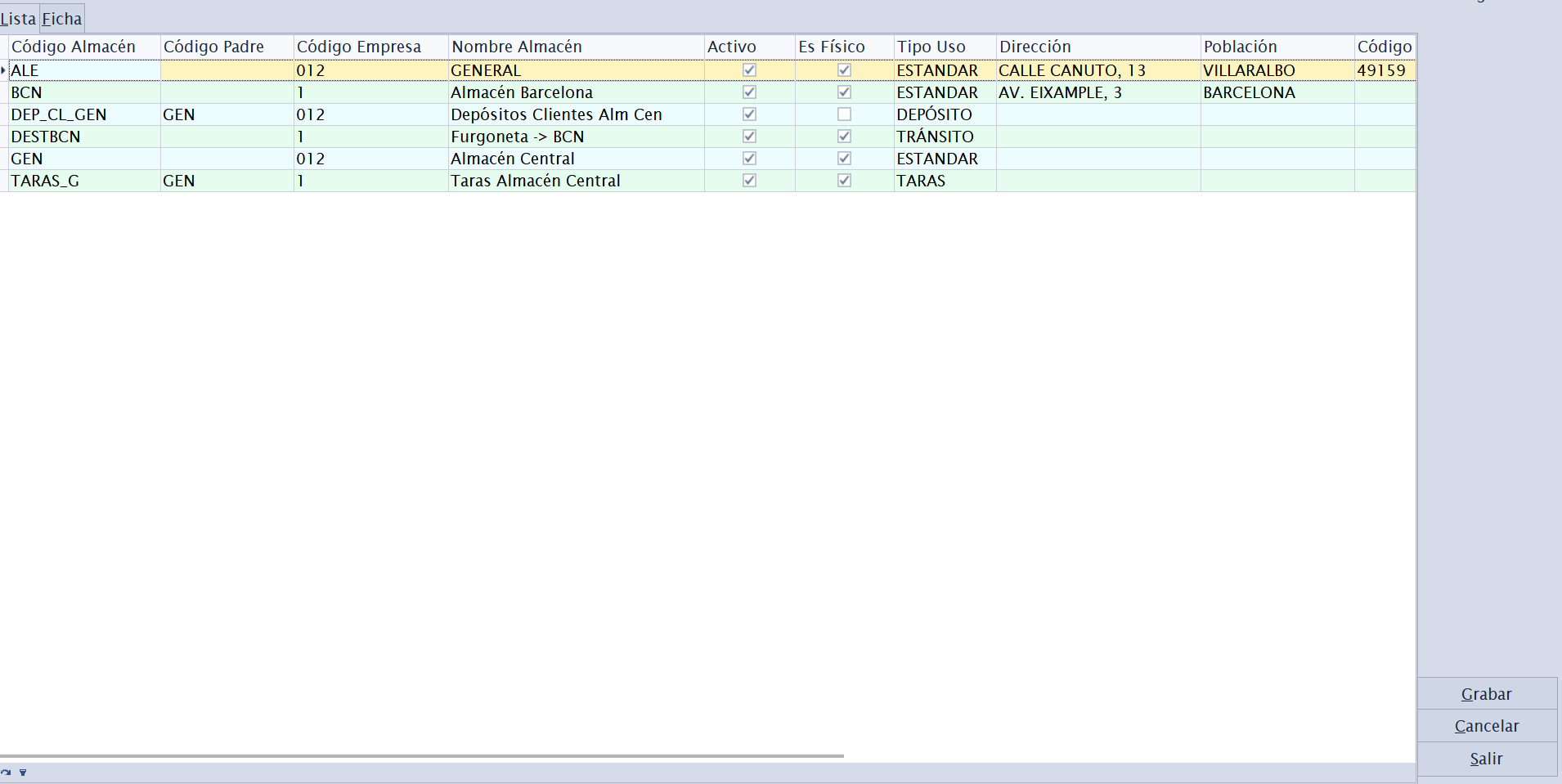
Maintains the physical or logical warehouses where stock is held. Every stock movement, stocktake or goods document references a warehouse.
The En web checkbox indicates whether a standard, active, physical warehouse may contribute stock to its company's online shop. Each PrestaShop profile only totals En web warehouses that belong to the configured company; warehouses belonging to another company, seconds and deposits are excluded. See PrestaShop integration.
Record sub-tabs:
- Dirección física — warehouse location.
- Cajas de Venta — tills/POS terminals associated with this warehouse (warehouse ↔ till relationship for the Caja module).
- Usos Almacén — the purposes for which the warehouse is used (sales, deposit and so on).
- Otros — supplementary information.
Clientes
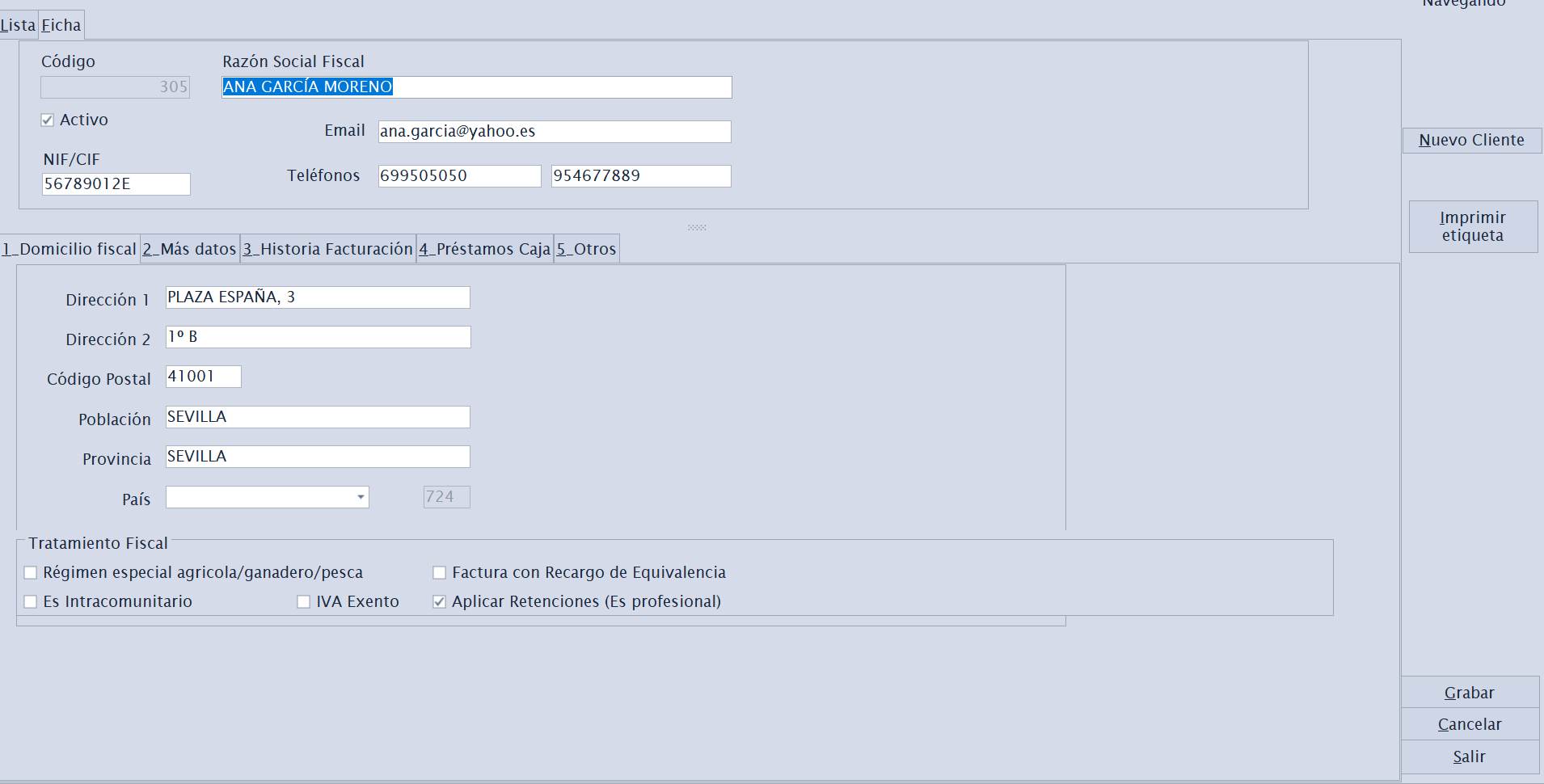
Menu shortcut: [Ctrl]+[K]
Maintains the customer records for the people and organisations to which you sell and invoice.
General data: Código, Activo, Razón Social, NIF/CIF, phone numbers (mobile and landline), Email, full address, País, Observaciones, Referencia, Contacto and contact phone number, and Nº de cuenta.
Tax data that determines how each customer invoice is calculated:
| Field | Effect |
|---|---|
| Forma de pago por defecto | Proposed automatically on their documents. |
| Banco cobro | Company account proposed when generating collection receipts for this customer. |
| Aplicar RE | Applies Recargo de Equivalencia (equivalence surcharge). |
| Aplicar Retenciones | Applies personal income tax withholding. |
| Tiene IVA exento | The customer is not charged VAT. |
| Es Intracomunitario | Intra-Community transaction (0 VAT subject to conditions). |
| Es Agricultor | Special agricultural scheme. |
| Razón Social Fiscal | Tax name if different from the trading name. |
| Texto Legal Factura | Text specific to this customer's invoices. |
These indicators directly affect tax calculations on sales. Configure them carefully when creating the customer.
Parámetros eDoc: this tab stores the information needed to issue a signed Facturae file from Ventas Mayor:
| Field | Purpose |
|---|---|
| Oficina contable | DIR3 code of the public customer's accounting office. |
| Órgano gestor | DIR3 code of the managing body. |
| Unidad tramitadora | DIR3 code of the processing unit. |
| Nombre persona física | First name when the recipient is an individual. |
| Apellidos persona física | Surname(s) when the recipient is an individual. |
These details are copied as a snapshot to each wholesale draft when the customer is selected. If a specific invoice needs a different value, change it on the draft's own Parámetros eDoc tab.
Proveedores
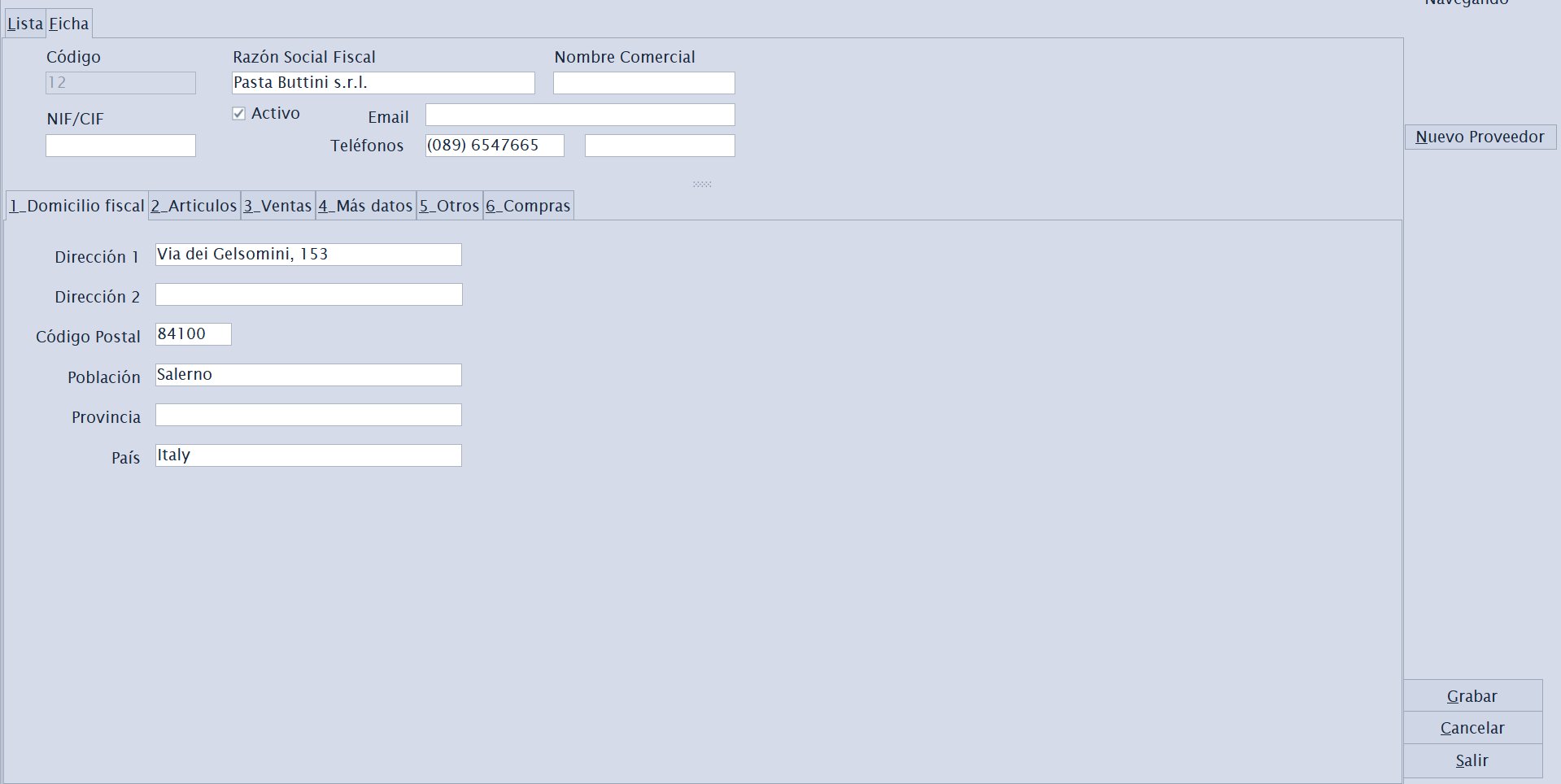
Menu shortcut: [Ctrl]+[P]
Maintains the supplier records for the businesses from which goods are purchased. Its structure is similar to Clientes but is oriented towards purchasing.
Record sub-tabs:
- Domicilio fiscal — tax and address information.
- Artículos — items supplied by the supplier (with their references and purchase prices).
- Ventas — history/commercial relationship.
- Más datos and Otros — supplementary information.
- Compras — default parameters for purchase sessions for this supplier (see below).
- Pagos — usual payment method and the company bank from which its payables or remittances will be paid.
Compras tab (supplier purchasing parameters)
This brings together values that are proposed automatically when you create a purchase session for this supplier, so that you do not have to repeat them for every delivery of goods.
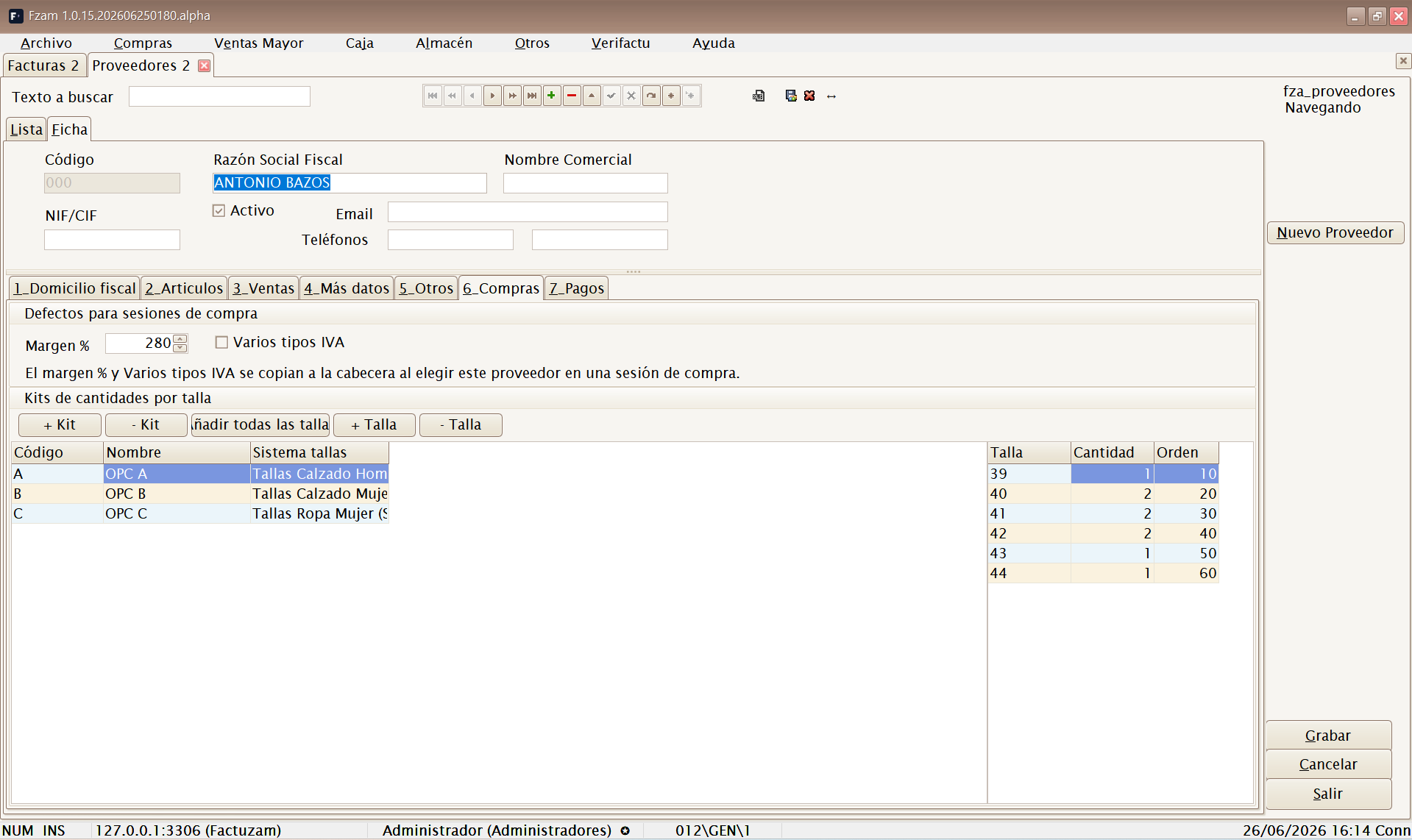
Defaults for purchase sessions:
| Field | Purpose |
|---|---|
| Margen % | This supplier's usual commercial margin. When you select the supplier in a purchase session, it is copied as the session margin and is used to calculate the sales price from the purchase price. |
These values are only proposed; you can always change them within the session. They are copied only if the supplier has completed them.
Quantity kits by size:
A kit is a template for distributing units by size that is frequently repeated with that supplier (for example, a 1-2-2-1 assortment in S-M-L-XL). This is where you maintain the supplier's kit library, ready to apply with one click in purchase sessions.
The tab contains two grids: kits (header) and tallas del kit (detail).
| Button | Action |
|---|---|
| + Kit / − Kit | Creates or deletes a kit. Each kit has a Código, Nombre, Sistema de tallas and Descripción. |
| Tallas del sistema | Fills the kit detail with one row for every size in the selected sizing system (all with quantity 0), ready for you to enter the units. |
| + Talla / − Talla | Adds or removes size rows from the kit manually. |
Each detail line is a Talla, with its Cantidad and a display Orden.
How kits are used: in a purchase session, on an item line, the Aplicar kit button copies the kit quantities into that line's size matrix. Instead of entering each size individually, you apply the whole assortment at once. This is ideal when the supplier delivers packs with a standard size distribution.
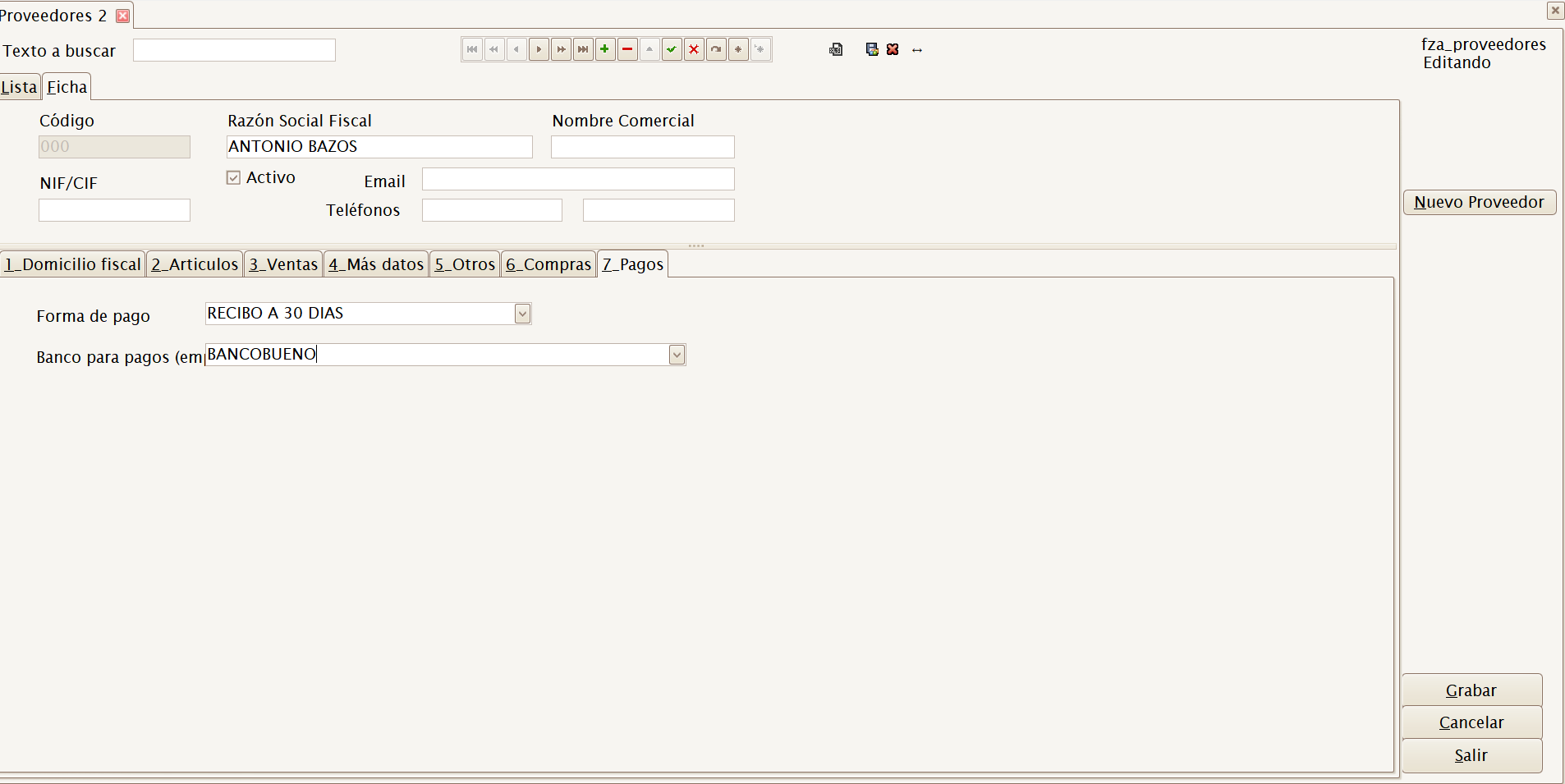
Pagos tab
Allows you to specify the values proposed when recording purchase invoices from this supplier:
| Field | Purpose |
|---|---|
| Forma de pago | Copied to the purchase invoice and defines the due dates when generating payables. |
| Banco para pagos (empresa) | The company's own account preselected when generating payables or including them in remittances. |
Artículos
Menu shortcut: [Ctrl]+[A]
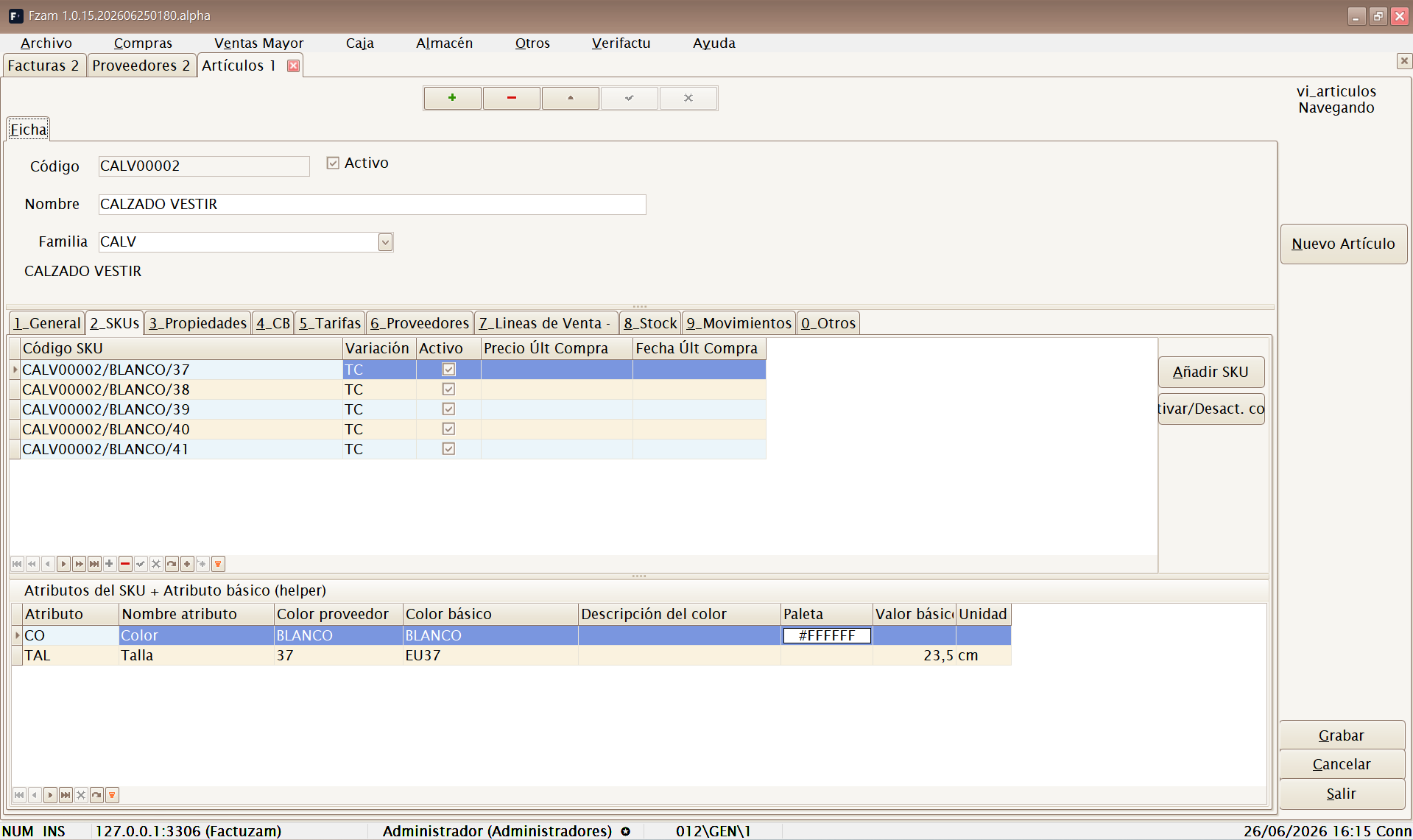
This is the central catalogue screen. It maintains items and their variants (the different sizes/colours are known as SKUs).
Record sub-tabs:
- General — basic data: description, family, unit of measure, VAT and so on.
- SKUs — the item's variants (combinations of size, colour or other attributes). Each SKU is a saleable reference with its own stock and barcode. A wizard is available to generate SKUs from the defined variations.
- Propiedades — descriptive properties assigned to the item. Some properties can be recorded by item, colour or SKU; if a colour has a different season, stock reports and searches use that colour's effective season.
- CB — barcodes for the item and its SKUs.
- Tarifas — item prices on the different price lists.
- Proveedores — suppliers that provide it and their references.
From the list/record you can also check the item's stock and photo with the navigator buttons.
The En web checkbox makes the item eligible for the integration and queues it for checking; it does not publish it by itself. Depending on the effective profile's checkboxes, Factuzam can synchronise an existing product, create a complete inactive product if none exists, and, when expressly authorised, activate it only after the process completes successfully.
When you clear En web, a dialog allows you to deactivate the remote product, merely stop synchronising it, or cancel the change. None of these choices deletes the product. The full behaviour, permissions and stock precautions are described under PrestaShop integration ▸ Artículos.
Only users with the Permisos ▸ Artículos ▸ Activar/desactivar web permission can change this checkbox.
Photographs are managed at item or SKU/colour level. If an SKU does not have its own photograph, it inherits the nearest available photograph. Photographs can also be used on receipts, reports and summaries.
The SKU concept (size/colour variant) is central to Factuzam: stock, prices and barcodes are managed at SKU level, not only at item level.
Tablas Auxiliares
This submenu contains the supporting catalogues used to classify and describe items. It is best to define them before loading the item catalogue.
Tarifas
Menu shortcut: [Ctrl]+[T]
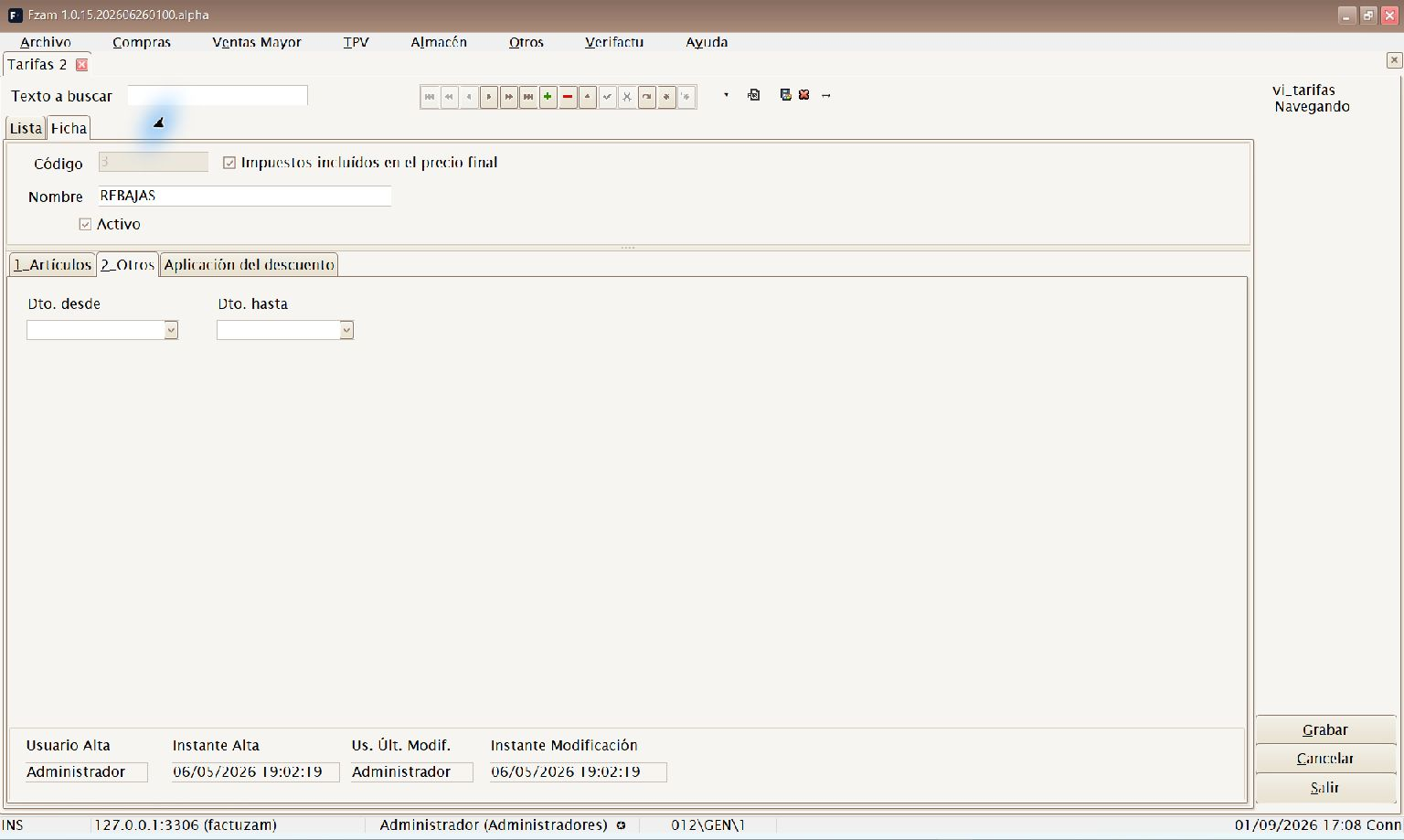
Defines price lists (general price list, promotions, wholesale and so on). Each price list contains item prices.
The price list selected in the PrestaShop configuration provides the web price. SKU prices are converted to impacts on the base price; this is explained under Product and SKU prices.
- Artículos — prices for each item/SKU on this price list. Includes tools to add prices in bulk and calculate margins.
- Otros — price-list parameters (validity, rounding and so on).
- Dto. desde / Dto. hasta — the date window during which price-list discounts apply. Outside this window, the starting price is charged without a discount, even if the price-list line contains a discount.
Applying or excluding the discount
With the saved price list selected, open the Aplicación del descuento tab. Under Aplicar descuento you can choose:

Controls for the mode, property and values that determine whether the discount applies.
| Mode | Effect |
|---|---|
| Todos | Disables any condition and restores the general behaviour. |
| Solo si | Applies the discount only to the selected values. |
| Todos excepto | Activates an exclusion: selected values receive no discount. |
For a conditional mode, select an active list-type Propiedad, tick one or more Valores, and press Guardar aplicación. Only one property is supported per price list. The effective value is resolved in the order SKU ▸ colour ▸ item; if the item or SKU has no value, the discount is not applied. The condition is combined with Dto. desde / Dto. hasta, so both the rule and the date must match.
You need the Modificar permission for Tarifas. The selection is not saved automatically: always confirm it with Guardar aplicación.
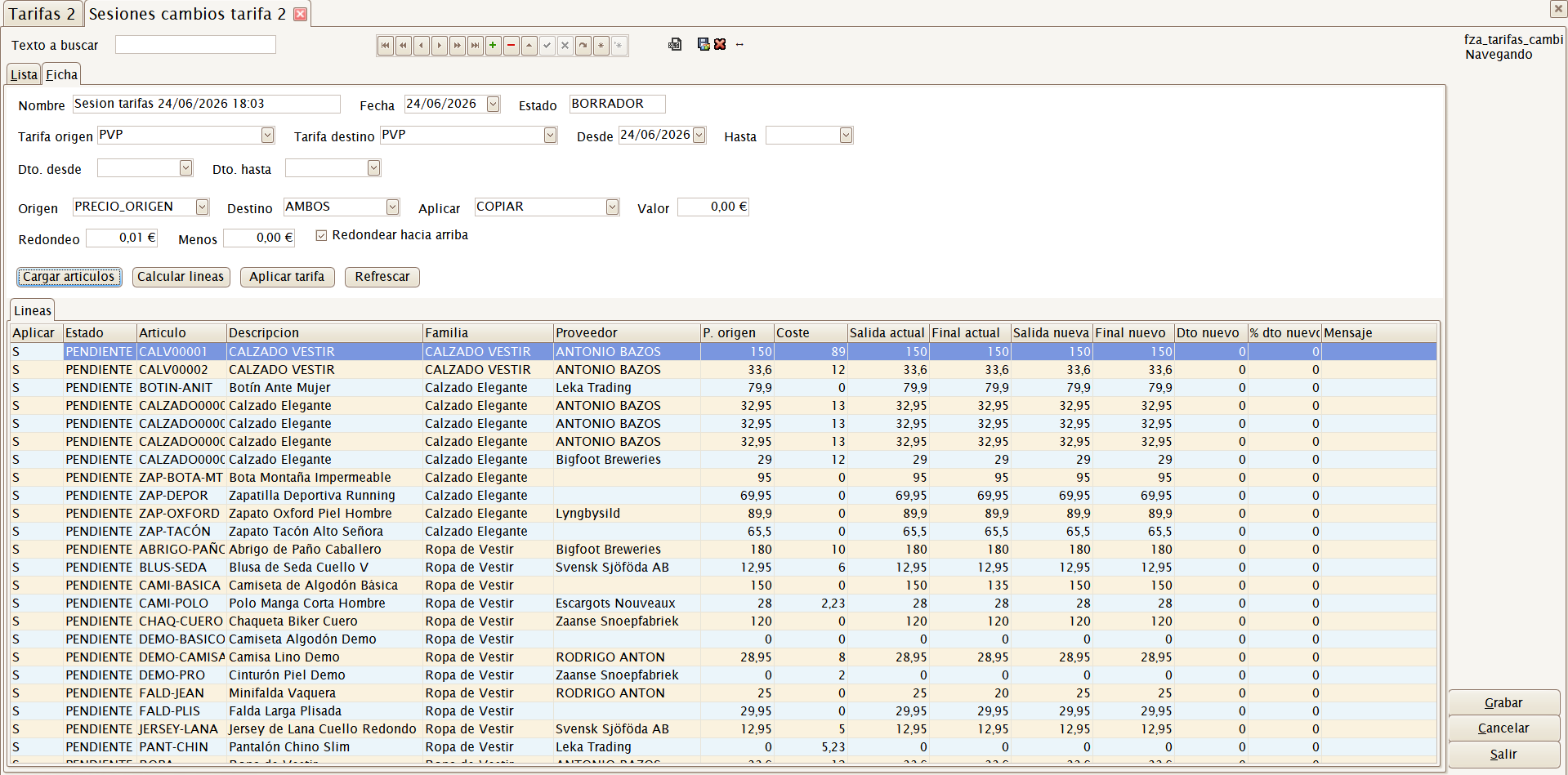
The Sesiones cambios button opens a screen where you can prepare bulk price changes, review the calculated lines, and apply them to the destination price list once validated.
Familias
Menu shortcut: [Ctrl]+[N]
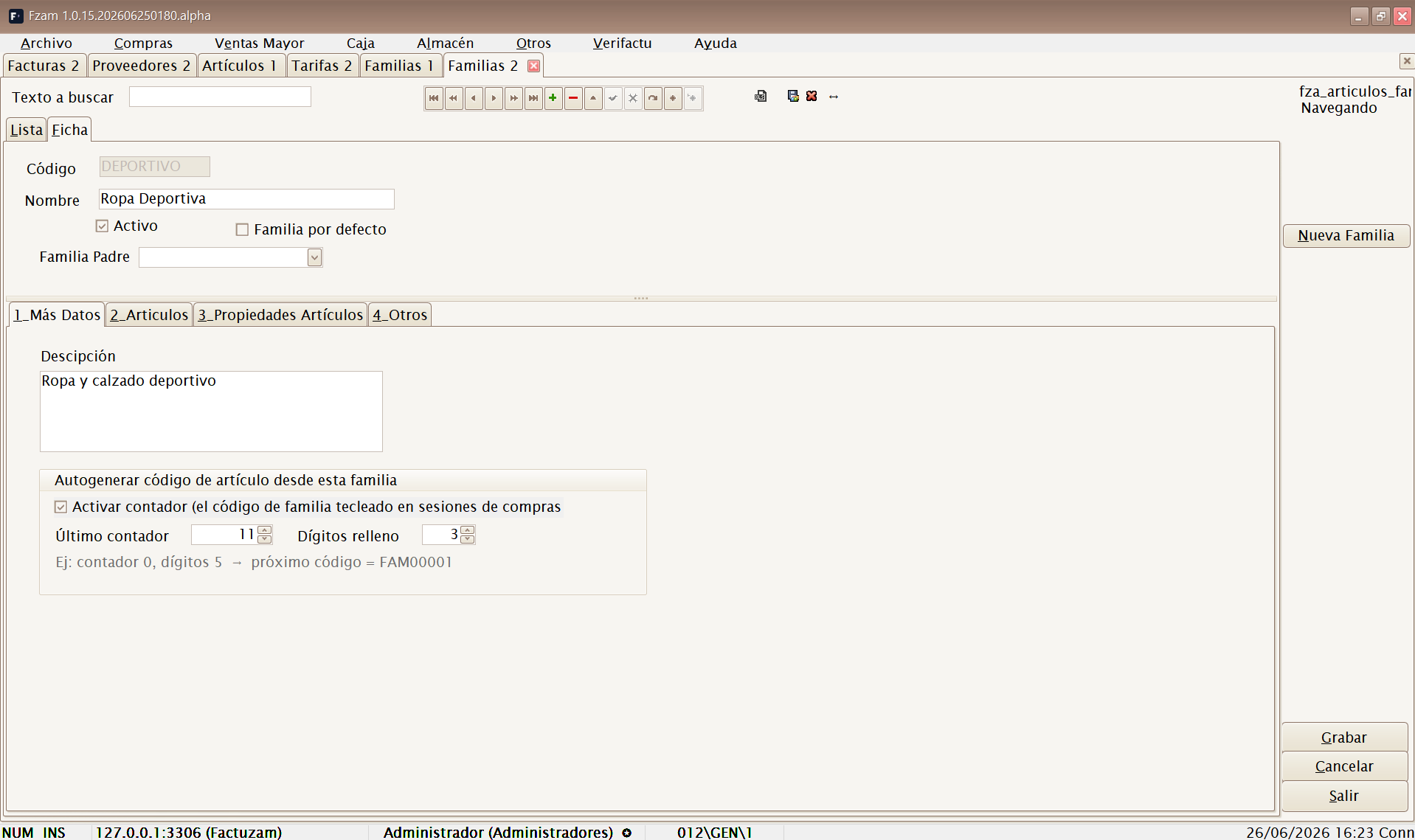
A hierarchical classification of items (families and subfamilies). It groups the catalogue for reports, filters and pricing.
During an authorised web creation, this hierarchy becomes PrestaShop categories beneath the configured root. The profile determines how many local levels are retained, and the integration resolves every category within its parent rather than by visible name alone. See PrestaShop integration ▸ Familias y categorías.
- Más Datos — family data.
- Artículos — items belonging to the family.
- Propiedades Artículos — properties inherited by items in the family.
- Otros.
Paises
Menu shortcut: [Ctrl]+[Alt]+[L]
The countries catalogue used in customer, supplier and company addresses (and for intra-/extra-Community tax classification).
Unidades de Medida
Menu shortcut: [Ctrl]+[Alt]+[U]
The catalogue of units in which items are purchased/sold (unit, pair, box, metre, kilogram and so on).
Each unit defines the decimal places displayed and accepted when selling
or moving stock. For example, a Uds unit can work without decimals, while an
m unit can use two decimal places for fabrics.
Propiedades
Menu shortcut: [Ctrl]+[Alt]+[Y]
Defines descriptive item properties (for example, Material and Temporada) and their available values.
- Valores Disponibles — list of possible values for the property.
- Artículos — items that use this property.
Tipos de Variaciones
Menu shortcut: [Ctrl]+[Alt]+[T]
Defines the variation axes used to generate SKUs (for example, Talla and Color) and their attributes.
- Atributos — variation values (S, M, L, XL… or the colour range).
- Artículos — items that use this variation type.
- Otros.
Colecciones de Atributos
Menu shortcut: [Ctrl]+[Alt]+[S]
Defines reusable sets of attributes (for example, a standard size collection), which can then be applied to several items to generate their SKUs without redefining them each time.
- Valores — attributes that make up the collection.
- Artículos — items that use it.
- Otros.
Atributos básicos
Menu shortcut: [Ctrl]+[Alt]+[B]
The catalogue of elementary attributes (individual size, colour and other values) that make up variations and collections.
In addition to its visible value, each attribute can be linked to a basic attribute or standard equivalent: standardised colour, measurement in centimetres, HEX palette and so on. Factuzam resolves it by priority: item, set, then global value. This means that the same supplier text can have different equivalents depending on the item.
Recommended catalogue configuration order: Unidades de Medida and Paises → Familias → Atributos básicos → Tipos de Variaciones / Colecciones de Atributos → Propiedades → Tarifas → finally, the Artículos and their SKUs.
Invocar login
Menu shortcut: [Shift]+[Ctrl]+[L]
Displays the Login window again without closing the application. This is used to switch users (for example, to let someone else sign in with their profile) without restarting the program.
Salir
Menu shortcut: [Alt]+[F4]
Closes the application. If there are unsaved changes, the application will warn you before closing.