03 · Compras menu
The Compras menu manages the complete purchasing cycle: from the supplier order to receipt of goods, returns and purchase invoices. This is the workflow that brings stock into the warehouse.
Menu structure:
Compras
├── Sesiones
│   └── Crear artículos y un pedido o un albarán
├── Pedidos
├── Albaranes
├── Devoluciones a Proveedor
├── Crear borradores de albaranes...
├── Borradores
├── Efectos de pago
├── Remesas de pago
├── Cargar efectos en remesa...
└── Listados
    ├── Listado de documentos proveedor
    └── Listado de efectos de pago
Usual purchase flow: Pedido de compra → receipt as an Albarán de compra (stock enters) → Factura de compra. Devoluciones reduce stock and generate the supplier credit.
Sesiones ▸ Crear artículos y un pedido o un albarán
Menu shortcut: [Ctrl]+[S]
A quick purchase creation wizard. It is designed for the arrival of new goods from a supplier: on one screen you create the items (with their colours and sizes), set purchase and sales prices and, when the session finishes, materialise it by automatically generating the items, SKUs, barcodes and the purchase order and/or delivery note.
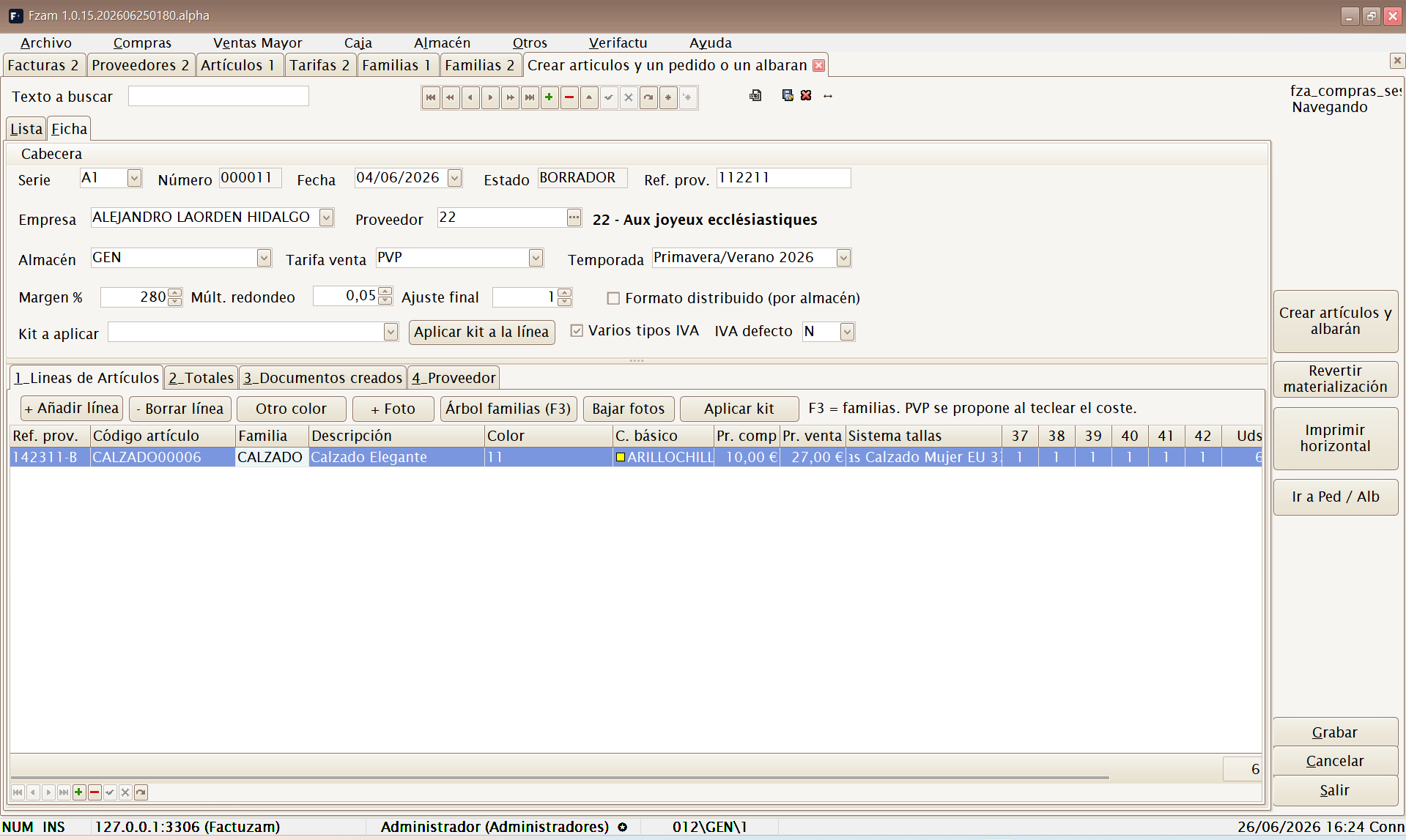
1. Session header
| Field | Description |
|---|---|
| Serie / Número / Fecha | Session identification (numbered by counter). |
| Estado | ABIERTA (editable) or CERRADA (already materialised). |
| Empresa | Purchasing company. |
| Proveedor | Supplier of the goods (search button). |
| Ref. prov. | Reference of the supplier document (their delivery note/invoice). |
| Almacén | Destination warehouse for the goods. |
| Tarifa venta | Price list to which the calculated sales prices are saved. |
| Temporada | Season to which the goods belong. |
| Formato distribuido (por almacén) | Enable this when the goods are distributed between several warehouses/shops; quantities are entered by warehouse. |
Automatic sales-price calculation from the purchase price:
| Field | Effect |
|---|---|
| Margen % | Margin percentage applied to the purchase price. |
| Múlt. redondeo | Rounds the resulting price to the specified multiple. |
| Ajuste final | Adjustment added at the end (for example, -0,05 to end in .95). |
You can accept the proposed price or correct it line by line.
Margen % is proposed automatically from the supplier purchasing parameters when you select the supplier in the header. The sizing system is chosen on each line or when applying a supplier kit.
2. «Líneas de Artículos» tab
Each line is an item + colour with its size breakdown:
| Column | Description |
|---|---|
| Familia (F3) | Item family; [F3] opens the family tree for selection. |
| Cód. artículo | Item code (new or existing). |
| Modelo prov. | Supplier reference/model. |
| Descripción | Item description. |
| Color / C. básico | Commercial colour and basic classification colour. |
| Pr. compra / Pr. venta | Purchase and sales price (proposed using the margin). |
| Sistema tallas | Item sizing collection (S-M-L-XL, numeric and so on). |
| Total tallas | Total units; quantities are distributed by size in the matrix. |
| Importe s/IVA | Line amount (purchase). |
Tab buttons:
- + Añadir línea / − Borrar línea — manages the session lines.
- Otro color — duplicates the current line so you can enter the same model in another colour without re-entering its data.
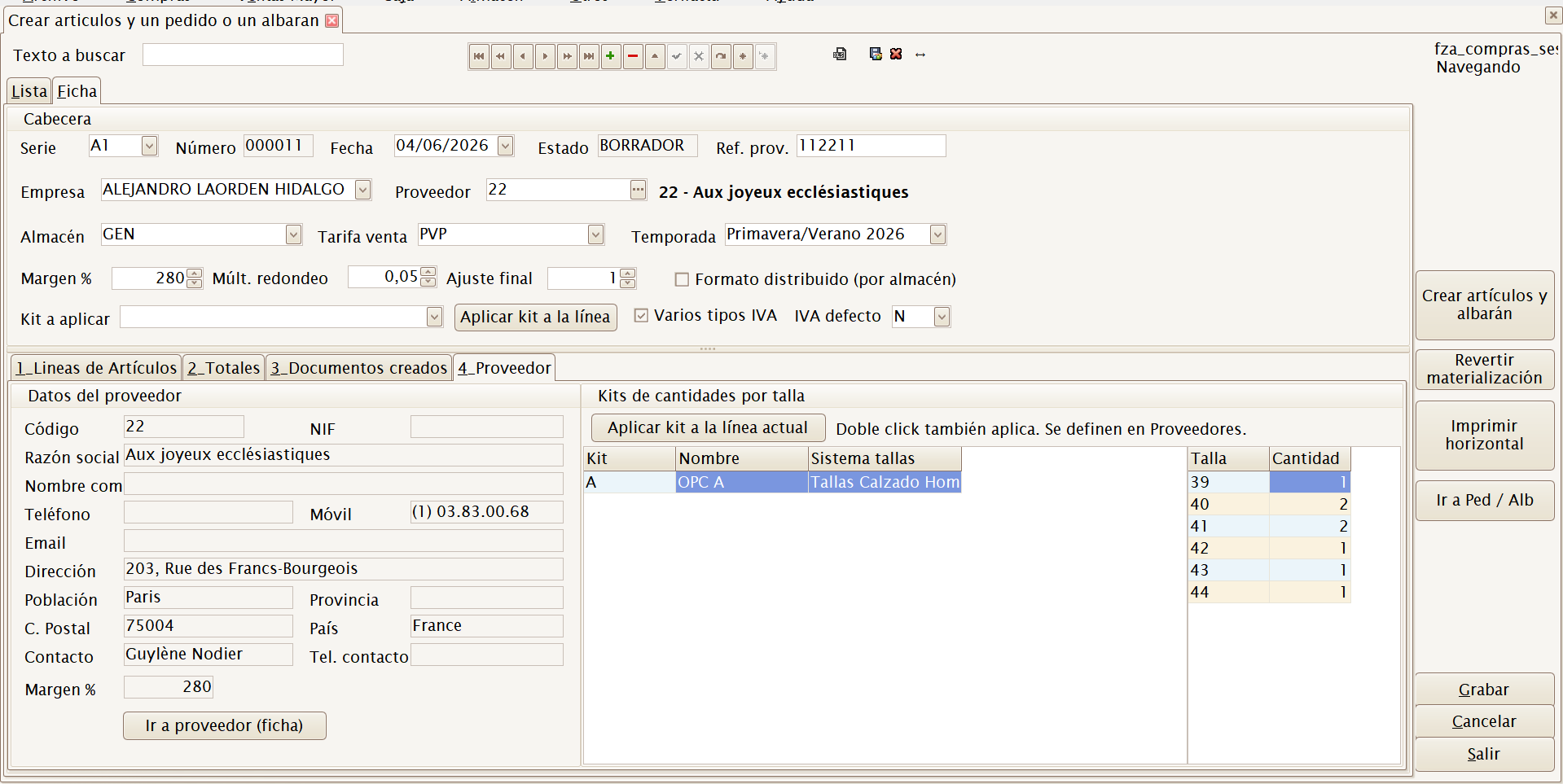
- Aplicar kit — copies a size range defined for the supplier onto the current line. In distributed format, it opens the distributor so it can be applied by warehouse.
- + Foto / Bajar fotos — associates photographs with the item or downloads them.

Duplicate code. If you enter an item code that already exists in the catalogue, the application detects it and asks what to do: Reusar el artículo existente (no new item is created; the purchase is added to it) or Renombrar el código en esta sesión.
3. Materialising the session
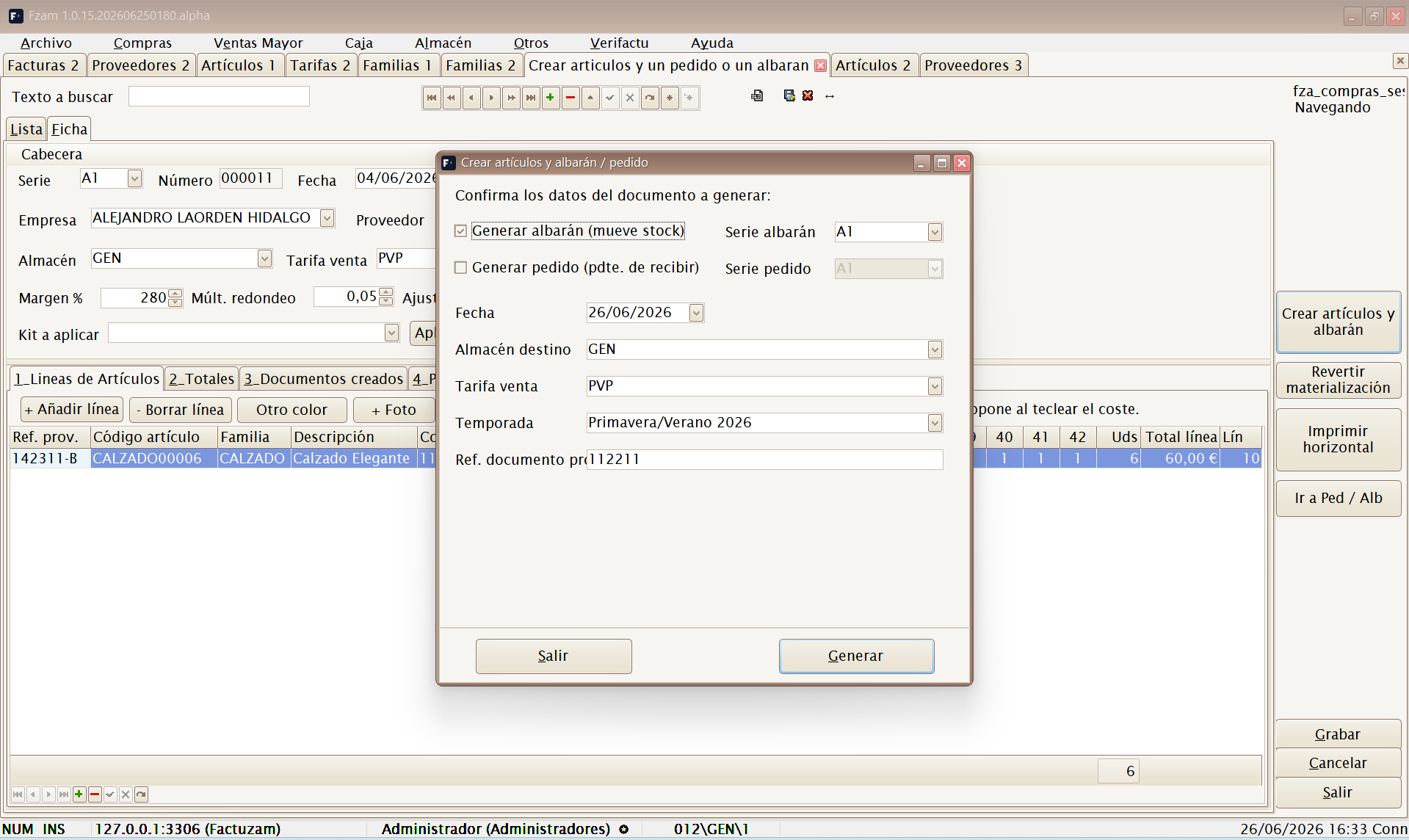
When the session is complete, press «Crear artículos y albarán». The «Crear artículos y albarán / pedido» wizard opens so you can confirm which documents to generate:
| Option | Effect |
|---|---|
| Generar albarán (mueve stock) | Creates the purchase delivery note: the goods enter the destination warehouse. Select its series. |
| Generar pedido (pdte. de recibir) | Creates a purchase order (does not move stock; remains pending receipt). Select its series. |
| Fecha | Document date. |
| Almacén destino / Tarifa venta / Temporada | Proposed from the header; can be adjusted. |
| Ref. documento proveedor | Supplier document reference. |
| Agrupación almacén (distributed format only) | Group every warehouse into one document or generate one document per warehouse. |
If you select both documents, they are generated in order: the order first, then the delivery note.
After you press Generar, a final notice summarises what will happen
(«Se van a crear los artículos, SKUs, códigos de barras y enlaces al
proveedor según el detalle de la sesión») and asks for confirmation
([F12] Confirmar / [Esc] Cancelar).
Exactly what materialisation does:
- Creates (or reuses) the line items.
- Generates SKUs for every colour/size combination.
- Generates the SKU barcodes.
- Creates item–supplier links with their references.
- Saves sales prices to the selected price list.
- Generates the purchase order and/or delivery note (the delivery note brings stock in).
- Changes the session to
CERRADA, after which it is no longer editable.
4. «Documentos creados» tab
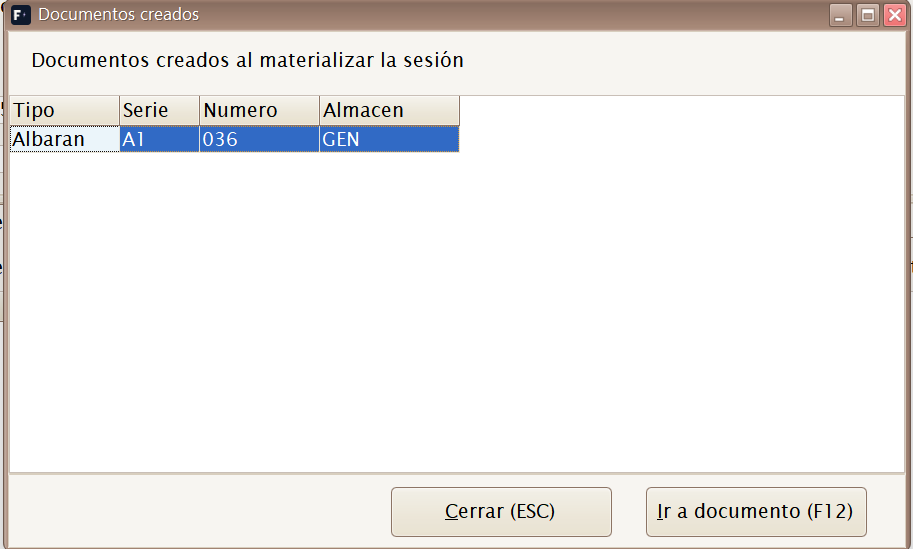
After materialisation, this tab lists the generated documents (type, series, number, warehouse, creation date and user). The «Ir a documento (F12)» button directly opens the generated order or delivery note. There are also shortcuts to Ir a Artículos, Ir a Albaranes de Compra and Ir a Pedidos de Compra.
5. Reversing materialisation
The «Revertir materialización» button (available only for CERRADA
sessions) undoes what was generated: it deletes the documents created by
the session and returns it to ABIERTA so you can correct and materialise it
again.
⚠️ Use this only when the generated documents have not yet been worked with (not invoiced, fulfilled or modified). If the delivery note already brought stock in and subsequent sales have occurred, review stock after reversing it.
6. Horizontal printing
The «Imprimir horizontal» button produces a session report with sizes in columns (landscape format), useful for checking the goods received against the supplier delivery note.
7. Session photographs
The screen lets you photograph and identify goods before the item exists in the catalogue. Select a line and use one of these actions:
- + Foto — selects a local image (
PNG,JPG,JPEG,WEBP,AVIForBMP) and associates it with the active line. - Bajar fotos — downloads available images from the server and saves a representative image as the provisional photograph for the line.
The Fotos provisionales tab lets you review session images. The list shows the line, provisional item code, supplier model, description, colour, assignment and file; changing rows updates the preview and the text that says which item or SKU it will be assigned to.
While the session is open, photographs remain provisional and linked to their series, number and line. During materialisation:
- The item and its SKUs are created or reused.
- The provisional photograph is migrated to the final item or SKU.
- The 300 px, 600 px and real-resolution copies are renamed.
- If the item already has photographs, the new one is added at the next available index without overwriting them.
Check the preview before materialising. Afterwards, the image is managed like any other catalogue photograph using
[Ctrl]+[F](see Floating item / SKU photograph).
Pedidos
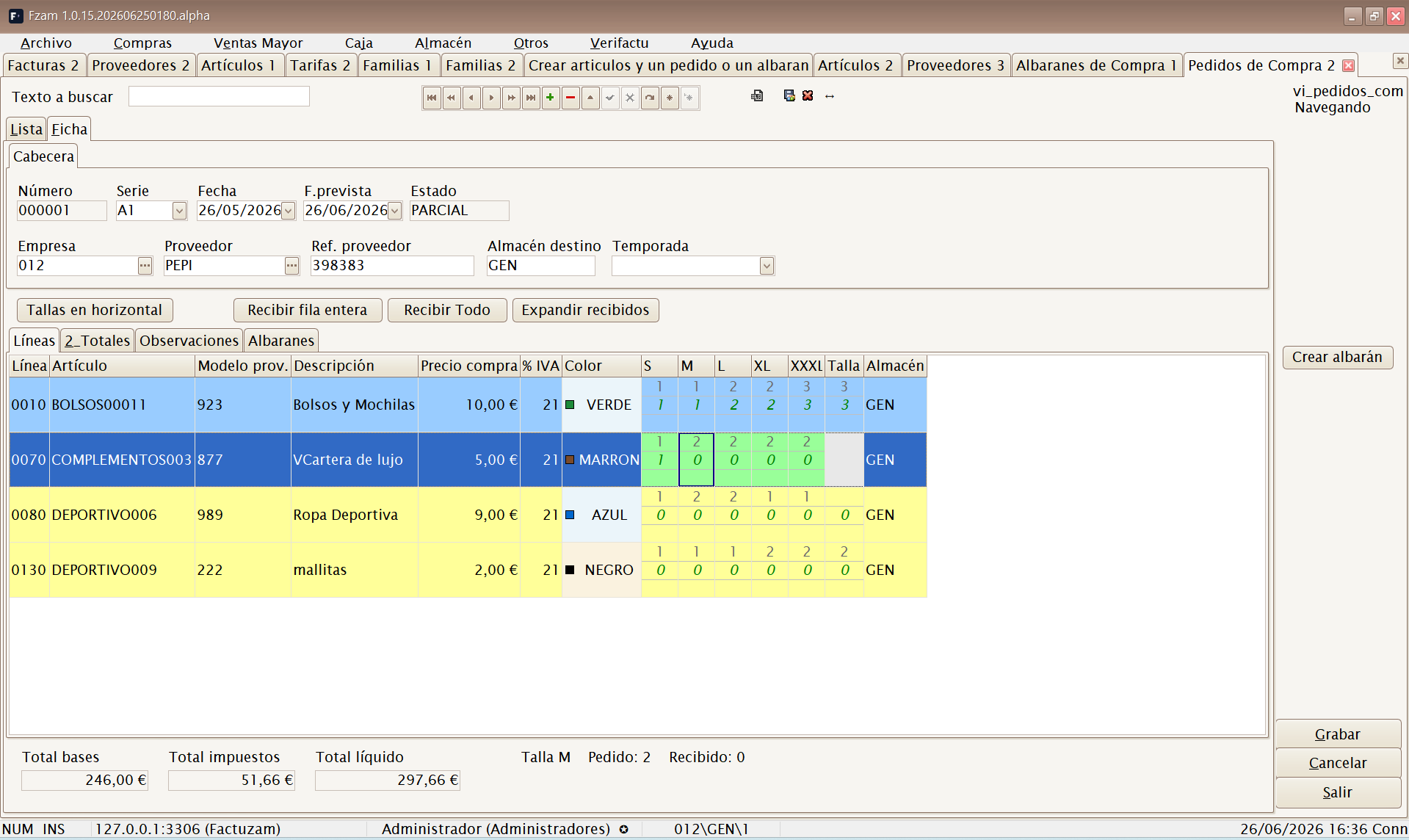
Maintenance screen for Pedidos de Compra. Records what has been ordered from a supplier. While only the order exists, its quantity is shown as pending receipt and does not increase stock.
Menu shortcut: [Shift]+[Ctrl]+[P]
An order has a header (company, supplier, series/number, dates, season and default destination warehouse) and line detail (item/SKU, effective warehouse, quantity ordered, received and pending, price and taxes). Header indicators summarise Pedida, Recibida, Pendiente and A albaranar. In the list, an order with a pending quantity and an expired fecha tope de recepción is highlighted.
Line views and quantities to receive
Within Líneas, [F1] cycles through four views:
- Auto (desglose) — item and attributes in separate columns.
- SKU — one line per variant.
- Tallas en línea — sizes as input columns.
- Tallas horizontales — groups by item/colour, with the Pedido, A recibir and Pendiente bands.
The screen normally opens in Tallas en línea; if that mode cannot be constructed, it switches to SKU. The Expandir recibidos button goes directly to Tallas horizontales. See also the general explanation of F1 modes.

To prepare a receipt:
- Enter only the units that have arrived under A recibir. This can be entered by line or size, depending on the active mode.
- Recibir Todo copies everything still pending on the order into A recibir. You can still correct a line or size afterwards.
- Factuzam does not allow A recibir to exceed
Pedida − Recibida: it automatically reduces any excess to the maximum pending quantity and emits an audible warning. - If a line has an item with variations but no SKU, a warning appears on saving: that line cannot move stock correctly.
Important: if you press Crear albarán without entering a quantity in A recibir, Factuzam applies the classic workflow and receives all pending units for the selected warehouse. Enter quantities first for a partial delivery.
Receiving the order: creating or extending a delivery note
- Review A recibir and press Crear albarán.
- Select the destination warehouse. You may choose any active warehouse; only lines whose effective location matches the selected warehouse are processed.
- For a new delivery note, confirm the series proposed for that warehouse, the supplier reference, receipt date and season.
- If the delivery continues a previous delivery note, select Incorporar a un albarán ya existente de este pedido and choose the destination document.
- Accept with
[F12]. Factuzam creates or extends the delivery note, moves stock, updates the order's received and pending quantities, and recalculates its status in one operation.

After a successful receipt, A recibir quantities for the processed warehouse are cleared; quantities for other warehouses remain so you can continue with the next shop or receipt. A summary displays the resulting delivery note and lets you use Ir a documento.
Order status is maintained automatically:
| Status | Meaning |
|---|---|
| ABIERTO | No units have yet been received. |
| PARCIAL | Part has been received and goods remain pending. |
| RECIBIDO | No quantity remains pending. |
| CANCELADO | The order will not continue to be received. |
Receipt is transactional: if creation, incorporation or the stock movement fails, Factuzam rolls back the complete operation and leaves the order as it was.

Albaranes
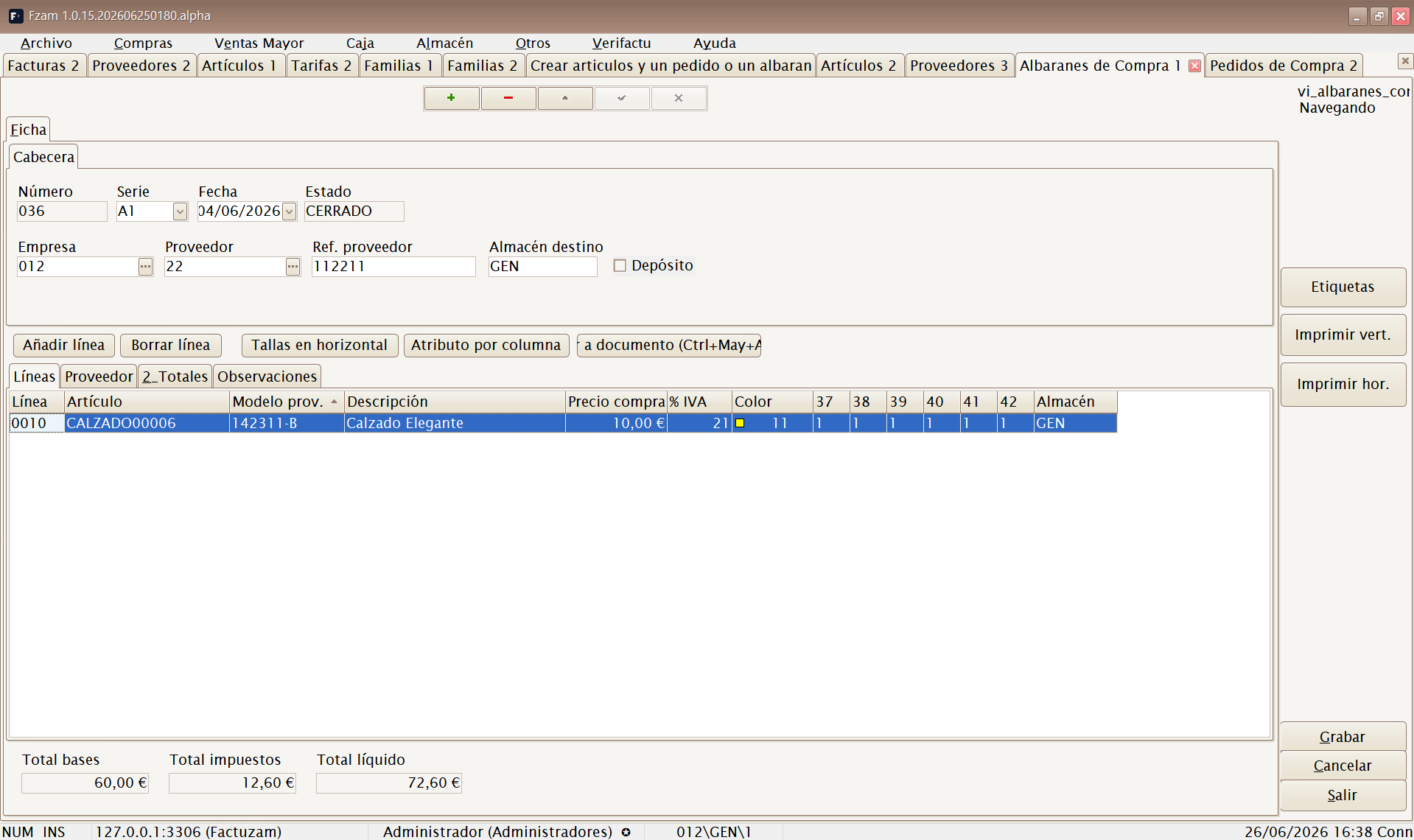
Maintenance screen for Albaranes de Compra. Records the actual receipt of goods: confirming the delivery note brings stock into the specified warehouse.
Menu shortcut: [Shift]+[Ctrl]+[A]
It can be created:
- From a previous order (receipt of ordered goods).
- Directly (purchase without a previous order).
- Automatically from a materialised purchase session.
The delivery note is the document that moves stock; the invoice is only the associated accounting/tax document.
The header includes a Depósito flag. This is informational: it indicates that the goods are held on deposit, but does not alter the stock movement or invoicing.
Devoluciones a Proveedor
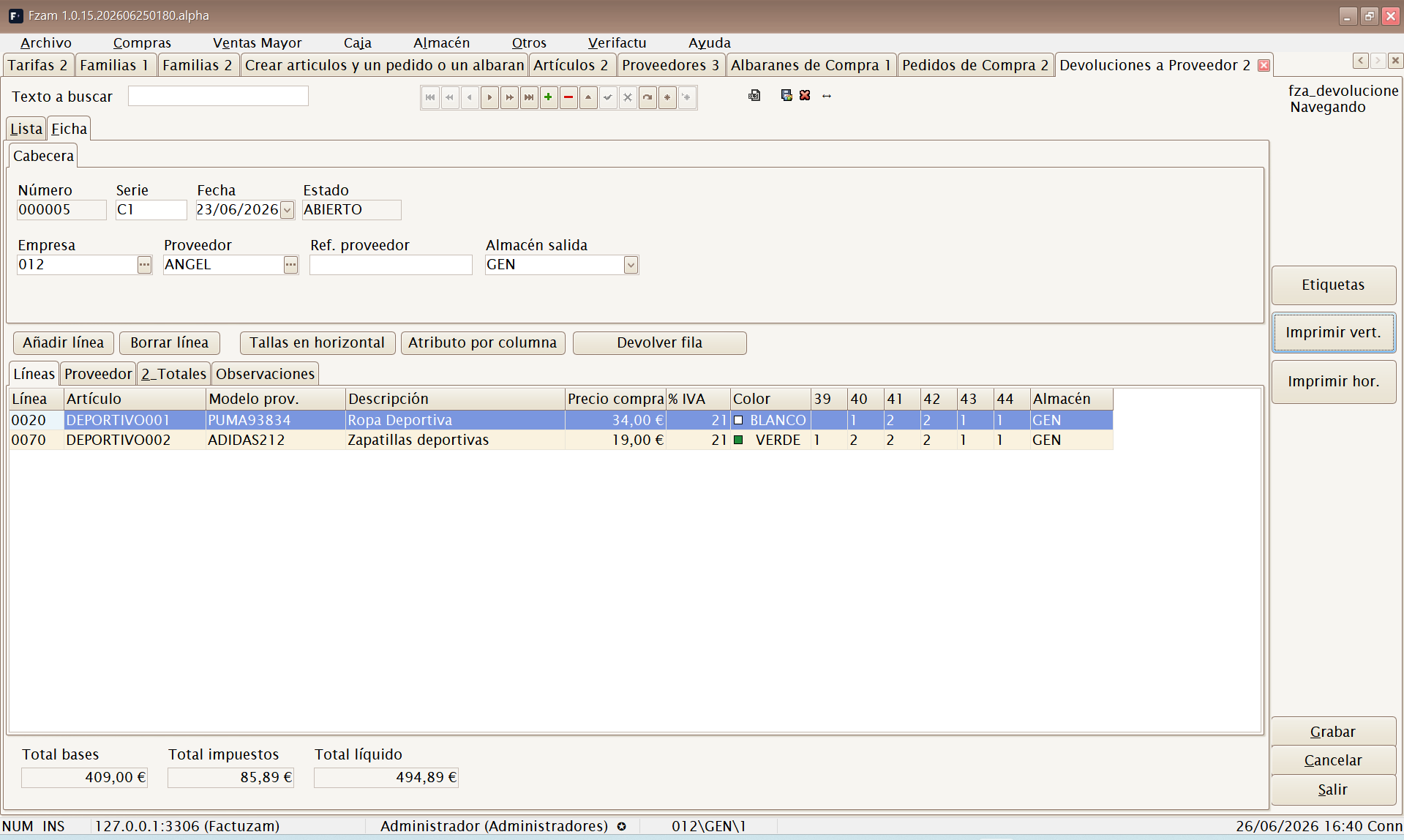
Maintenance screen for Devoluciones a Proveedor. Records goods returned to the supplier (defects, excess and so on). On confirmation, it reduces stock in the warehouse and provides the basis for the supplier credit.
(No menu shortcut; opened from the menu.)
Crear borradores de albaranes...
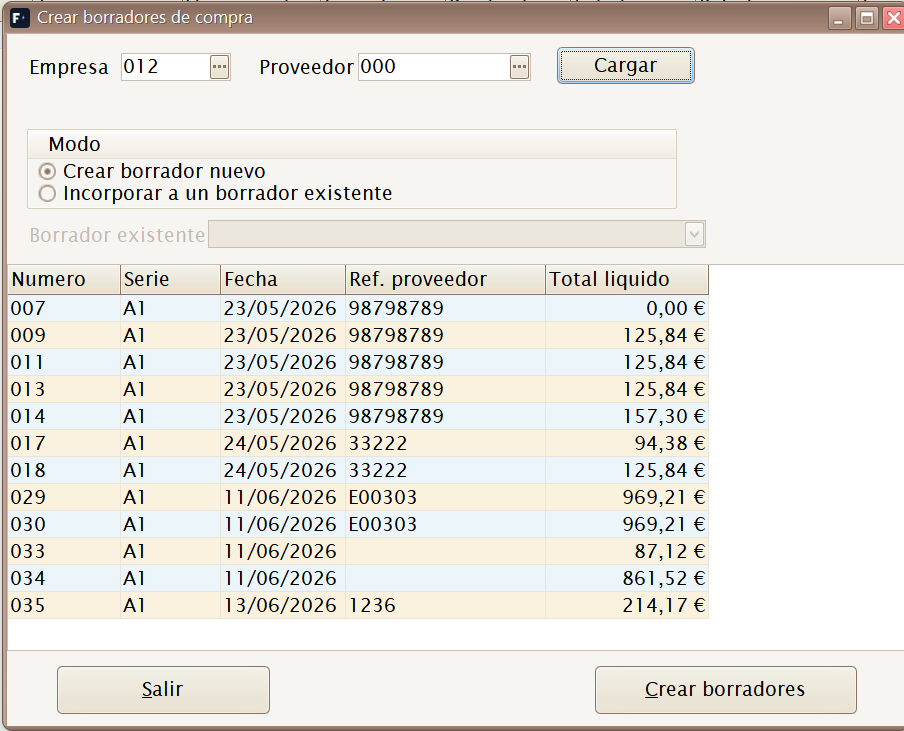
A tool for converting one or more purchase delivery notes into a purchase draft. Filter by company and supplier; it displays pending delivery notes and lets you group several into one draft.
The form operates in two modes:
| Mode | Result |
|---|---|
| Crear borrador nuevo | Generates a new document for the selected delivery notes. |
| Incorporar a un borrador existente | Adds the selected delivery notes to an open draft for the same supplier and company. |
Press Cargar to list candidate delivery notes and Crear borradores to materialise them. The resulting purchase draft/invoice then opens so you can review its lines, totals and efectos.
Borradores
Menu shortcut: [Shift]+[Ctrl]+[Alt]+[F]
Maintenance screen for Borradores de Compra. This is the supplier document recorded to control expenditure, input VAT and payment due dates. It is stored in the database as a purchase invoice; the menu retains the Borradores label for the preliminary review workflow.
It is created manually or from purchase delivery notes. When created from delivery notes, it retains the source-document reference and marks those notes as invoiced to prevent duplication.
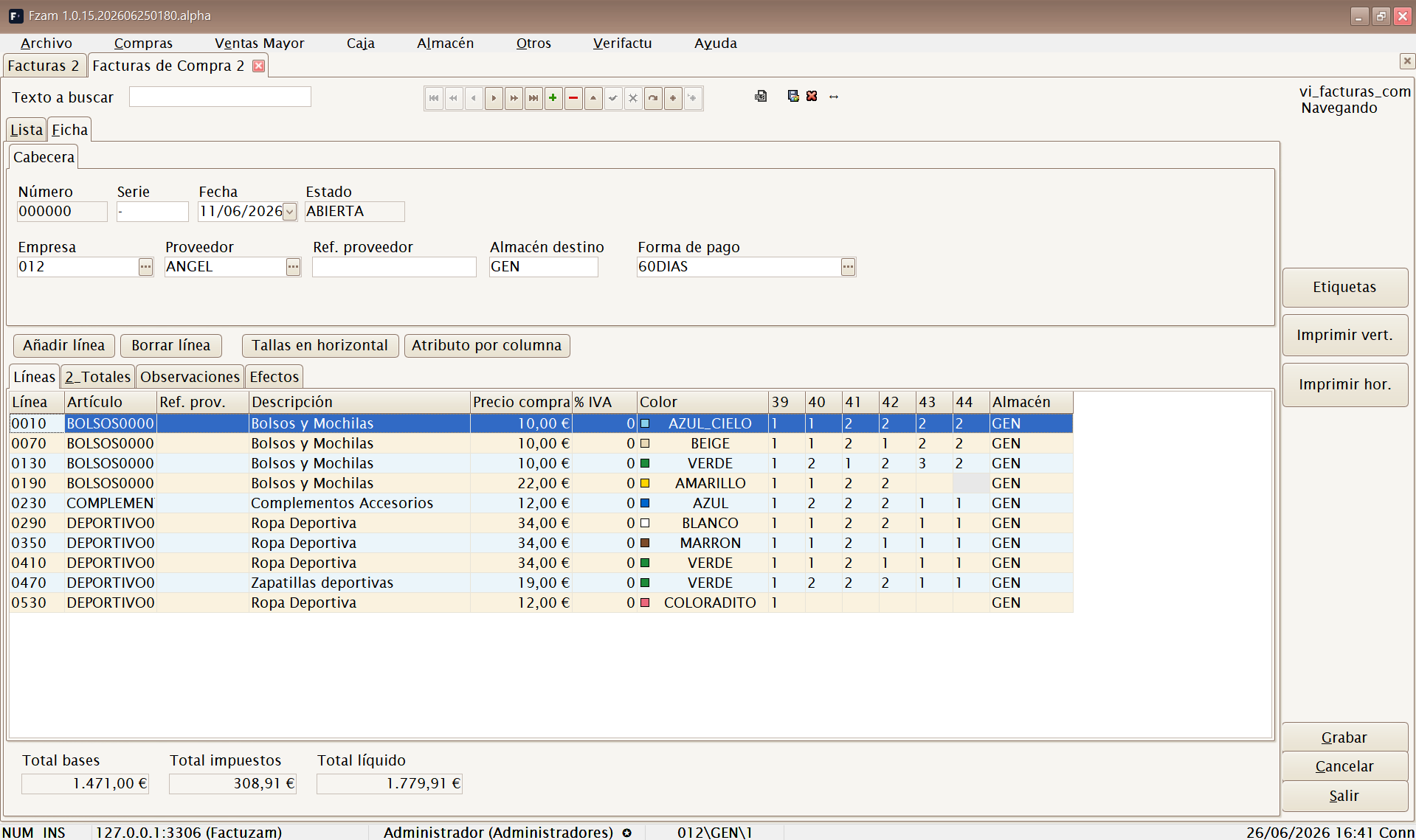
The record includes:
- Cabecera — supplier, company, date, external reference/document, payment method and tax data.
- Líneas — items from delivery notes or entered manually.
- Efectos — due dates generated from the payment method.
The Generar efectos button divides the net total into due dates and asks which company bank will be used as the debit account. If the supplier has a default payment bank, it is preselected.
Related statuses:
| Status | Meaning |
|---|---|
| ABIERTO | Editable document, pending closure or review. |
| CERRADO | Document validated for the payment workflow. |
| FACTURADO | Purchase delivery note already incorporated into a supplier draft/invoice. |
Efectos de pago
Menu shortcut: [Ctrl]+[Alt]+[C]
Supplier due-date portfolio. Each efecto represents a pending, paid, remitted or reconciled payment date. Here you can review due dates, record payments and merge unpaid items into one summary efecto.

Common statuses:
| Status | Meaning |
|---|---|
| PENDIENTE | Live due date, not yet paid. |
| PAGADO | Paid in full or in part. |
| REMESADO | Included in a payment remittance. |
| CONCILIADO | Merged or reconciled with another efecto. |
Remesas de pago
Groups payment efectos to prepare a bank payment order. The remittance records its debit bank, debit date, number of efectos and total amount.

Main actions:
- Añadir efecto — opens the pending-efectos selector.
- Quitar efecto — removes the selected efecto from the remittance.
- Pagar efecto — records payment of a specific efecto.
- Pagar remesa — marks the remittance efectos as paid.
- Asignar banco — sets or changes the company's debit bank.
Cargar efectos en remesa...
Direct access to the pending-efectos selector for adding them to a payment remittance. Use it when an open remittance already exists and you want to add due dates filtered by supplier, due date or status.
Listados ▸ Listado de documentos proveedor
A supplier-document report for reviewing orders, delivery notes, returns, drafts and due dates within a date range or by supplier.
The preview groups documents by type and supplier, displays lines, net amount, VAT, equivalence surcharge and total, and includes subtotals by supplier and document type plus an overall total.

Listados ▸ Listado de efectos de pago
A report of the supplier payment portfolio: purchase efectos (due dates) with their amounts and status. You can filter by:
- Dates (due date or efecto issue date).
- Warehouse and supplier.
- Efecto number (from/to).
- Bank/remittance containing the efecto.
- Efecto type and status (pending, remitted, paid and so on).
It can be produced in detail or as totals only (with the selected groupings), and can be previewed, printed or exported like other reports. It is the print counterpart of the Efectos de pago and Remesas de pago screens.