08 · Ayuda menu
The Ayuda menu brings together cross-application item and stock enquiries, documentation, support and version information.
Menu structure:
Ayuda
├── Consulta de stocks
├── Consulta de artículos similares
├── Manual web
├── Foro de soporte
├── Envío de errores
└── Acerca de
Consulta de stocks
Global shortcut: [Ctrl]+[U]
Opens the Factuzam stock enquiry from any screen. If the focus is on an
item or document line, the enquiry opens on that item/SKU. The window remains
on top while you work and closes with [Esc].

Locating the item
- Enter a recognised item code, SKU, description or reference and press
[Intro]. If there are several matches, Factuzam opens a selector. - Use the
...button to search by code, description, family, season, supplier, supplier reference or PVP. - You can also scan a barcode; the enquiry identifies the SKU and retains a history so that you can return to previously viewed items.
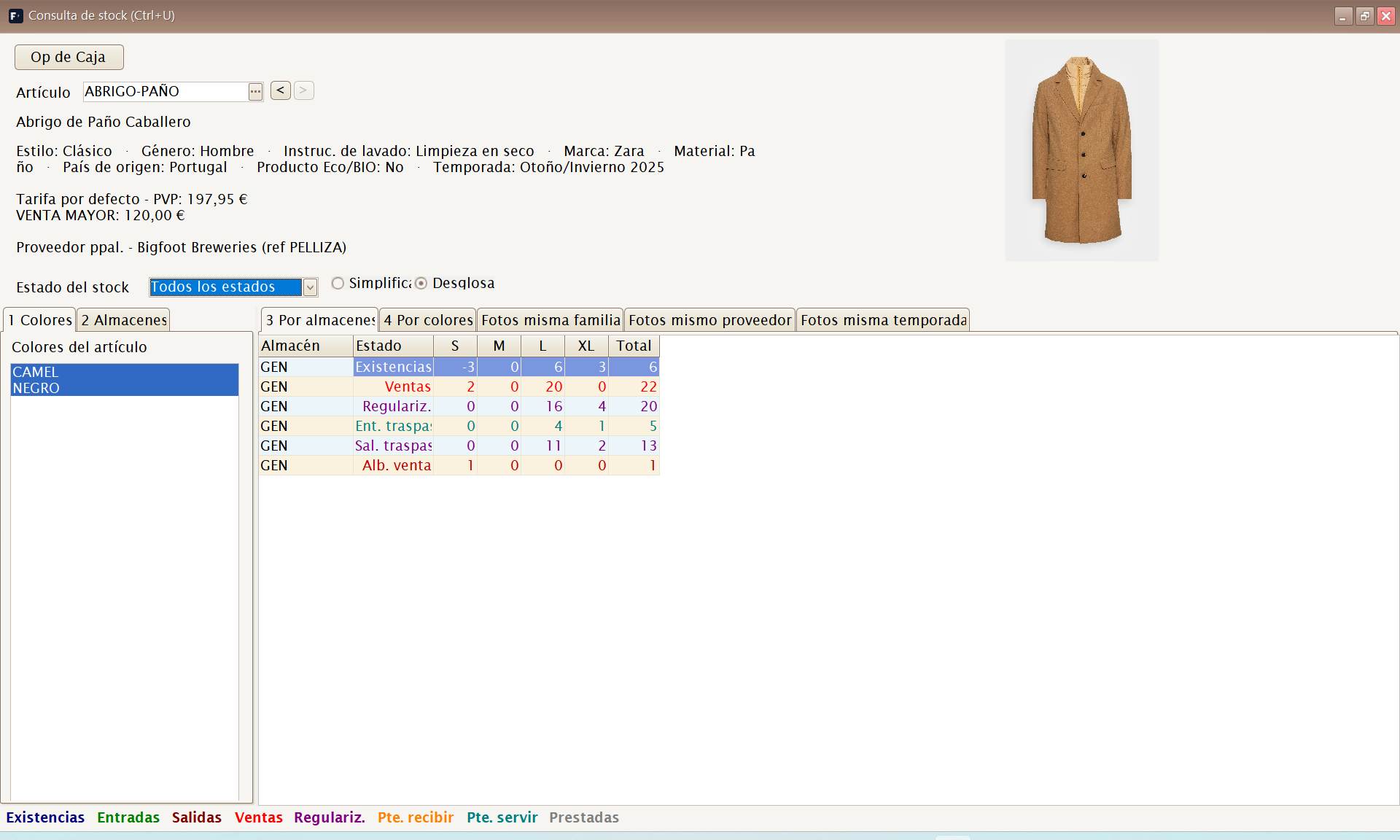
The header displays the item's description, photograph, properties, price lists and suppliers. The latest purchase price appears only if the profile is allowed to view costs. Selecting a colour updates its effective properties and photograph.
Choosing which quantity to view
The Estado del stock selector changes the quantity shown in the grid. There are two levels of detail:
| Mode | Main statuses |
|---|---|
| Simplificado | Existencias, Entradas, Salidas, Pendiente de servir, Pendiente de recibir and Todos los estados. |
| Desglosado | Existencias and pending quantities, plus details for purchases, transfers, deposits, sales, reconciliations, delivery notes and loaned garments. |
The legend at the bottom uses one colour for each status and also acts as a shortcut: selecting a name makes Factuzam select that status and switch to Simplificado or Desglosado where necessary. Todos los estados displays one row per status so that they can be compared at once.
Filtering and reading the grid
- Select one or more colours and warehouses. Multiple selection lets you compare shops or variants.
- Use Por almacenes to obtain one row per warehouse with sizes in columns, or Por colores to obtain one row per colour.
- Use the Fotos misma familia, Fotos mismo proveedor and Fotos misma temporada tabs to find visually related items. These tabs are loaded when opened so they do not delay the main enquiry.
Actions from a cell
- Right-click ▸ Agregar a Documento de Trabajo... sends the SKU and cell quantity to a new or existing document. An Existencias cell must be selected, and the warehouse, colour and size combination must identify one unique SKU.
- Op de Caja opens the till operations for the SKU selected in a size cell, which is useful for explaining the source of an outbound movement or sale.
This enquiry is informational: changing the status, colour, warehouse or view does not alter stock. Stock levels change only through Factuzam documents and operations.
Consulta de artículos similares
Global shortcut: [Ctrl]+[E]
Opens the advanced item and SKU search from any screen. It can find references by size, colour, barcode, family, supplier, season, properties and colour proximity. See the complete procedure under Item data search.
Manual web
Opens this user manual, published on the web, in the browser:
https://www.veryverifactu.com/manual/index.html
This is the deployed copy of the documentation, available from any
workstation. Check the generation date in the footer: a newly generated
local version does not reach the web until the administrator publishes the
complete web/manual folder. If a recent chapter is missing, consult the
manual included with the installed version or notify support.
GitHub project and licence
Factuzam source code and development history are published in the official GitHub repository:
github.com/alexdelphiAthn/Factuzam
Original Factuzam code is distributed under the Mozilla Public License 2.0
(MPL-2.0), except for files identified as third-party code or subject to a
different licence. This licence permits the program to be used, modified,
distributed and sold. If a modified covered file is distributed, that file's
source code must remain available under MPL 2.0.
Commercial components and other third-party materials retain their own licences. The code licence does not grant rights over the Factuzam name, logos or trade marks.
This section is an informational summary. In case of doubt, the
LICENSEfile,LICENCIAS.mddocument and licence notices for each component take precedence.
Foro de soporte
Opens the Factuzam support forum in the browser:
https://foro.veryverifactu.com/
Use this channel to ask questions about using the application, report incidents and consult answers to other users' questions. When reporting an incident, always state the application version (see Acerca de).
Envío de errores: administration and tracking
Factuzam can report a technical error to support and retain its tracking within the application. The process has two parts: the dialog that appears when the error occurs, and the Ayuda ▸ Envío de errores screen, where you can view the support response.
Reporting an error
When Factuzam detects an unhandled exception, it displays the details and prepares the available evidence.

- Enter a valid email address and phone number so support can contact you.
- In ¿Qué estaba haciendo cuando ocurrió?, explain the operation, the affected document and the expected result. Do not include passwords, API keys or data that is not needed to diagnose the problem.
- Review the evidence notice. The technical details, a screenshot of the main window and the recent portion of the LOG are normally attached.
- If the incomplete-LOG notice appears, press Activar LOG completo, close the dialog and repeat the operation. SQL, performance and advanced tracing are enabled for that session; the next report will contain more diagnostic information.
- Press Enviar error al soporte. Keep the reference returned by the service, as it identifies the incident and its conversation.
Copiar al portapapeles lets you save or communicate the details without
sending the evidence. If you select Enviar copia de seguridad protegida
(ZIP), Factuzam requests and confirms a password, creates the backup and
replaces the LOG with that protected backup in the report. The password is
neither sent nor saved: you must communicate it separately to
info@veryverifactu.com, stating the reference. Preparing the backup can take
several minutes.
Before sending, remember that the screenshot, LOG and especially the backup may contain company data. Do not select the protected backup unless support needs it.
Viewing and administering reports
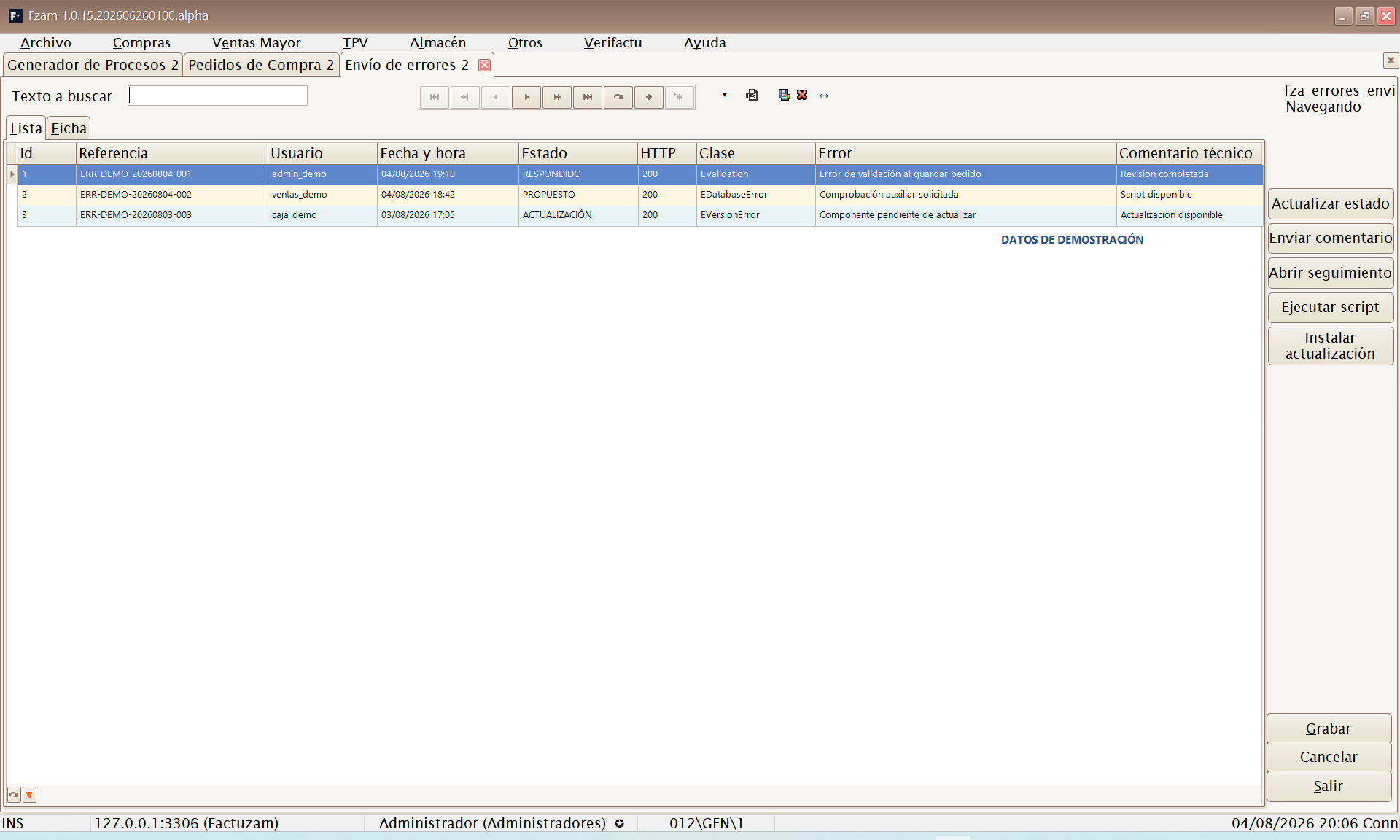
The Lista tab shows the most recent reports first. This is a tracking enquiry: records cannot be created, edited or deleted manually. It includes the reference, user, date and time, status, HTTP result, error class and message, latest technical comment, and proposal statuses.
- A regular user can view only errors submitted under their own user.
- An administrator can view reports from every user in the installation.
- The option and its actions may be restricted by the permissions profile.
Select a report and open the Ficha tab. On entry, Factuzam automatically queries the service and updates the status, messages and proposals. The header also shows when the latest query was performed and its result.
Tracking record

The record is divided into four tabs:
| Tab | Contents and use |
|---|---|
| Comunicación | Dated history of messages from the customer and technical team. Allows you to refresh, reply and open web tracking. |
| Detalle técnico | Message and complete details of the exception that caused the report. |
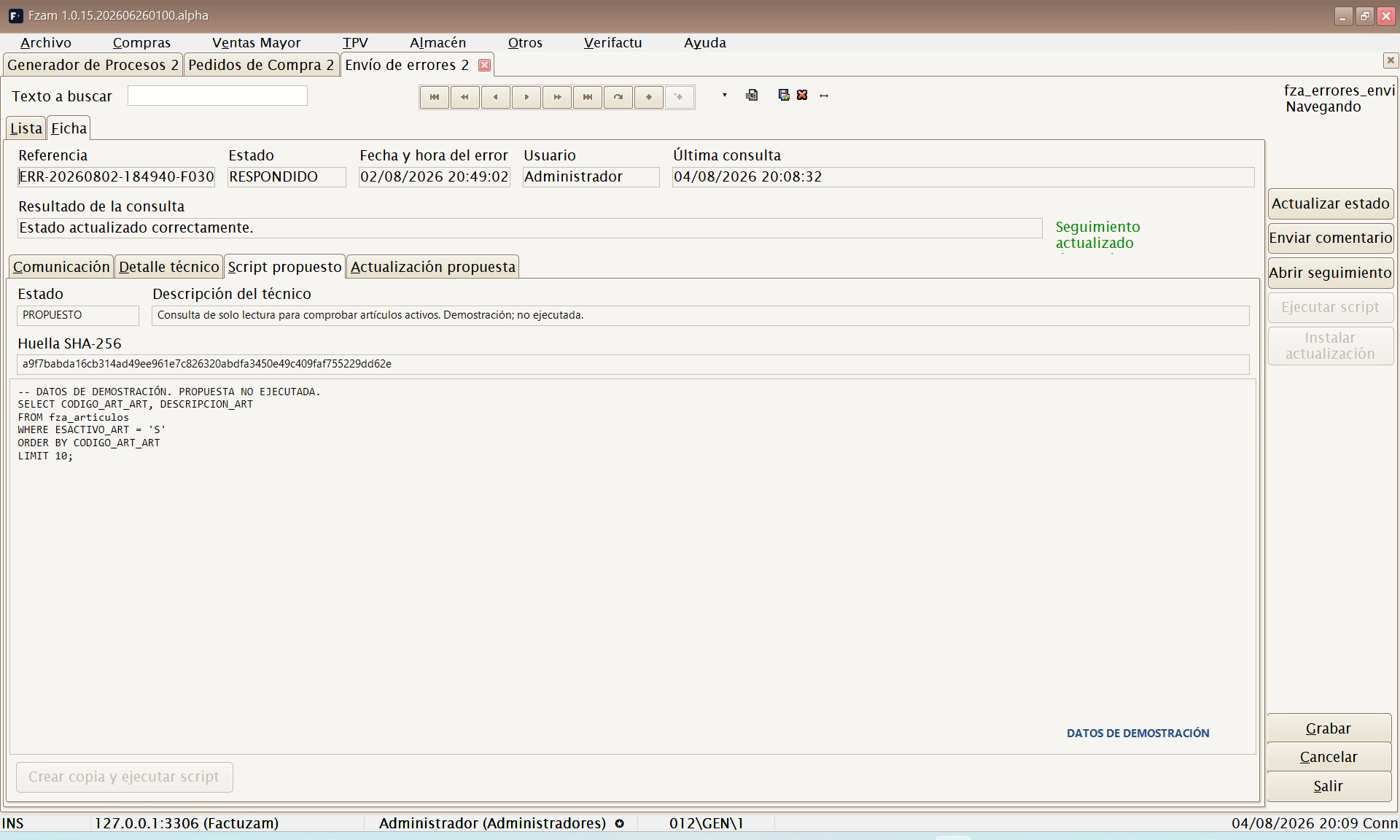
| Script propuesto | Description, SQL and SHA-256 hash of a correction prepared by support. |
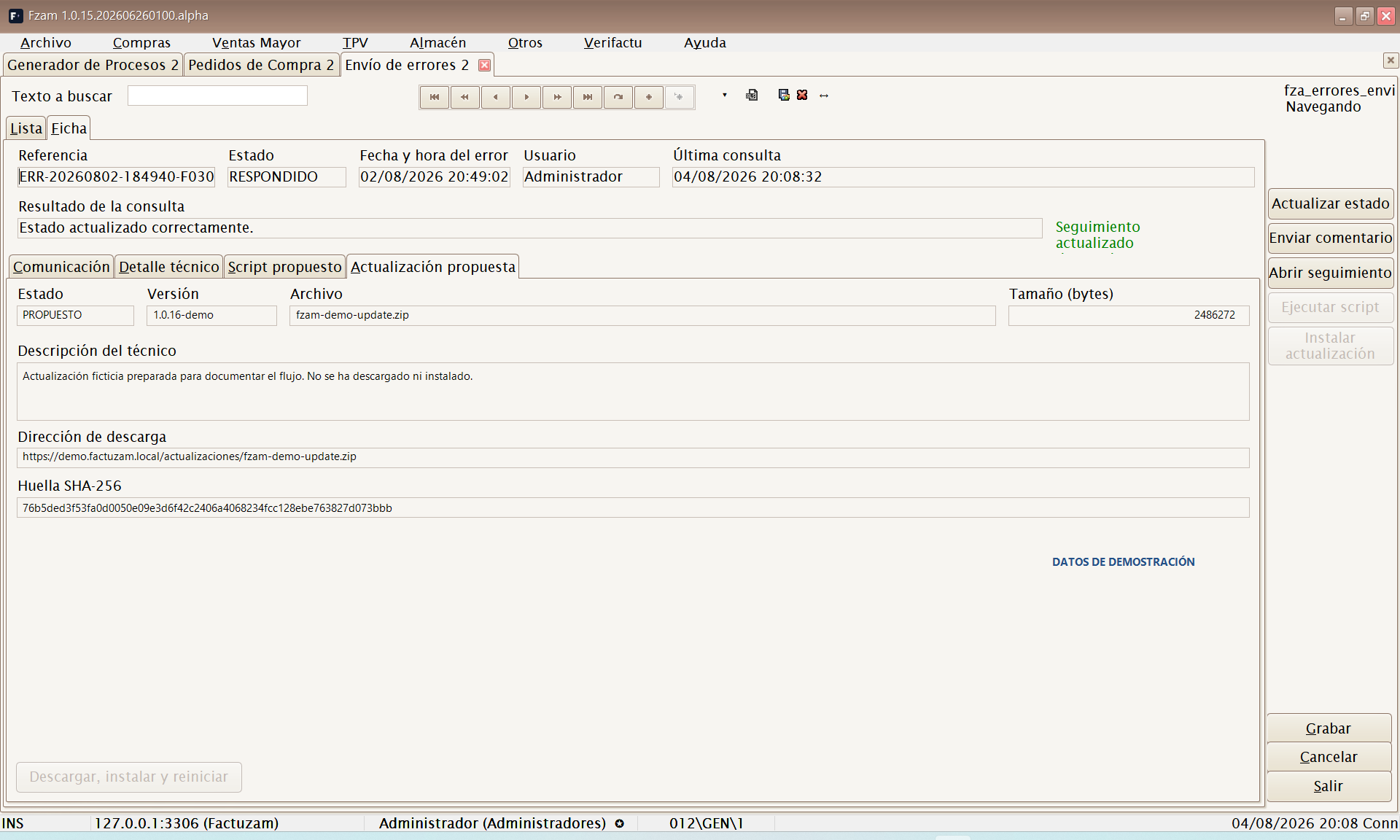
| Actualización propuesta | Version, file, size, description, HTTPS address and SHA-256 hash of a proposed executable. |
The record actions are:
- Actualizar mensajes / Actualizar estado queries the service again.
- Responder al soporte / Enviar comentario adds a message to the conversation and synchronises the record.
- Abrir seguimiento web opens the external link associated with the reference.
- Crear copia y ejecutar script is enabled only when a script has status
PROPUESTO. Factuzam displays its description, hash and SQL, requests confirmation, first creates a backup, verifies the SHA-256 hash and reports the result to support. - Descargar, instalar y reiniciar is enabled only for an update with status
PROPUESTO. Before replacing the executable, Factuzam verifies HTTPS, size, format, architecture and SHA-256 hash. It retains the previous executable during the change and restarts the application.
Always review the description before accepting a script or update. If the proposal does not correspond to the incident, reply to support and wait for clarification.
Acerca de

Displays the splash screen with the logo, product information and, most importantly, the installed version number.
The version is important for support: whenever you report an incident, always state the version displayed here. Its format is:
1.0.15.AAAAMMDDHHMM.alphawhere the middle part represents the build date and time.