04 · Ventas Mayor menu
The Ventas Mayor menu manages wholesale sales (B2B): sales to other retailers or customers using named invoices, as opposed to in-store retail sales, which are handled in the TPV module.
Menu structure:
Ventas Mayor
├── Borradores
├── Efectos de cobro
├── Remesas de cobro
├── Cargar efectos en remesa...
├── Pedidos
├── Albaranes
└── Listados
    └── Ventas
Usual wholesale sales flow: customer Pedido → outbound Albarán (stock leaves the warehouse) → invoice Borrador → Consolidar (tax record). You can invoice each delivery note separately or group several delivery notes into one draft before issuing it.
Borradores
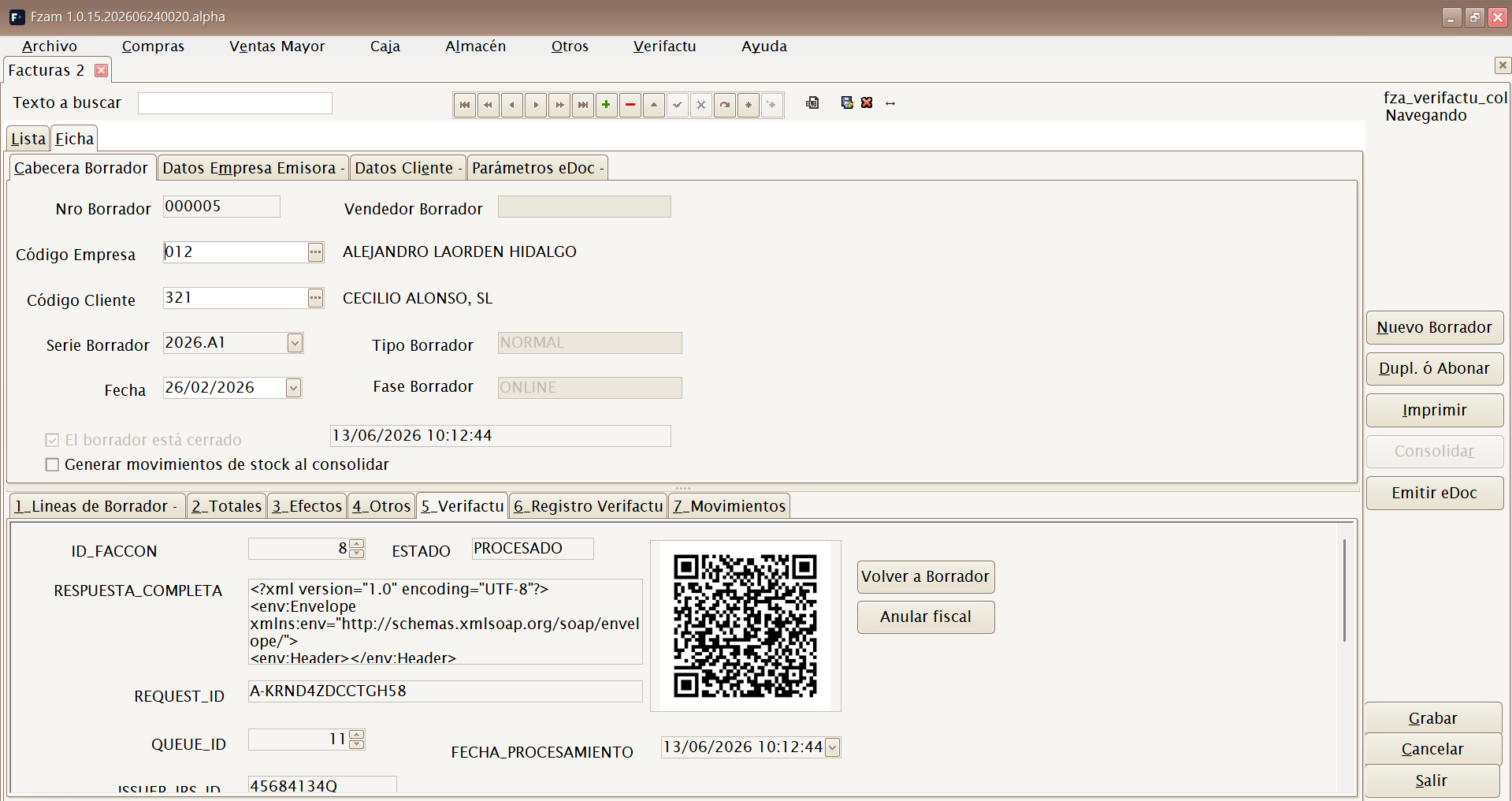
Menu shortcut: [Ctrl]+[Alt]+[F]
Maintenance screen for Borradores de Venta Mayor. While the document is in the BORRADOR phase, it can be edited; pressing Consolidar issues the tax record according to the mode configured in Verifactu.
Each draft contains:
- Header: customer, date, series and number, payment method and due dates.
- Lines: items/SKUs, quantities, price taken from the customer's price list, and discounts.
- Totals and taxes: net amount, VAT by rate, equivalence surcharge, and withholding according to the customer and company.
- Efectos: collection due dates generated from the payment method, with amount, due date, status and associated bank.
Drafts are signed or reported to Verifactu (AEAT) according to the company's certificate configuration (see Empresas).
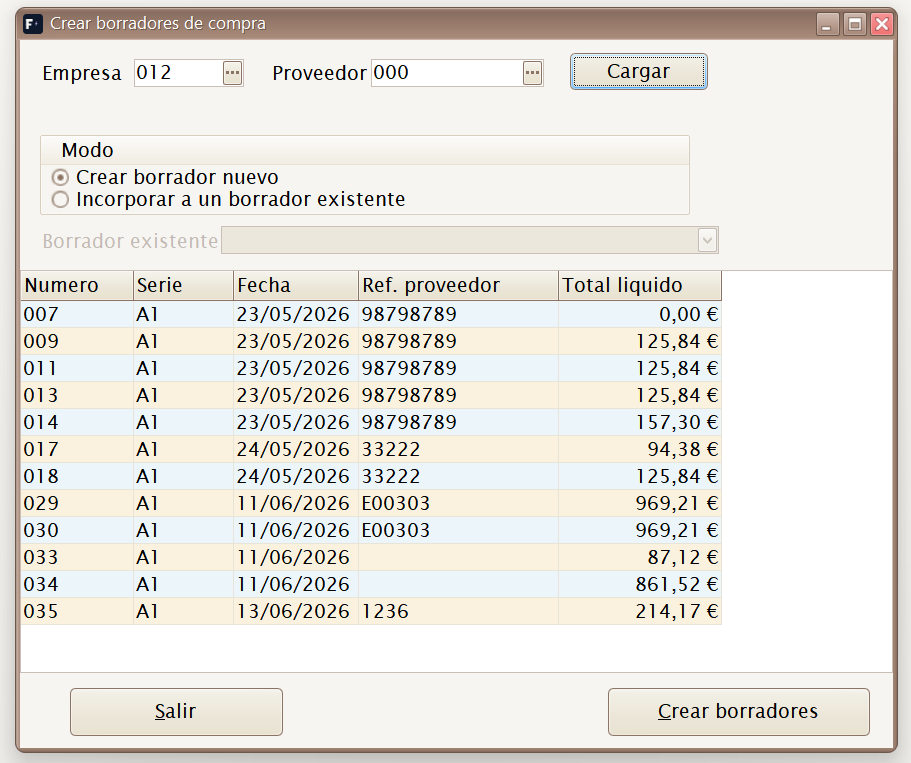
A draft can be created manually or from delivery notes awaiting invoicing, including grouping several delivery notes for one customer within a date range.
Once consolidated, the document can no longer be edited. Subsequent corrections are made with Anular, Rectificar or Subsanar, depending on the tax case. The Verifactu tab displays the QR code, verification URL, status and associated record.
Efectos and eDoc in the draft
The Generar efectos button divides the net total into due dates according to the payment method. For standard invoices, tab 3 displays collection Efectos; for simplified invoices, it retains the receipt workflow.
On the efectos tab you can mark a due date as Cobrado or Devuelto. To manage many due dates together, use the Efectos de cobro, Remesas de cobro and Cargar efectos en remesa... menu options.
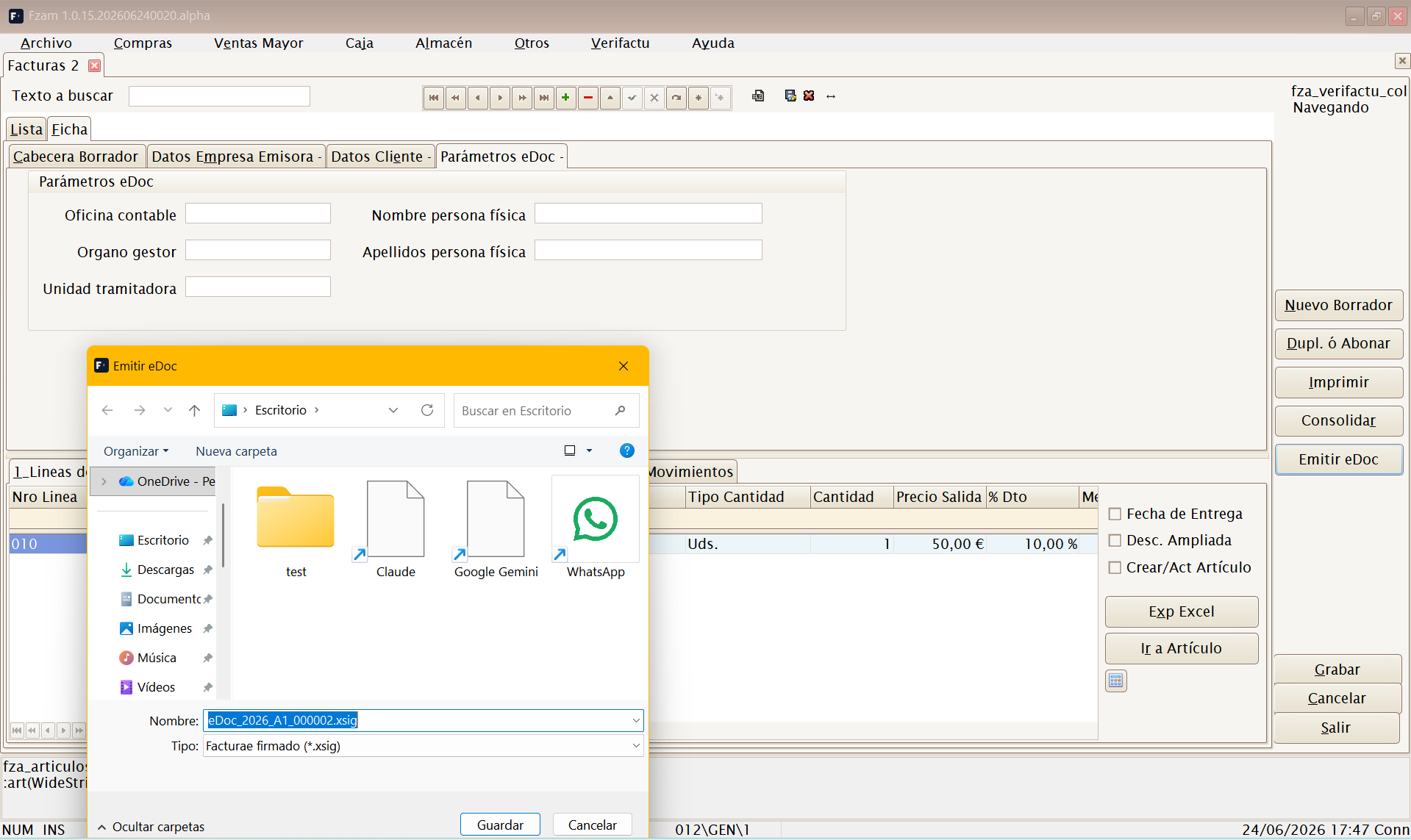
The Parámetros eDoc tab stores the issuing snapshot for Facturae: DIR3 codes for the accounting office, managing body and processing unit, plus first name and surname(s) when the recipient is an individual. These values are proposed from the customer record and can be changed for that specific invoice.
The Emitir eDoc button generates a signed Facturae file (.xsig) and
saves the signed XML in the invoice. It can only be issued from standard
invoices that have already been consolidated, with a company certificate
configured and complete tax details.
Efectos de cobro
Maintenance screen for customer due dates. Each efecto represents a pending, collected, remitted or reconciled payment generated from a wholesale sales draft.
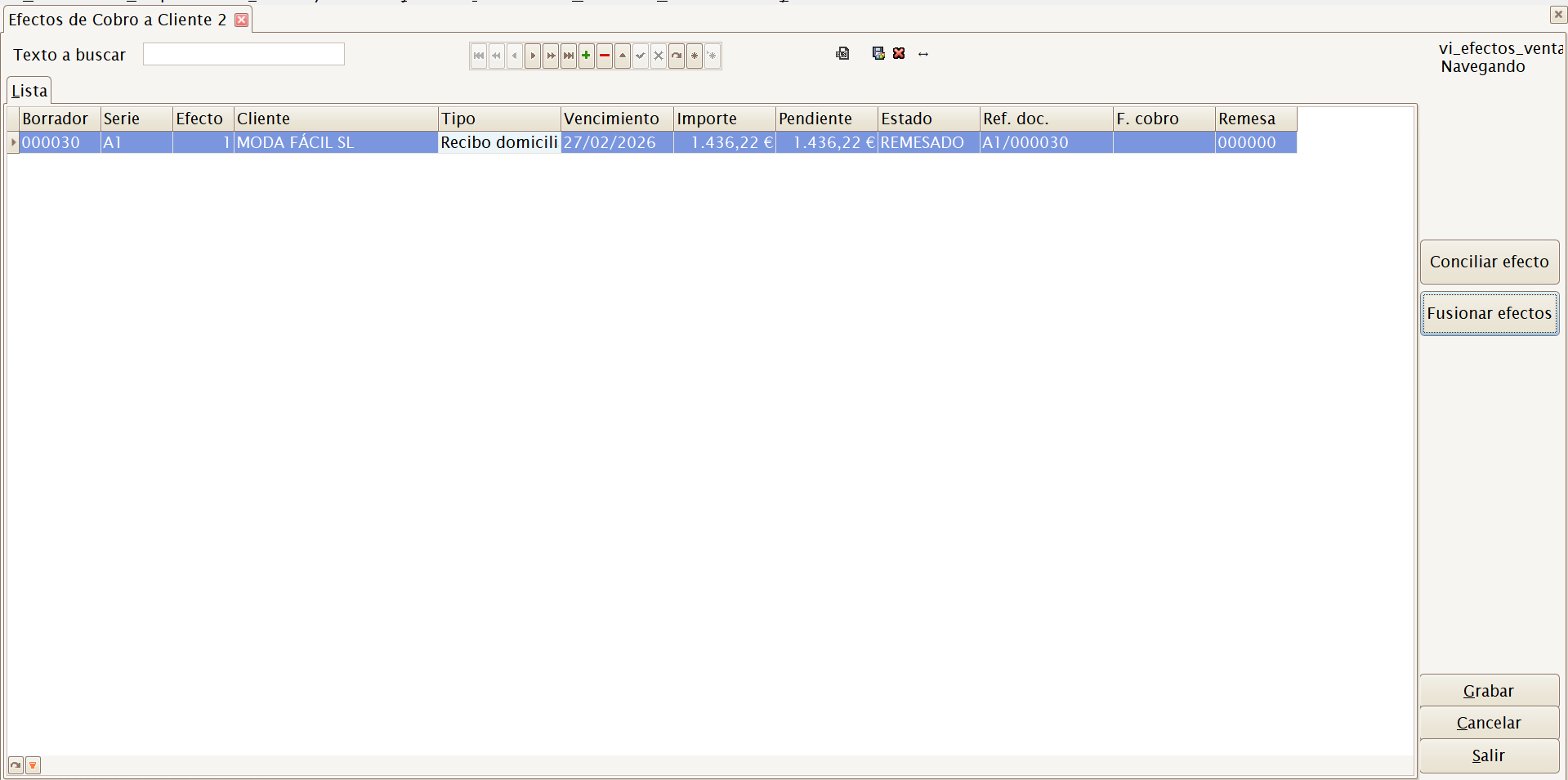
Main actions:
- Conciliar efecto — records a full or partial collection, with date, amount, type and reference.
- Fusionar efectos — groups pending efectos when several due dates need to be regularised as one.
Common statuses:
| Status | Meaning |
|---|---|
| PENDIENTE | Live due date, not yet collected. |
| COBRADO | Collected in full or in part. |
| REMESADO | Included in a collection remittance. |
| CONCILIADO | Merged or reconciled with another efecto. |
Remesas de cobro
Groups customer efectos to manage bank collections. The remittance records the company, collection bank, date, number of efectos, total, amount collected and amount pending.
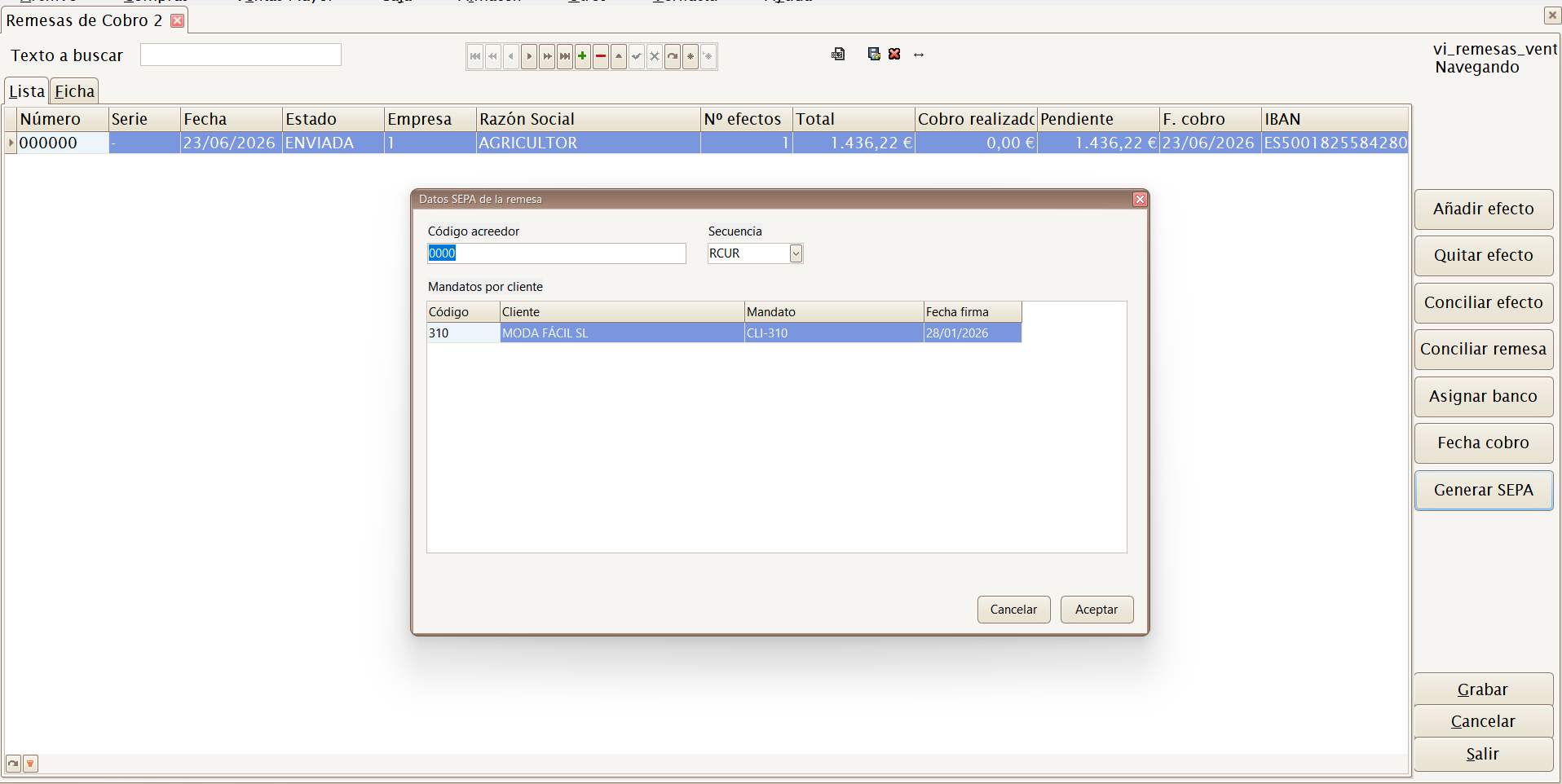
Main actions:
- Añadir efecto — opens the pending-efectos selector.
- Quitar efecto — removes the selected efecto from the remittance.
- Conciliar efecto — records collection of a specific efecto.
- Conciliar remesa — records collection of all efectos in the remittance.
- Asignar banco — sets or changes the company's collection bank.
- Fecha cobro — updates the remittance collection date.
- Generar SEPA — creates the bank file when the remittance contains the required SEPA details.
Cargar efectos en remesa...
Direct access to the pending-efectos selector, used to create a new remittance or add to an existing one.
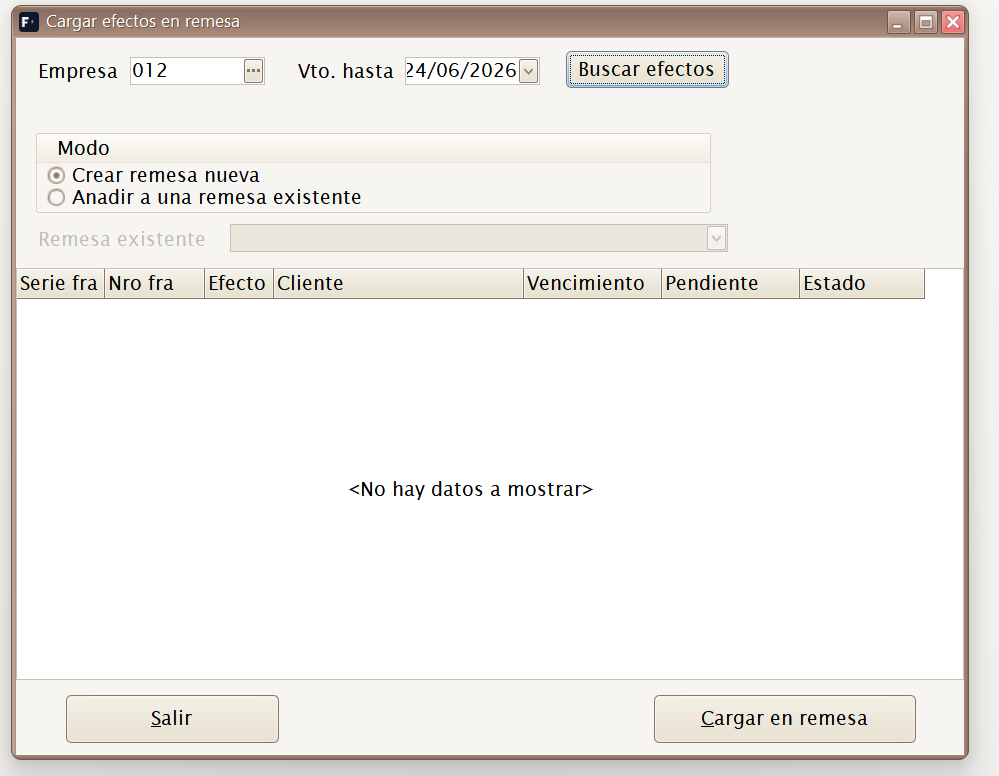
Filter by company and latest due date. Select the efectos you want to include and press Cargar en remesa.
Pedidos
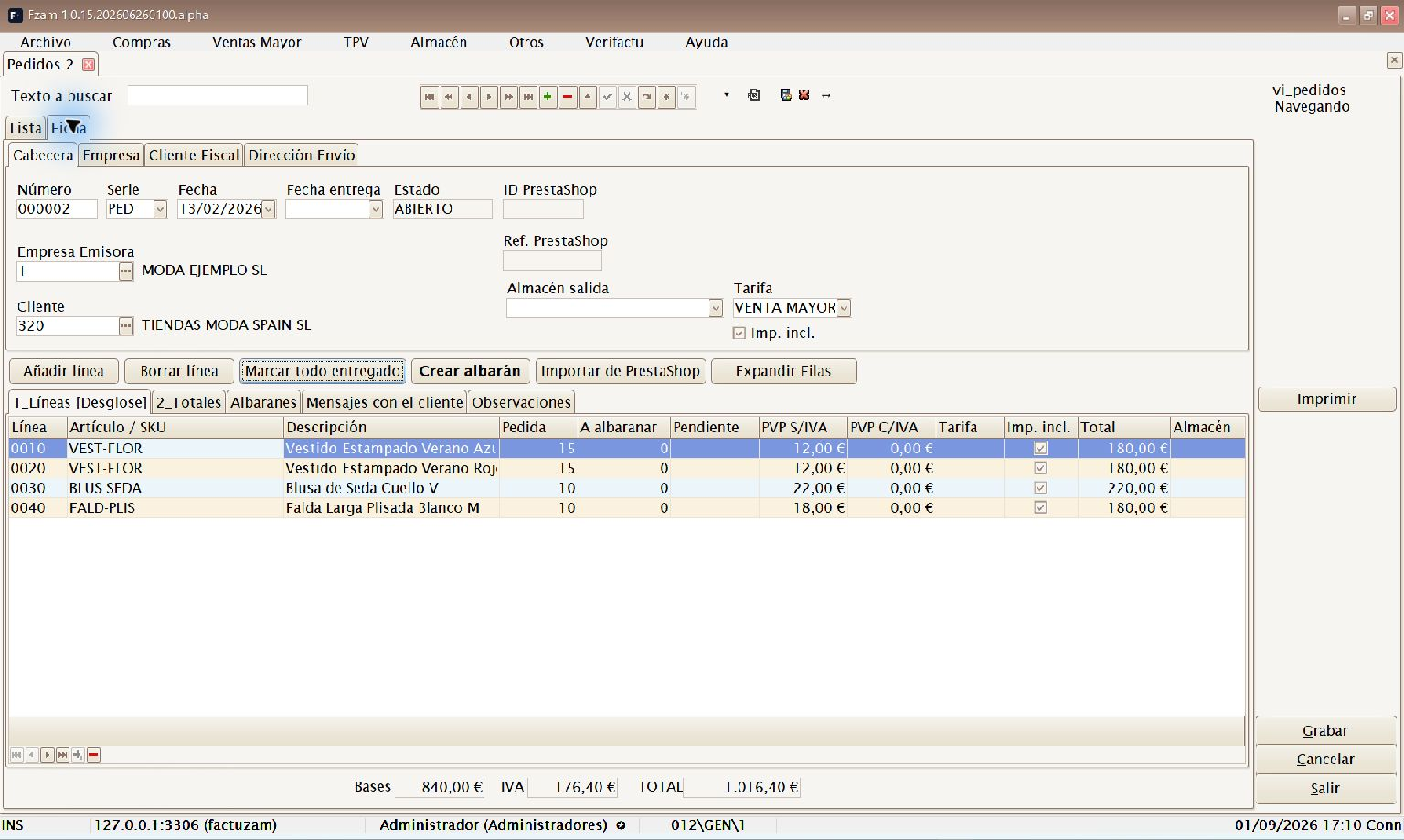
Menu shortcut: [Ctrl]+[Alt]+[P]
Maintenance screen for Pedidos de Venta. It records what a customer has ordered (goods reservation). It does not move stock; it provides the basis for generating the outbound albarán when the order is fulfilled.
Importing orders from PrestaShop
The Importar de PrestaShop button opens a window for manually bringing in remote orders. This function uses the effective URL and API key from Otros ▸ Parámetros del entorno ▸ PrestaShop; the credential is not displayed in the window.
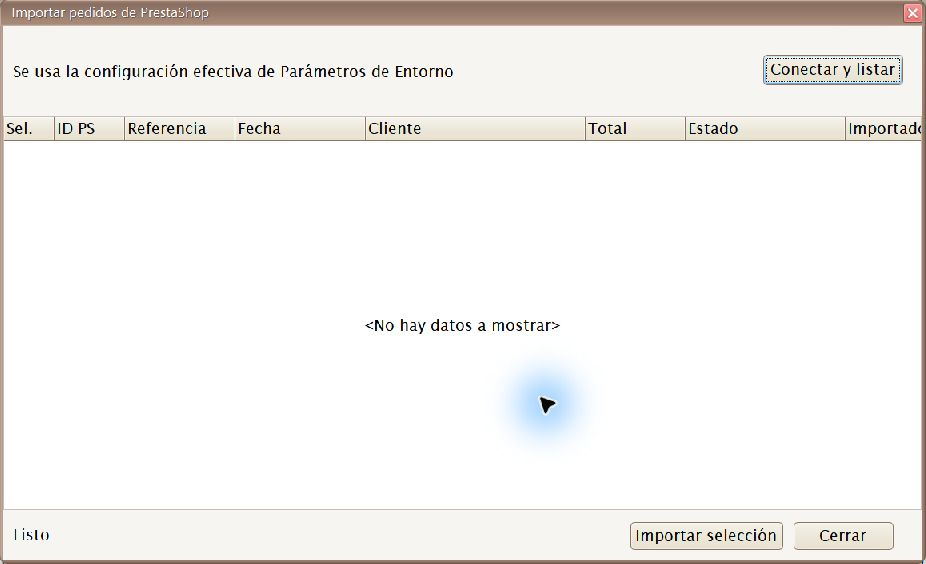
Initial import window, before Conectar y listar and without displaying the API key.
Before you begin:
- Sign in with the correct company and outbound warehouse. The order's company and warehouse come from the current session; an order cannot be imported without a warehouse.
- Configure an HTTPS URL and a dedicated least-privilege API key. The key needs read access to
orders,customers,addresses,states,carriers,order_states,customer_threadsandcustomer_messages. - Check that the company has a VAT configuration in force on the order date and verify that the order is compatible with it for tax purposes. It will not be imported without that configuration, even if it has no carriage.
- Use a laboratory installation or a key restricted to a single shop. The current import does not apply the Id. tienda when listing orders.
Procedure:
- Press Conectar y listar. Factuzam queries PrestaShop and loads a summary of the orders accessible to that key. The current query does not restrict the date or status; shops with a long history may take some time.
- Review the columns and verify the remote status before making a selection:
| Column | Contents |
|---|---|
| Sel. | Selects the orders that Factuzam will attempt to import. |
| ID PS | Numeric identifier of the order in PrestaShop. |
| Referencia | Commercial reference assigned by PrestaShop. |
| Fecha | Date reported by the shop. |
| Cliente | Name of the remote customer. |
| Total | Tax-inclusive total reported by PrestaShop. |
| Estado | Name of the remote status; this is informational. |
| Importado? | S when Factuzam already finds that ID PS; otherwise N. |
- Do not select cancelled, refunded or test orders, or any status that should not be fulfilled. The window does not yet block these statuses automatically.
- Select the correct rows and press Importar selección.
- Factuzam processes orders one at a time. If one fails, it displays the error for that identifier and continues with the remaining orders. When it finishes, it reports the number of imported orders and errors.
- Refresh the order list and review the local document before creating the delivery note. Do not assume that an import is correct merely because the summary completes without errors.
Duplicate detection currently checks the ID PS. An order already shown as
imported is also skipped if you select it again. This protection prevents
ordinary duplication within one installation, but the identifier is not yet
linked to the PrestaShop destination or protected by a unique database key.
Do not run two concurrent imports of the same order.
During import:
- the order is associated with the company and warehouse in the session;
- the customer is looked up first by NIF, then by email address; if no match is found, a record is created with the received details;
- each product is resolved by barcode and reference; if it does not exist, a local item and SKU may be created;
- order messages are copied when PrestaShop provides them; an isolated error in one message does not invalidate the rest of the order;
- product amounts are stored with the local item's VAT type and the company's rates in force.
Carriage costs GASTOS_T
If the order includes carriage, Factuzam adds a final line for one unit under these rules:
- item and SKU:
GASTOS_T; - description: GASTOS TRANSPORTE;
- item type: SERVICIO, without variations, traceability or En web;
- VAT: the company's standard rate, calculated from its configuration;
- VAT-exclusive price, VAT-inclusive price and net amount: the values reported by PrestaShop.
The item and SKU are created the first time and reused thereafter. If either code already exists with an incompatible type, VAT, parent or status, the order is cancelled instead of silently changing the master record. It is also cancelled if the carriage amounts with and without VAT do not correspond to the company's standard VAT rate. When both amounts are zero, no line is created.
GASTOS_T is a service: when the order is converted into a delivery note and
then an invoice, it retains its type and amount but does not generate a
warehouse movement. Goods lines in the same document still follow the normal
stock workflow.
Current limitations and production use
- The import only passes a URL and key to the remote reader: it does not yet filter
ordersby Id. tienda. A key covering several shops can mix orders, making this function NO-GO for multistore use.- Exact matching between the remote SKU or combination and the local SKU is not complete for all cases. Review products without an EAN and size or colour combinations especially carefully before fulfilling them.
- Automatic customer and product-item creation takes place before the final order transaction. Full atomicity across all master data remains pending.
- VAT is resolved for the company's tax group and the date reported by PrestaShop. Check that tax periods contain no gaps or overlaps before importing old orders.
- The button requires the generic Insertar permission for the Pedidos maintenance screen. There is not yet an independent action that grants import access alone. This permission also authorises the required automatic creation of customers, items, SKU/EAN and
GASTOS_T, without separately checking create permissions for those master records; grant it only to authorised personnel.- Only products and carriage are materialised. Coupons, overall discounts and gift wrapping are not yet converted into local lines; do not import an order containing them if the sum of the lines does not match the total paid in PrestaShop.
- Importing an order neither moves nor deducts physical stock and is not a substitute for automatic ingestion or reservation. Leave Sincronizar stock y precios cleared in production: an absolute write could restore units already sold on the web.
- The functional test suite for import, concurrency, services and the pedido → albarán → factura cycle is not complete. Use this function in a laboratory and manually validate the customer, SKU, taxes, carriage and totals.
See also PrestaShop integration, especially Stock safety.
Albaranes
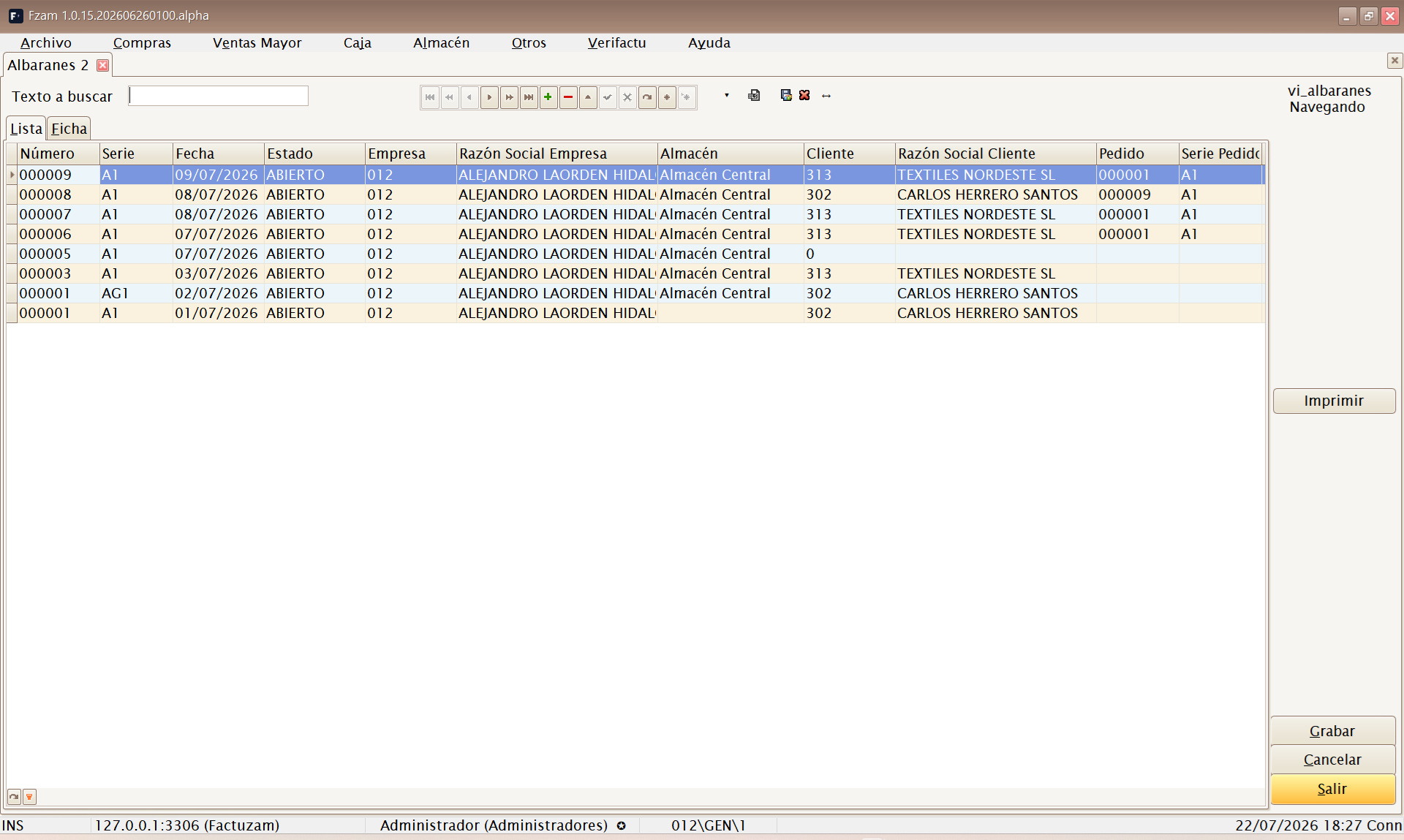
Menu shortcut: [Ctrl]+[Alt]+[A]
Maintenance screen for Albaranes de Venta. It records the actual outbound movement of goods to the customer: confirming it reduces stock in the warehouse. This document is later invoiced.
Drafts can be created from delivery notes within a date range. The selector allows you to mark several pending delivery notes and generate a grouped draft for the same customer.
Listados ▸ Ventas
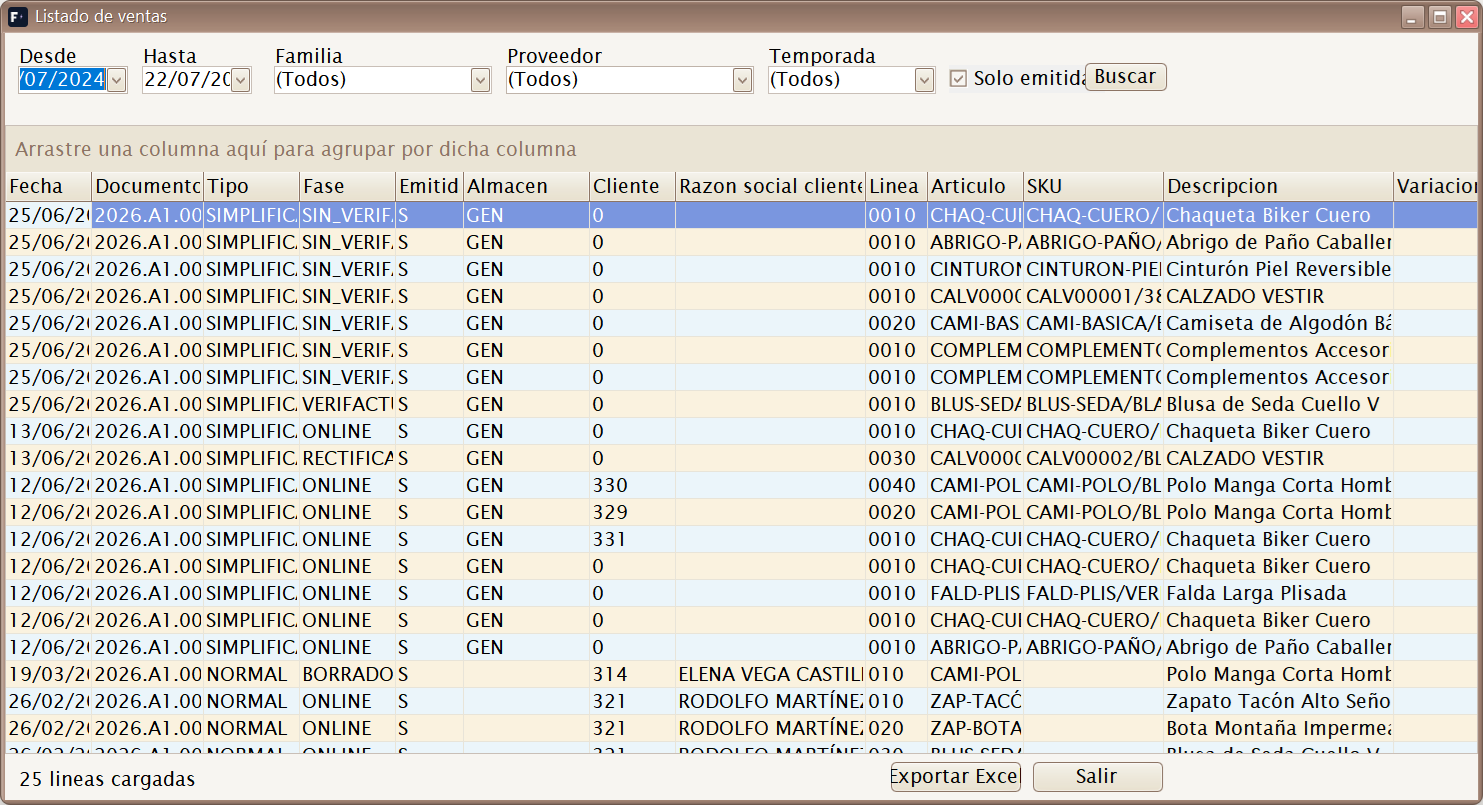
Menu shortcut: [Ctrl]+[Alt]+[V]
Opens the sales report generator. A filter dialog (date range, customer, item, family, series and so on) generates a report of completed sales, which can be previewed, printed or exported.
Useful for commercial analysis: what was sold, to whom and during which period.