10 · Migration from legacy software
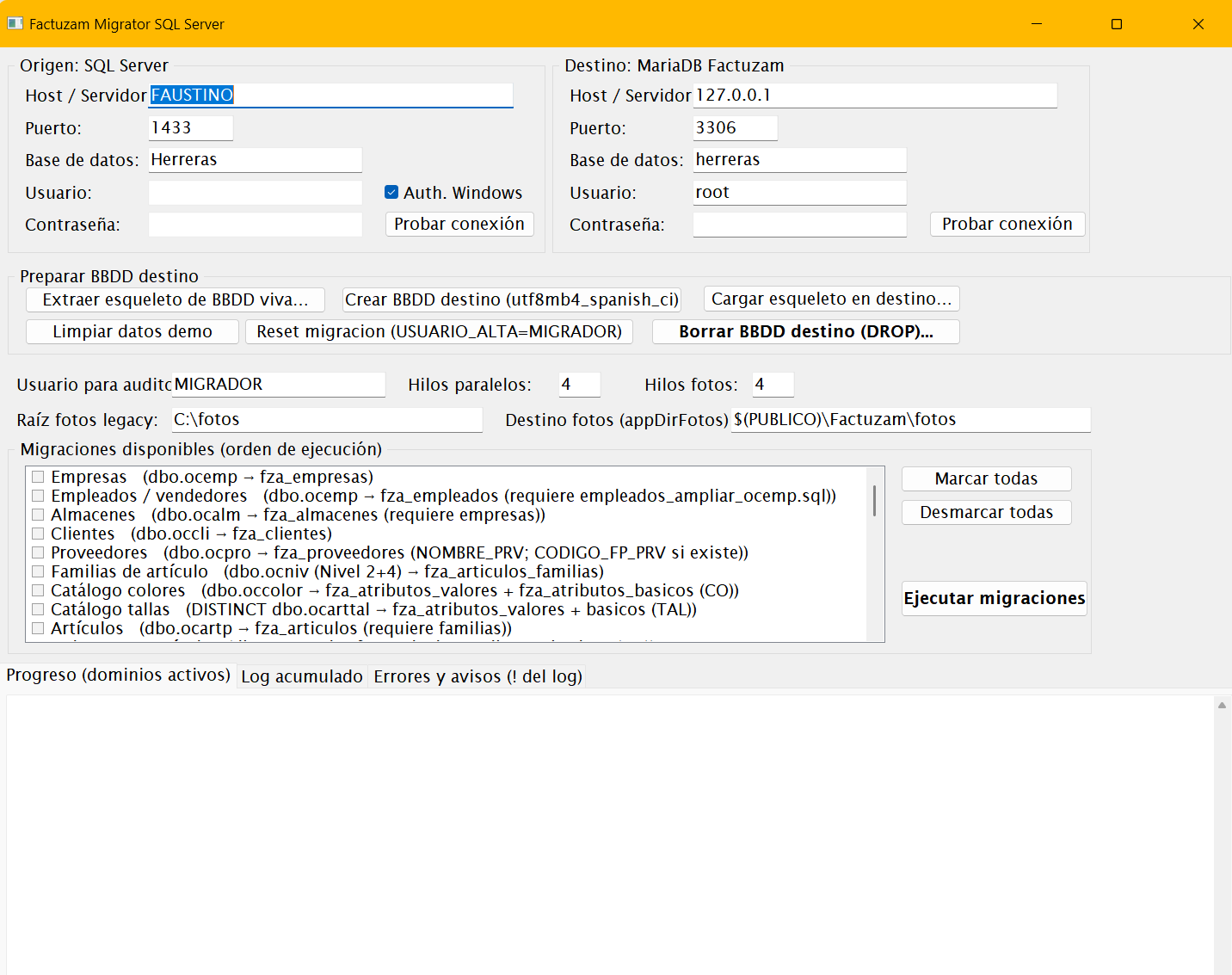
Factuzam includes a separate Factuzam Migrator tool
(FactuzamMigrator.exe) that transfers data from the previous ERP (SQL
Server database) to the factuzam database (MariaDB). This chapter
explains what it migrates, how to prepare the destination database, and how to
run and verify the migration.
This is an administrator operation that is normally performed once during go-live. It requires access to both databases (old and new).
1. What it is and what it needs
- A program separate from
fzam.exe: it runs only during migration and is not part of day-to-day work. - Connects simultaneously to:
- Source: the SQL Server database from the previous software.
- Destination: the
factuzamMariaDB database.
- Saves connection configuration (without passwords) under
%USERPROFILE%\Factuzam\migrator.ini.
2. Data migrated
The migrator transfers the following domains in dependency order:
| Domain | Data migrated |
|---|---|
| Formas de pago, Grupos de IVA, IVAs | Base catalogues. |
| Empresas | Issuing companies. |
| Almacenes | Warehouses (and their tills, series and counters). |
| Clientes | Complete customer records. |
| Proveedores | Complete supplier records. |
| Familias | Item sections and families (with their hierarchy). |
| Colores y tallas | Master attribute catalogues. |
| Artículos | Item catalogue. |
| Colours/sizes by item, tallajes | Variation assignments by item. |
| SKUs | Saleable variants plus barcodes. |
| Inventarios | Stocktakes and their lines. |
| Movimientos | Warehouse movements (and reconstruction of current stock). |
| Ventas (caja) | Till operations, payments and customer deposits. |
| Facturas | Invoices and their lines. |
| Compras | Purchase orders, delivery notes, supplier returns and purchase invoices. |
| Cartera de pagos | Purchase payables and supplier payment remittances. |
| Empleados | Till operators, transfers and cash counts, separate from login users. |
Migration runs in parallel waves: mutually independent domains are processed at the same time, and each wave waits for the previous one to finish (catalogues → master data → variants → documents).
3. Preparing the destination database
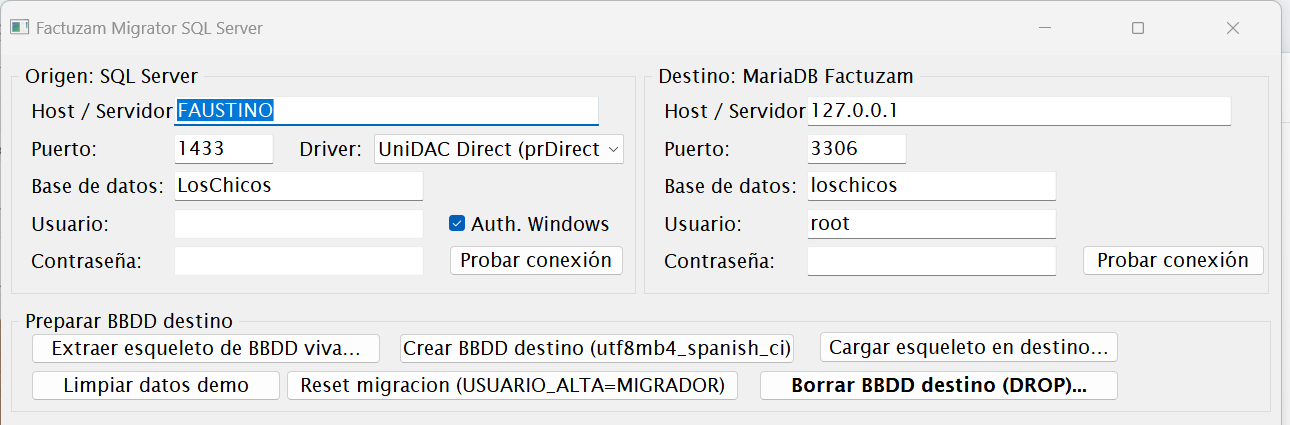
Migrator has a «Preparar BBDD destino» section with three buttons for creating the new database without depending on external files:
- Extraer esqueleto de BBDD viva… — connects to a reference
factuzamdatabase and generates an.sqlcontaining the complete structure (tables, views and procedures) and data from system tables (countries, VAT types, windows, metadata and so on). Business tables (items, customers, invoices and so on) are empty because migration will populate them. - Crear BBDD destino — creates the database specified in the Destination panel with the
utf8mb4character set andutf8mb4_spanish_cicollation. - Cargar esqueleto en destino… — loads the
.sqlfrom step 1 into the newly created database.
Alternatively, create the destination database from
factuzam_original.sqlas described under installation. In that case, also apply any schema scripts required by the migrator if your dump predates them (extensions to customer codes, supplier name, family hierarchy, stocktake lines, employees, purchases, purchase invoices and payment portfolio).
4. Running the migration step by step
- Back up both databases (source and destination).
- Open
FactuzamMigrator.exe. - Configure the Origen panel (SQL Server): host, port, database, user and password. Press Probar conexión.
- Configure the Destino panel (MariaDB) in the same way and test the connection.
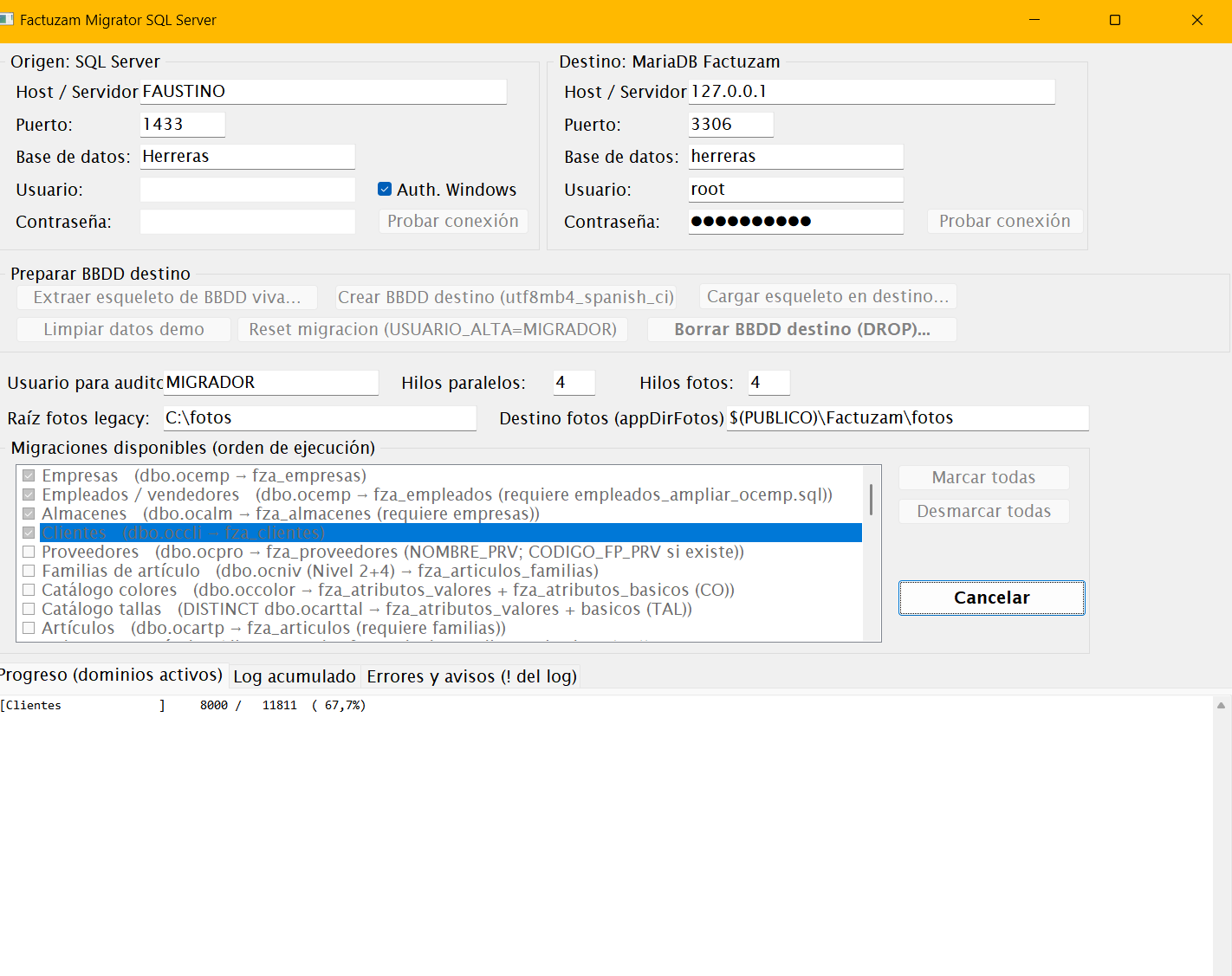
- Select the migrations to run. The list already respects dependency order; select all of them for a complete migration. For purchasing, the domains follow master data and SKUs: orders, delivery notes, supplier returns, purchase invoices, payables and payment remittances.
- Press Ejecutar migraciones. During processing:
- The progress panel shows one line per active domain, with its live
X / Y (Z %)counter. - The button changes to Cancelar: pressing it completes the current domain and then stops (anything already migrated remains complete).
- The progress panel shows one line per active domain, with its live
- When it finishes, review the summary and error panel.
Safe re-execution (idempotency)
Migrations are idempotent: if a record already exists at the destination, it is skipped (counted as “skipped”) and processing continues. Each domain runs within a transaction: if something fails, that complete domain is rolled back (the others continue). After an isolated failure, you can therefore correct the cause and run it again without duplicating data.
Error log
Each run records information in three places:
- The screen's general log (all details).
- The red error panel (errors and warnings only).
- A
migrator_errores_AAAAMMDD_HHMMSS.logfile under%USERPROFILE%\Factuzam\, for later review (the exact path is printed in the log when starting).
5. Manual adjustments after migration
The first version of the migrator applies some heuristics that should be reviewed manually once migration has finished:
| Data | What the migrator does | What to review afterwards |
|---|---|---|
| Tipos de IVA | The legacy system stores history by date; the highest percentage is taken as standard VAT and reduced/super-reduced/exempt are left at 0. | Complete the reduced, super-reduced and exempt percentages under Otros ▸ Impuesto IVA. |
| Código de almacén | The legacy system indexes by (company, warehouse); the destination requires a globally unique code. It generates E<empresa>-A<almacén>. | Rename codes if another convention is preferred. |
| Tipo de IVA por artículo | The legacy system stores an integer; everything is migrated as Normal VAT (N). | Mark items with reduced/super-reduced/exempt VAT. |
| Forma de pago del cliente | The legacy efecto code is used as the payment-method code. | Verify that migrated payment methods have the required description and behaviour. |
| Familias | Legacy sections and families are sent to the same table, retaining the section → family hierarchy. | Review the resulting family tree. |
| Conjuntos de tallas por artículo | The catalogues and colour/size assignments are migrated, but the specific size set for each item is not. | Assign the attribute collection to items that need it (Archivo ▸ Tablas Auxiliares ▸ Colecciones de Atributos). |
| Compras históricas | Orders, delivery notes, returns and invoices are reconstructed with one line per SKU and its pivoted sizing. | Open samples under Compras and review supplier, warehouse, status, totals and taxes. |
| Efectos de compra | Legacy due dates are imported and reconciled when already recorded as paid. | Review pending and paid efectos and remittances before starting operations. |
6. Final verification
Before accepting the migration:
- Reconcile totals: compare the number of customers, suppliers, items, SKUs and invoices in the source and destination (the migrator summary shows inserted/skipped/error counts by domain).
- Stock: compare stock for a sample of items with the old system (Almacén ▸ Informes). The migrator reconstructs stock from movements.
- Documents: open several migrated invoices, till operations and purchases and check amounts and taxes.
- Test sales: make a test receipt in the POS and a test invoice in Ventas Mayor.
- Portfolio: review purchase payables and remittances to check due dates, statuses and banks.
- Apply the manual adjustments from the previous section.
- Make a backup of the migrated database: this is your official starting point.
Until verification is complete, retain the old software and database in read-only mode as a historical reference.
◀ Installation on Windows · Contents · Next ▶ Verifactu (AEAT)