13 · Mobile applications
Factuzam provides independent mobile applications for viewing information or capturing data away from the Windows workstation. Each app uses its own credential and permissions; it does not connect directly to MariaDB.
Factuzam Control U: stock in a browser and on mobile
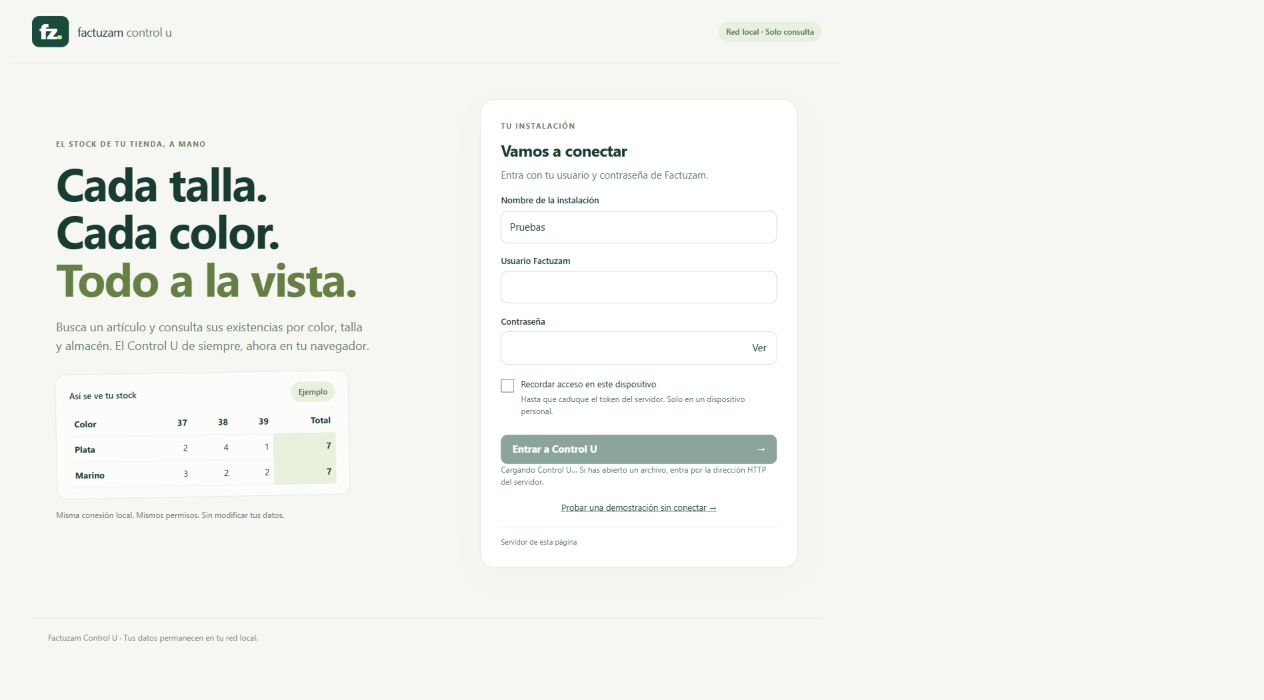
Control U is a read-only enquiry that uses Factuzam credentials and permissions without connecting directly to MariaDB. Search by item, SKU or EAN and view Stock, Entradas, Ventas and Pendiente de recibir by colour, size and warehouse.
The Android app can scan EAN-8/EAN-13 with the camera and torch. The web version accepts manual input or a keyboard scanner—it does not use the camera—and adds multiple filters, colour/warehouse pivoting, history and an enlarged photograph.
 Use
Use http:// only on a trusted local network and https:// if access leaves
that network.
Factuzam Fotos Nube: photographing items from Android
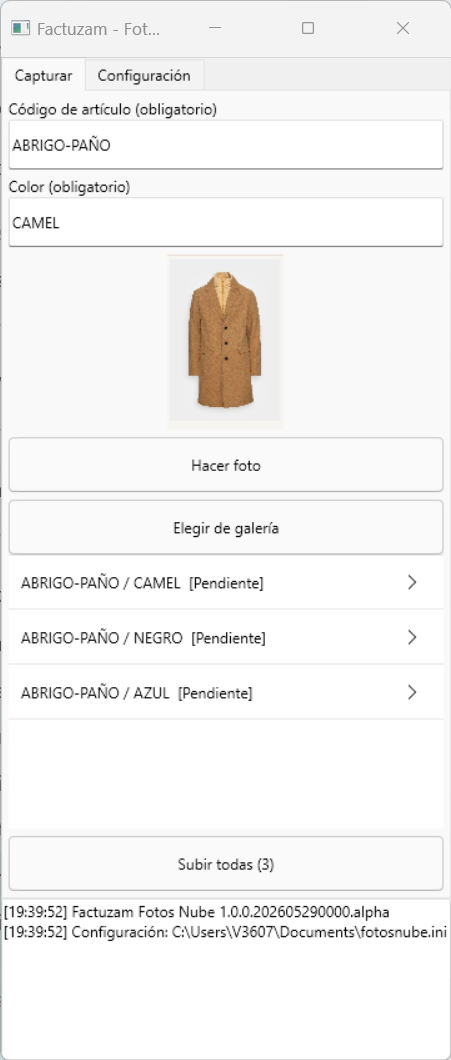
Factuzam Fotos Nube lets you take photographs with the phone camera—or select them from the gallery—associate them with an item and colour, and upload them to the photograph service in batches. They can then be downloaded and integrated into the Factuzam catalogue.
Initial configuration
On the Configuración tab, enter:
| Field | Contents |
|---|---|
| URL | Address of the upload_foto.php service supplied by the administrator. |
| API key | Credential for accessing the photograph service. |
| Carpeta de cliente | Installation identifier on the server. It must already exist; it is not created from the mobile device, to prevent duplicates caused by typing errors. |
| Resolución máxima | Maximum size of the longest side. The default is 1000 px and the safety limit is 4000 px. |
Press Guardar configuración. The values are retained in the application's private storage; the screen displays the path to its configuration file.
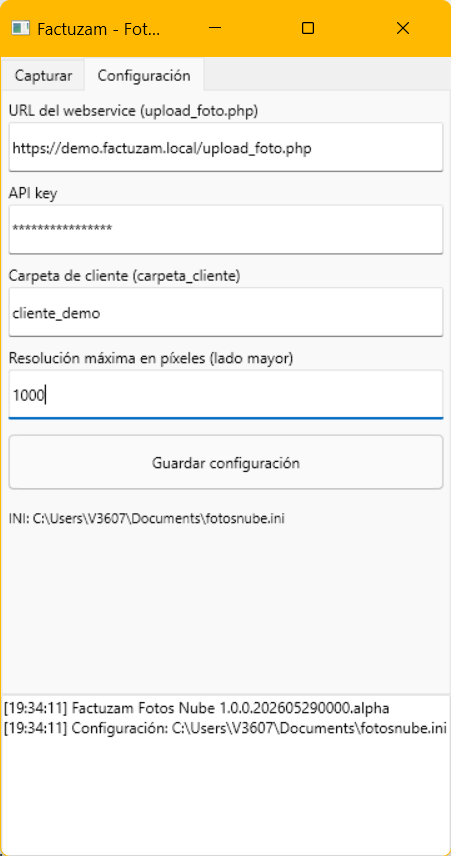
The API key is a credential. Do not include it legibly in screenshots, emails or incident reports: mask it before sharing the screen.
Capturing and uploading a batch
- Enter the exact item code.
- Enter the colour. It must match the colour text that forms the SKU in Factuzam, rather than the basic colour used only for classification.
- Press Hacer foto or Elegir de galería. The image is reduced to the configured resolution and added to the queue as Pendiente.
- Repeat the process for every item and colour in the batch.
- Press Subir todas. Each item passes through Subiendo... and finishes as Subida OK or Error. The log at the bottom displays the result.
If there are several images for the same item/colour, the app assigns indices
1, 2, 3 and so on in queue order. For example, the first photograph of
BLUSA01 in 011-AZ is published as image 1 in that group.
To make matching reliable, Factuzam sanitises the colour using the same rule
as the SKU: uppercase, spaces converted to hyphens, and no symbols such as
/, % or €. If the supplier calls the colour 011-AZ and its basic
colour is AZUL, enter 011-AZ in the app.
Adding photographs to the Factuzam catalogue
Uploading to the server does not automatically replace the local photograph. At the Windows workstation:
- Configure the service and shared photograph folder under Otros ▸ Parámetros del entorno ▸ Fotos/Servicios web.
- Open the item or a line in a purchase session.
- Use Bajar fotos del servidor. Factuzam downloads the images, relates the colour to the SKU, and creates 300 px, 600 px and real-resolution copies under
appDirFotos. - Check the result with
[Ctrl]+[F]or in the stock enquiry.
VentasFzam and the sales web: today's sales
VentasFzam and the web enquiry are read-only tools. They let you monitor daily sales from a phone or browser without opening the POS and without any risk of modifying invoices, collections or stock.
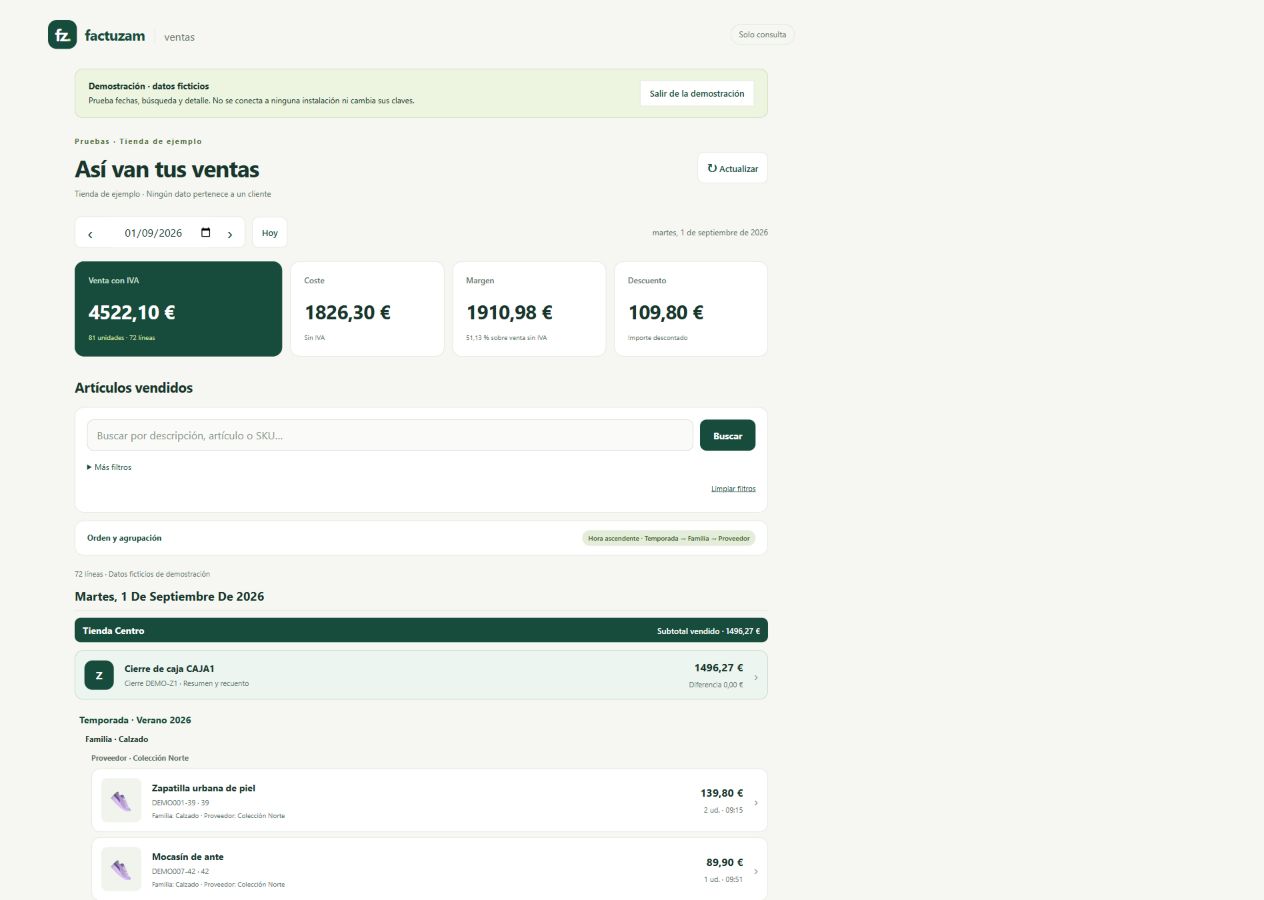 Totals, filters, groupings and till closures in the demo, without connecting
to an installation.
Totals, filters, groupings and till closures in the demo, without connecting
to an installation.
The web version includes Ver ticket PDF, access remembered for 30 days on a personal device, Mi instalación, Olvidar and Reintentar. You can configure zero to three grouping levels, with recalculated subtotals.
Information displayed
Each sales line includes:
- Time, SKU and description.
- Season and supplier.
- Amount sold.
- 300 px item photograph, where available.
Touching a line opens its details, with family, colour, cost price, PVP, discount as a percentage and amount, sale price and total.
The header summarises four indicators for the day:
| Indicator | Contents |
|---|---|
| Venta | Total sold including VAT, so that it reconciles with the till. |
| Coste | Accumulated cost of the displayed items. |
| Margen | Amount and percentage calculated on the taxable amount, not on the VAT-inclusive sale. |
| Descuento | Total discount applied. |
Daily use
- ◀ / ▶ switches to the previous or next day.
- Touch the date to return directly to today.
- The search box filters the downloaded data on the phone; results appear immediately and the four totals are recalculated. The header displays (filtrado) while a search is active.
- Cancelled or replaced sales neither appear nor count. The correct replacement corrective invoice does appear; corrections by differences count with their sign.
Photographs are downloaded after the list is displayed so they do not delay the enquiry, and are retained in the phone cache. If you change day while they are downloading, the app discards pending images from the previous enquiry.
The day is determined by the invoice date, rather than when the server received the event. Totals therefore respect the business closing date and the installation's time zone.
Go-live (administrator)
The mobile enquiry requires the installation to publish sales to the web service:
- Under Otros ▸ Parámetros del entorno ▸ Servicios web, configure
appApiUrl(general URL),appApiToken(API key/token) andappApiReferencia(installation reference). - Under TPV ▸ Parámetros de Caja ▸ Servicios web, enable Enviar ventas completas al webservice de respaldo (
vgerEnviarVentasWS) for the relevant profiles or tills. The initial value isFalse. - Create a mobile credential with permission to read sales.
- Under VentasFzam ▸ Configuración (⚙), enter the base URL, token and reference.
Factuzam saves every change to a sale as an event in a local queue and sends it in the background. The till does not wait for the network, and the Verifactu tax queue operates independently. Events are retried with the same identifier to prevent duplicates.
Monitoring submissions
Open Otros ▸ Colas de envíos ▸ Web Service Fzam to review the status,
attempts and HTTP history for each event. Actualizar refreshes the enquiry
and Ir a Documento opens the related sale; the screen does not allow rows
to be modified or retried. Pending submissions are processed every 60 seconds
by default and use exponential backoff before changing to ERROR after the 20
configured attempts have been exhausted.
See statuses, permissions and recovery under Otros ▸ Colas de envíos ▸ Web Service Fzam.
Historical sales synchronised before a new field was added—for example, season—may display it as empty until they are sent again. New sales include it from their first submission.
Mobile stocktaking
The stocktaking app scans stock from Android terminals and returns the quantities to an open stocktake. Sending and retrieval are controlled from Factuzam; the mobile device does not reconcile stock by itself.
See the complete procedure under Almacén ▸ Inventarios ▸ Mobile stocktaking.
◀ Changes and new features · Contents · Next ▶ Architecture and development